The printer is on and connected, but Windows insists it’s offline and nothing prints. It’s one of the most common problems at home and in the office, and it almost always comes down to one of these: “Use Printer Offline” got checked, the printer’s IP address changed, the print service got stuck, or Windows is checking the printer’s status in a way the printer doesn’t understand.
Follow the steps in order: the first ones fix most cases and take under a minute.
In this article
Step 1: check the basics
- Make sure the printer is on and shows no error on its display (paper, ink, open cover).
- Unplug the printer for 30 seconds and plug it back in.
- If it’s a Wi-Fi printer, confirm on its display that it’s connected to the same network as your computer.
- Restart your computer.
Step 2: uncheck “Use Printer Offline”
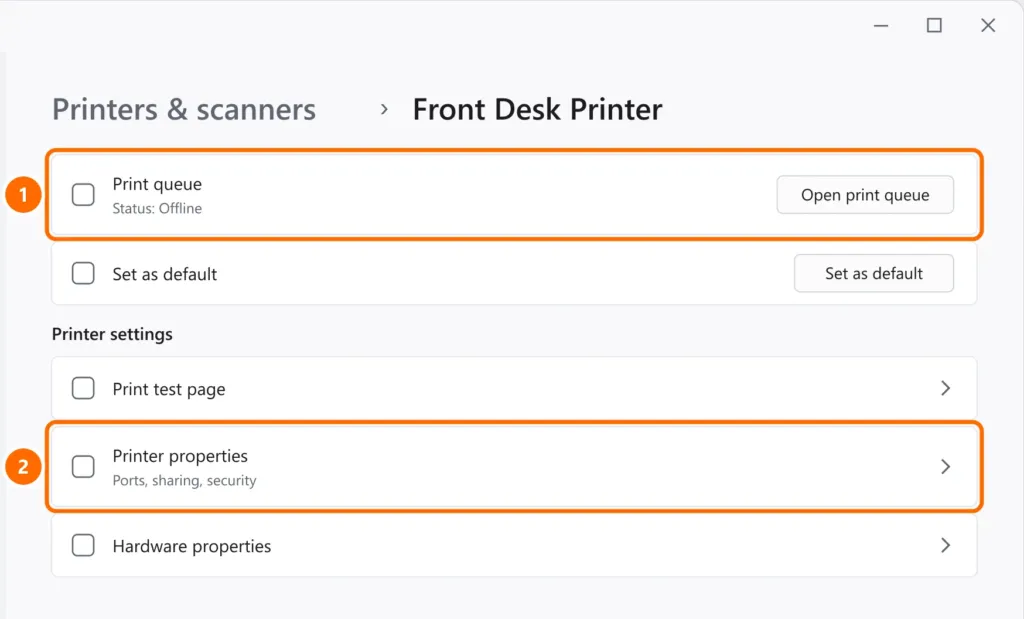
- Open Settings › Bluetooth & devices › Printers & scanners and click the printer.
- Click Open print queue.
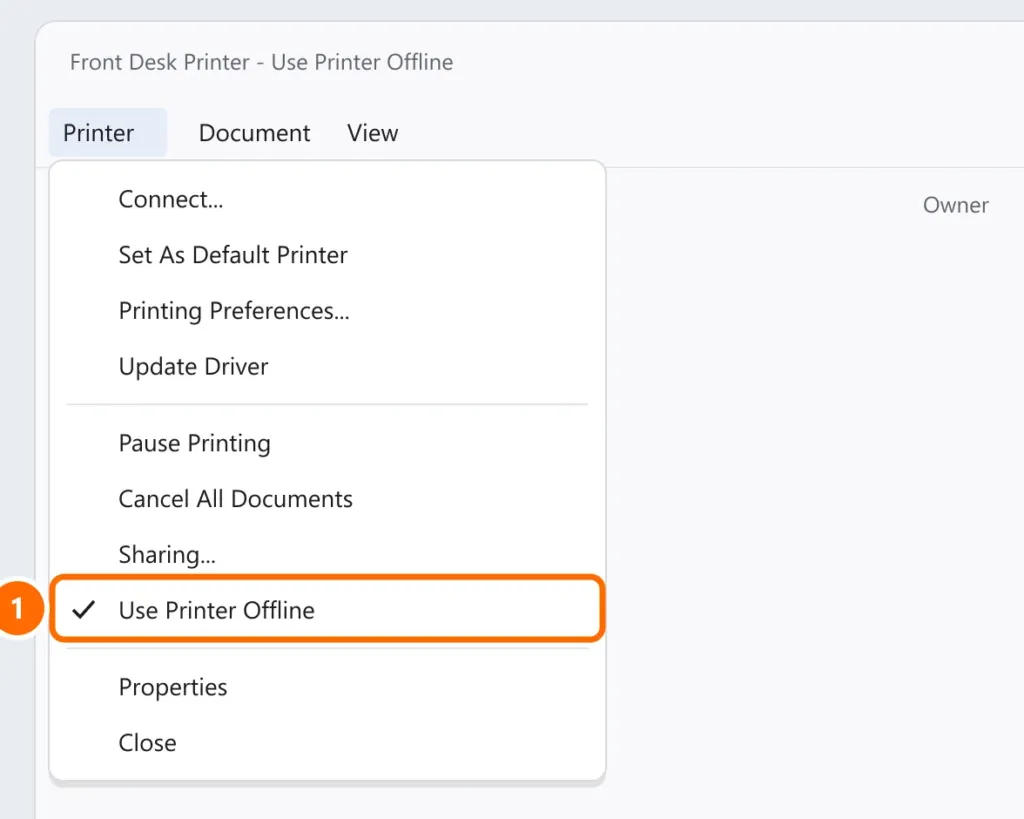
- In the queue window, open the Printer menu and uncheck Use Printer Offline. In the same menu, choose Cancel All Documents if jobs are stuck.
Step 3: restart the print service
If the queue is stuck or the status won’t update, restart the spooler. In PowerShell as administrator:
Stop-Service Spooler -Force
Remove-Item "$env:SystemRoot\System32\spool\PRINTERS\*" -Force
Start-Service Spooler
Step 4: check whether the printer’s IP changed
This is the most common cause for network and Wi-Fi printers: the router gives the printer a new IP address, but Windows keeps looking at the old one.
- Print the network configuration page from the printer’s panel and note the current IP.
- In PowerShell, see which port Windows is using:
Get-Printer | Select-Object Name, PortName, PrinterStatus
Get-PrinterPort | Select-Object Name, PrinterHostAddress- If the port shows a different IP — or is a WSD port — open Printer properties › Ports, create a Standard TCP/IP Port with the correct IP and select it.
- In your router, reserve that IP for the printer (DHCP reservation) so it doesn’t change again.
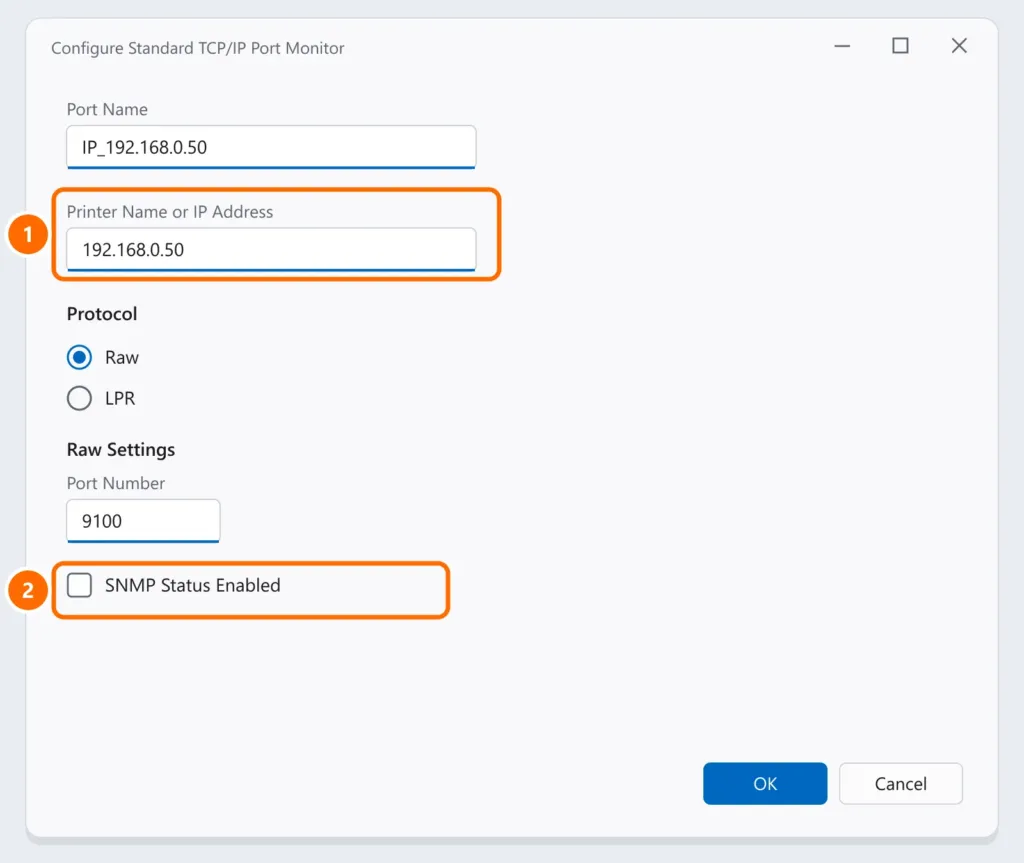
Step 5: turn off SNMP status on the port
Some printers don’t answer the status queries Windows sends over the network (SNMP). The result: the printer works, but shows as offline.
- In Printer properties › Ports, select the TCP/IP port and click Configure Port.
- Check the IP address and uncheck SNMP Status Enabled.
- Click OK and then Apply.
Step 6: remove duplicates and reinstall
Sometimes Windows creates a second printer, such as “HP LaserJet (Copy 1)”, and you end up printing to the wrong copy.
- In Printers & scanners, remove duplicate printers and set the correct one as default.
- If nothing works, remove the printer, download the manufacturer’s driver or app (HP Smart, Epson, Brother iPrint&Scan) and add it again by IP address — see how to set up a network printer on Windows 11.
FAQ
Why does my printer keep going offline?
Most of the time the printer’s IP changes after the router restarts. Reserve a fixed IP for it in the router and install it on a TCP/IP port with that address.
My HP (or Epson, Brother) printer only shows offline on Windows 11. What should I do?
Follow steps 2 to 5 and, if it persists, use the manufacturer’s app to reconnect the printer to the network. The steps apply to every brand.
How do I get my printer back online quickly?
Uncheck “Use Printer Offline” in the print queue’s Printer menu and restart the print service (step 3).