Microsoft Authenticator is the phone app that confirms it’s really you signing in to your personal Microsoft account or your work account (Microsoft 365). It shows a notification to approve the sign-in or a 6-digit code. Here’s how to set it up and fix the most common problems.
In this article
Set it up for a personal account (Outlook, Hotmail, Xbox)
- Install Microsoft Authenticator from your phone’s official store (App Store or Google Play).
- On your computer, go to
account.microsoft.com› Security › Advanced security options. - Click Add a new way to sign in or verify › Use an app and scan the QR code with Authenticator.
Set it up for a work account (Microsoft 365)
- Go to
mysignins.microsoft.com/security-infowith your work account. - Click Add sign-in method › Authenticator app and follow the wizard, scanning the QR code with the app.
At many companies, setup is requested automatically at first sign-in. If the option is blocked, IT controls which methods are allowed.
Notifications don’t arrive
- Make sure the phone has internet and the time is set to automatic (Settings › Date & time).
- Allow notifications for Authenticator in your phone’s settings.
- On Android, exclude Authenticator from battery optimization; on iPhone, check Focus/Do Not Disturb.
- Open the app and pull down to refresh — pending requests show up on screen.
- On the sign-in screen, choose Use a verification code and enter the 6-digit code the app shows, even without a notification.
Switching phones
Before wiping or handing over the old phone:
- On the old phone, turn on Cloud backup (Android) or iCloud backup (iPhone) in Authenticator’s settings. Backup requires a personal Microsoft account.
- On the new phone, install the app, choose Begin recovery and sign in with the same account.
- Work accounts usually need to be verified again: go to
mysignins.microsoft.com/security-infoand register the new phone. If you can’t, IT can reset the method.
I lost my phone
- Personal account: sign in with another registered method (recovery email or text) and remove the lost device under Security › Advanced security options. With no method left, use the official recovery form — see Microsoft account locked.
- Work account: tell IT right away so they can block the device and reset MFA.
FAQ
Sign-in asks me to type a number in the app.
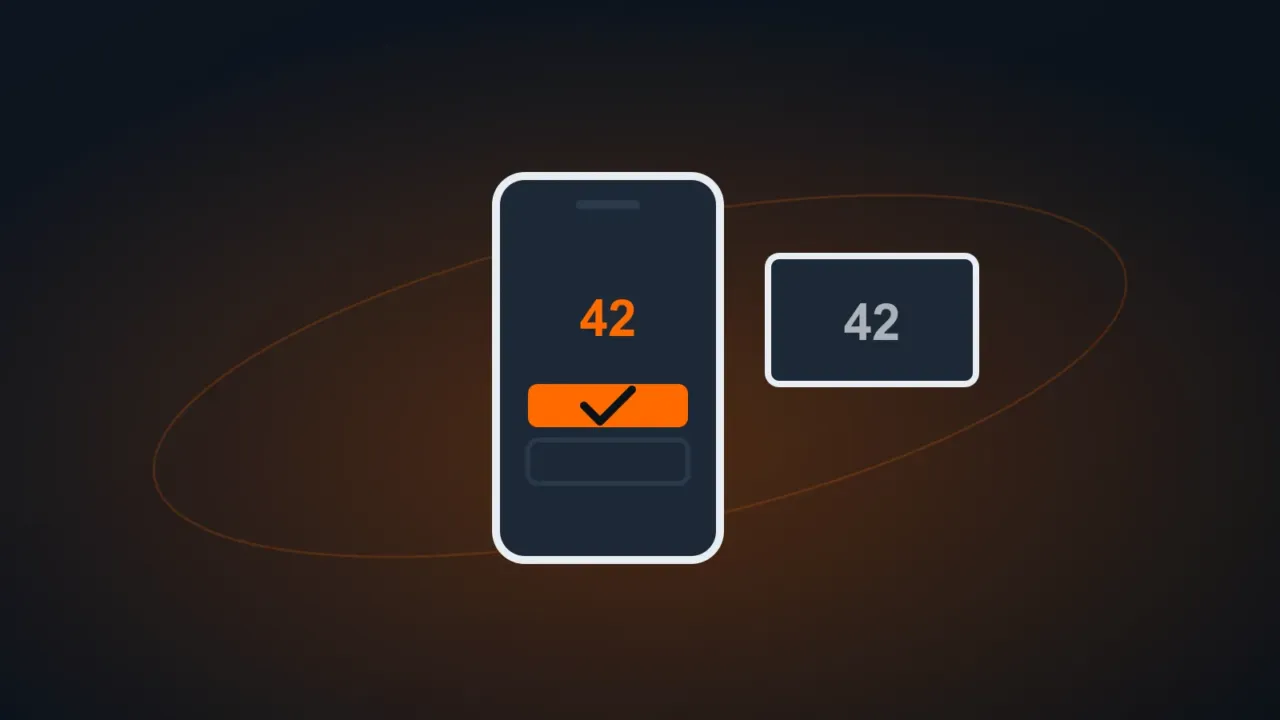
That’s number matching: type the number shown on your computer screen into Authenticator. It stops someone from approving a sign-in you didn’t start.
Can I use Authenticator on my computer?
There’s no official Windows version. On your computer, you can use Windows Hello or a security key as an extra method, if your account allows it.
Can I use a different authenticator app?
For personal accounts, yes, with a 6-digit code. At work, it depends on company policy — many require Microsoft Authenticator.