Excel freezes with “Not Responding”, takes minutes to open, or says the file format or extension isn’t valid? Most of the time the culprit is an add-in, a very heavy workbook or a damaged Office installation.
In this article
Step 1: give it time and save what you can
Large workbooks with lots of formulas or external links can freeze for a few minutes while they calculate. Wait before forcing it to close. If you do have to close it, AutoRecover usually offers the automatically saved version next time you open Excel.
Step 2: open Excel in safe mode
Safe mode opens Excel without add-ins or customizations. Press Windows + R and run:
excel /safe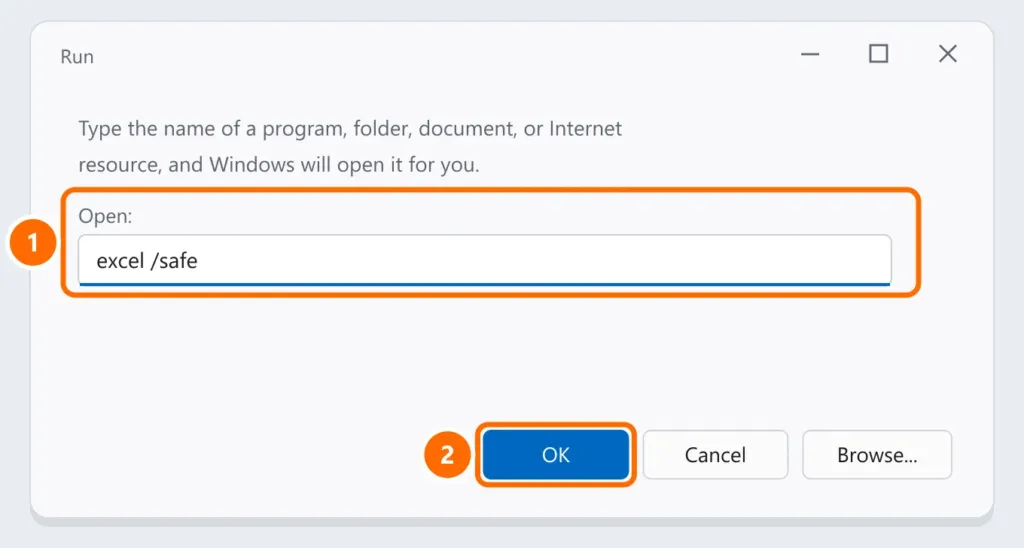
Step 3: turn off add-ins
- Open File › Options › Add-ins.
- Under Manage, choose COM Add-ins and click Go.
- Uncheck all of them, restart Excel and re-enable them one by one to find the one causing the freeze.
Step 4: lighten heavy workbooks
- Under Formulas › Calculation Options, choose Manual while editing and press F9 to calculate when needed.
- Avoid whole-column references (such as
A:A) in complex formulas and remove duplicated conditional formatting. - Break links to external files that no longer exist under Data › Edit Links.
Step 5: repair Office
- Open Settings › Apps › Installed apps.
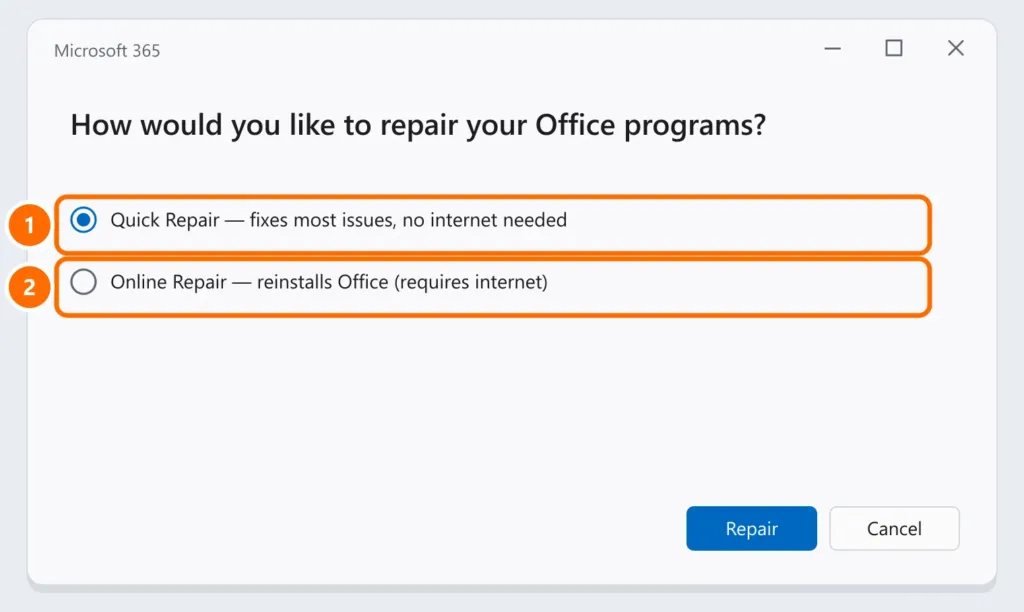
- Find Microsoft 365 (or Microsoft Office), click the three dots and choose Modify.
- Choose Quick Repair. If that doesn’t help, repeat with Online Repair.
“File format or extension is not valid”
- Check that the file extension matches its content (
.xlsx,.xls,.csv). - In Excel, use File › Open, select the file, click the arrow next to Open and choose Open and Repair.
- If the file came by email or download, right-click it › Properties and check Unblock, if the option appears.
FAQ
Excel freezes only with one specific file.
The problem is the file: heavy formulas, external links or corrupted data. Use step 4 and Open and Repair.
I lost a file I hadn’t saved. Can I get it back?
Try File › Info › Manage Workbook › Recover Unsaved Workbooks.
Does repairing Office delete my files?
No. The repair only touches the Office installation, not your documents.