You got “Your mailbox is full” (or “almost full”) and email stopped going out or coming in? Every account has a storage quota, and once it’s used up the server rejects new messages. Here’s how to free up space — and why deleting email sometimes doesn’t seem to help.
In this article
The most common limits
| Account type | Email storage |
|---|---|
| Microsoft 365 business (Business Basic, Standard, Premium) | 50 GB |
| Free Outlook.com / Hotmail | 15 GB (attachments also count toward Microsoft cloud storage) |
| Microsoft 365 Personal or Family | 50 GB |
| Hosting email (cPanel, hPanel, etc.) | Set by your plan — check your provider’s panel |
Step 1: see what’s using the space
In classic Outlook, open File › Tools › Mailbox Cleanup.
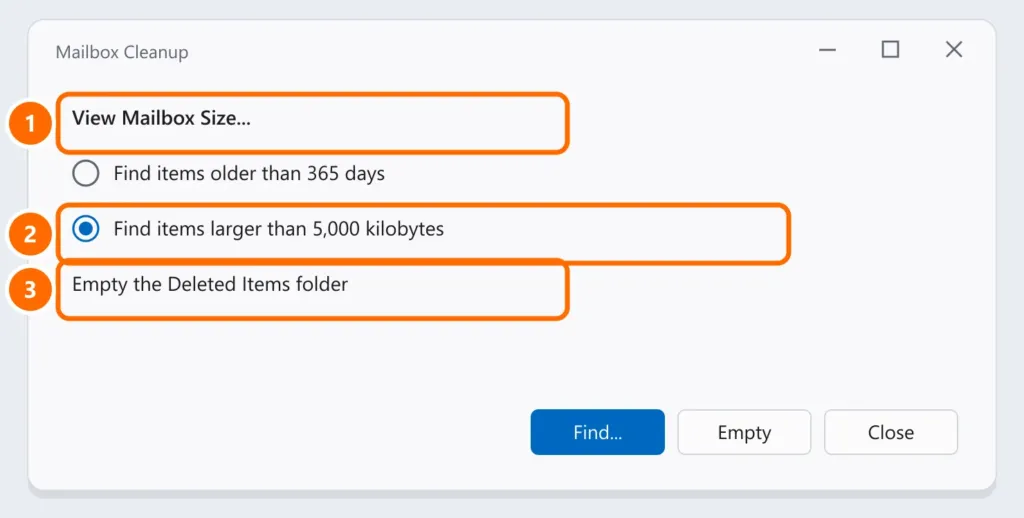
- Click View Mailbox Size to see each folder’s size — Sent Items and folders with attachments are usually the largest.
- Use Find items larger than (for example, 5,000 KB) to list emails with heavy attachments.
In Outlook on the web or new Outlook, check Settings › General › Storage.
Step 2: delete the right way
- Save important attachments (to OneDrive or a folder) and delete the large emails.
- Empty Deleted Items and Junk Email — until then, deleted mail still takes up space.
- Wait a few minutes: the server takes a while to recalculate the space.
Step 3: archive instead of deleting
- Microsoft 365 business: your admin can turn on Online Archive (an archive mailbox), which frees the main mailbox without losing anything.
- Other accounts: move old messages to a .pst data file on the computer (File › Tools › Clean Up Old Items). See the Outlook PST file — and keep that file in your backup.
Step 4: keep it from filling up again
- Send large files as a OneDrive or SharePoint link, not as attachments.
- Set Outlook to empty Deleted Items on exit (File › Options › Advanced).
FAQ
I deleted everything and the warning is still there.
Empty Deleted Items, Junk Email and recoverable items (step 2) and wait. In classic Outlook, close and reopen it to refresh the warning.
The .ost file on my computer is huge. Is that the full mailbox?
The .ost is only a local copy. What counts is the space on the server — check it in step 1.
Can I buy more space?
On Microsoft 365 business, the admin can change the plan or turn on archiving. For hosting email, the provider usually sells larger mailboxes.