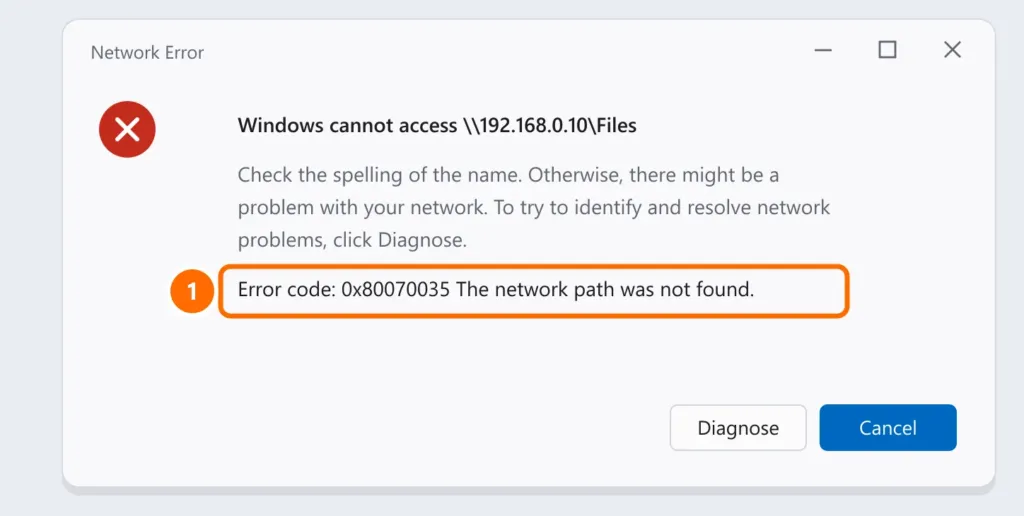
Error 0x80070035 — “The network path was not found” — shows up when Windows can’t open a shared folder, another PC or a NAS on your local network, even though both devices are on and connected. It is almost always one of these: the computer name isn’t being resolved, network discovery is off, a service is stopped, a firewall is blocking port 445, or an SMB security requirement that the target device doesn’t meet.
This guide follows the fastest troubleshooting order: first find where the problem is, then fix only what’s needed.
In this article
Before you start
- Make sure you have administrator rights on the PC that is trying to open the folder.
- Write down the name and IP address of the PC or NAS sharing the folder (on that device,
ipconfigshows the IP). - Confirm both devices are on the same network (same router or VLAN).
Step 1: test the IP address and port 445
Windows file sharing uses the SMB protocol on TCP port 445. Open PowerShell and run these tests, replacing the IP with your device’s:
ping 192.168.0.10
Test-NetConnection -ComputerName 192.168.0.10 -Port 445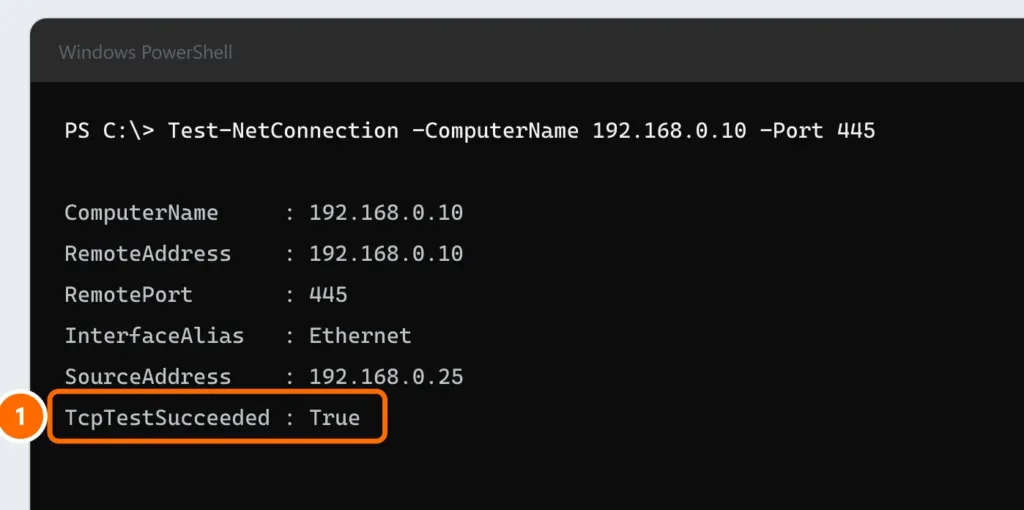
- If
pingand port 445 respond, try opening\\192.168.0.10\FolderNamein File Explorer. - If it works with the IP but not with the name, it’s a name-resolution problem — go to step 5.
- If
TcpTestSucceededshowsFalse, the block is on the target PC (sharing turned off or firewall) — see step 3.
Step 2: set the network to private and turn on network discovery
On networks marked as public, Windows blocks file sharing for security.
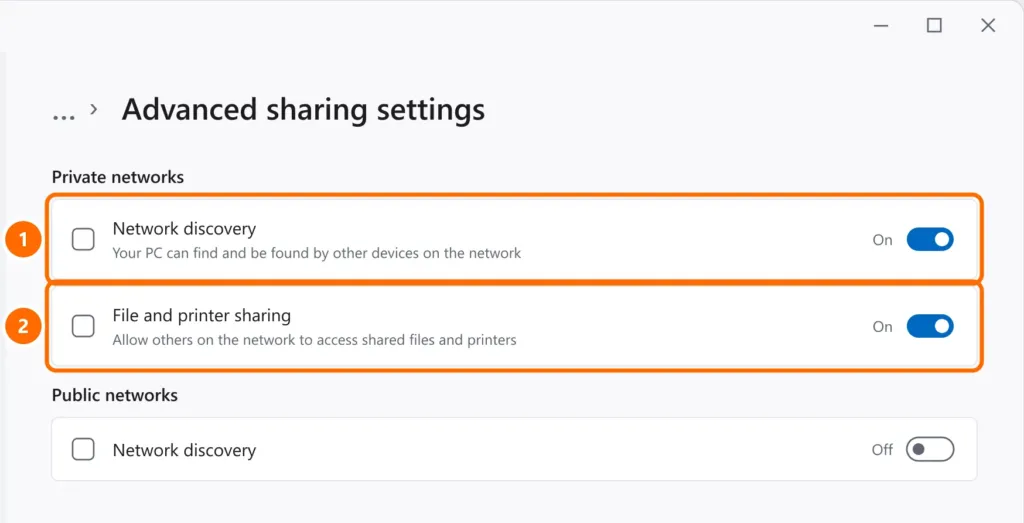
- Open Settings › Network & internet, click the connection you’re using (Wi-Fi or Ethernet) and choose Private network.
- Go to Settings › Network & internet › Advanced network settings › Advanced sharing settings.
- Under Private networks, turn on Network discovery and File and printer sharing.
- Repeat on the PC that shares the folder.
Step 3: check services and the firewall
A few services must be running for sharing to work. In PowerShell, run:
Get-Service LanmanWorkstation, LanmanServer, FDResPub, fdPHost | Select-Object Name, Status, StartType- LanmanWorkstation (Workstation) is required on the PC opening the folder.
- LanmanServer (Server) is required on the PC sharing the folder.
- FDResPub and fdPHost make the PC show up under “Network” in File Explorer.
If one is stopped, start it and set it to automatic (PowerShell as administrator):
Set-Service FDResPub -StartupType Automatic
Start-Service FDResPub
On the target PC, also make sure the File and Printer Sharing firewall rule is allowed for private networks (Windows Security › Firewall & network protection › Allow an app through firewall).
Step 4: use a username and password (NAS and routers)
Recent Windows 11 versions require SMB signing and block passwordless guest access, which many NAS devices and routers with a USB port still use by default. The result is often 0x80070035 itself or an access-denied message.
net use \\192.168.0.10\FolderName /user:usernameIf the device is old and doesn’t support SMB signing, update its firmware. Re-enabling insecure guest access should be a last resort, and only on isolated networks.
Step 5: when only the name fails
If the IP works but the name doesn’t, Windows can’t figure out which IP belongs to that name.
- Test with
ping PC-NAME. If it doesn’t reply, use the IP in shortcuts and mapped drives. - For fixed devices (NAS, server), reserve their IP in the router (DHCP reservation) so it doesn’t change.
- In companies with a DNS server, check that the device has a record in internal DNS.
Map the folder as a drive
Once access works, map the folder so it reconnects automatically when Windows starts:
net use Z: \\192.168.0.10\FolderName /persistent:yesFAQ
Windows 11 can’t access the shared folder but doesn’t show error 0x80070035. Does this guide apply?
Yes. When Windows 11 can’t access a shared folder, the causes are the same with or without an error code: a public network, network discovery off, port 445 blocked or a missing username and password. Follow the steps in order.
I get “An extended error has occurred” when opening the folder. Is it the same problem?
It’s a generic network access failure message and usually has the same causes. Check steps 2 (private network), 3 (services and firewall) and 4 (username and password instead of guest access) first.
Is error 0x80070035 a virus or a Windows bug?
No. It’s a network error: Windows couldn’t find, or couldn’t sign in to, the path you entered. In most cases it’s a configuration issue.
It worked on Windows 10 and stopped after upgrading to Windows 11. Why?
Windows 11 enforces stricter SMB security, such as required signing and blocked guest access. Devices that relied on passwordless access need a username and password (step 4).
Do I need to turn off the firewall?
No. Just allow the “File and Printer Sharing” rule for private networks on the PC that shares the folder.


