Your laptop keyboard stopped working, some keys don’t respond, letters type numbers or symbols like @ and “ come out in the wrong place? Before replacing the keyboard, try the tests below: many of these problems are just settings.
In this article
Step 1: find out whether it’s hardware or Windows
- Plug in a USB keyboard and test it. If it works, Windows is receiving keystrokes normally.
- Restart and enter the BIOS/UEFI (usually F2, F10, Del or Esc at startup). Try moving around with the arrow keys.
- Works in the BIOS but not in Windows: it’s a setting or driver — follow steps 2 to 4.
- Doesn’t work even in the BIOS: it’s hardware (loose ribbon cable, spilled liquid or a faulty keyboard). Contact a repair service.
Step 2: letters typing numbers — Num Lock
On laptops without a separate number pad, the U, I, O, J, K, L, M keys turn into numbers when Num Lock is on. Press Num Lk (or Fn + Num Lk, Fn + F11, depending on the model) to turn it off.
The opposite also happens: if the number pad doesn’t type numbers, turn Num Lock on.
Step 3: turn off Filter keys
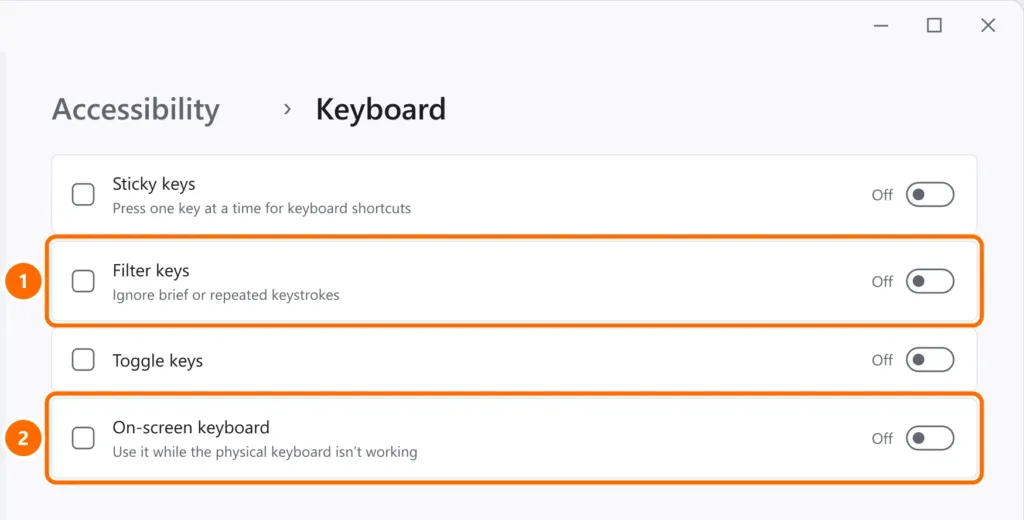
With Filter keys on, Windows ignores quick keystrokes — it feels like the keyboard “misses” keys. They turn on by accident when you hold the right Shift for 8 seconds.
- Open Settings › Accessibility › Keyboard.
- Turn off Filter keys and Sticky keys.
Step 4: reinstall the keyboard driver
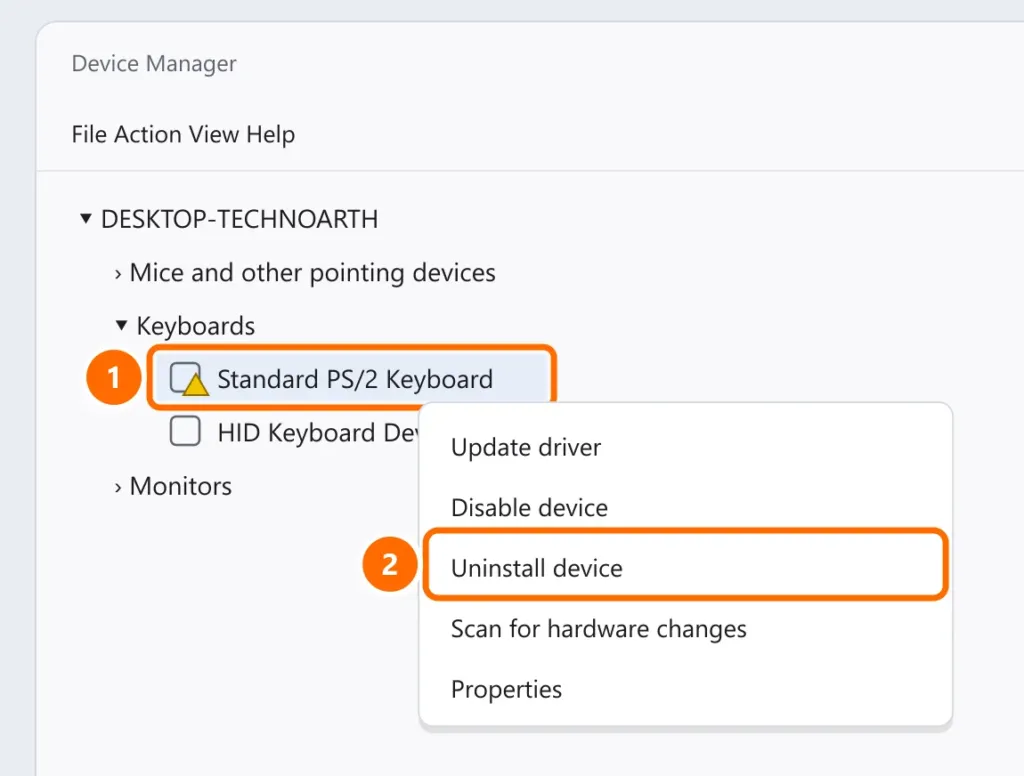
- Right-click the Start button and open Device Manager.
- Expand Keyboards. If there’s a yellow warning, right-click it and choose Uninstall device.
- Restart the laptop. Windows reinstalls the driver by itself.
Step 5: symbols in the wrong place
If the keys work but @, “ or # come out swapped, the keyboard layout is wrong (for example, UK instead of US).
- Open Settings › Time & language › Language & region.
- Next to your language, click ⋯ › Language options and add the layout that matches your keyboard (such as US). Remove layouts you don’t use.
- The Windows + Space shortcut switches layouts — if you pressed it by accident, the layout may have changed.
FAQ
Only some keys don’t work, always the same ones.
If they also fail in the BIOS while the on-screen keyboard works fine, that area of the keyboard is physically faulty — usually fixed by replacing the keyboard.
The keyboard stops working after a while and comes back after a restart.
Update the BIOS and chipset drivers from your laptop maker’s website, and turn off power saving for the keyboard in Device Manager (Power Management tab, when present).
The keyboard types on its own or repeats letters.
It could be a stuck key, dirt or liquid. Clean it with compressed air with the laptop off; if it continues, it’s hardware.