Updating the BIOS/UEFI fixes hardware bugs, improves compatibility and closes security holes. It’s a safe procedure when done right — and risky if power fails halfway. Here’s when it’s worth it and how to do it.
In this article
When to update
- The update notes list a fix for the problem you have (battery, fan, display, freezes, Wi-Fi).
- You’re installing a new processor that requires a newer BIOS (common on AMD boards).
- There’s an important security fix.
If the computer works well and the update brings nothing relevant to you, you don’t have to update.
Step 1: find the model and current version
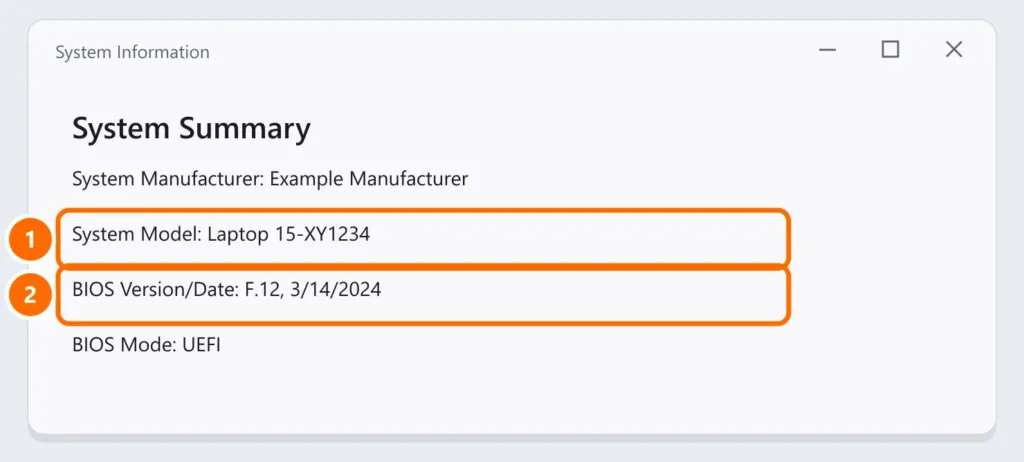
Press Windows + R and run msinfo32. Under System Summary, note the System Model and BIOS Version/Date. On custom-built desktops, also note the BaseBoard Product (motherboard).
Step 2: download only from the manufacturer
Search for the exact model on the support page of your laptop or motherboard maker. Most offer an app that does everything automatically:
| Manufacturer | Tool |
|---|---|
| Lenovo | Lenovo Vantage / System Update |
| Dell | Dell SupportAssist or Dell Command Update |
| HP | HP Support Assistant |
| ASUS | MyASUS (laptops) · EZ Flash, inside the BIOS (motherboards) |
| Acer | Acer Care Center |
| Gigabyte · MSI · ASRock | Q-Flash · M-Flash · Instant Flash, inside the BIOS, with a USB drive |
On some computers, Windows Update also delivers the BIOS as an optional update.
Step 3: prepare before updating
- Laptop plugged in with the battery above 50% (many manufacturers require it).
- Suspend BitLocker: search for Manage BitLocker and click Suspend protection. That prevents the computer from asking for the BitLocker recovery key afterwards.
- Close all programs and save your files.
Step 4: during the update
- The computer restarts, shows a progress bar and may restart more than once. Don’t turn it off, close the lid or unplug it.
- A loud fan and a black screen for a few minutes are normal on many models.
FAQ
The power went out during the update. What now?
Try to turn it on normally. Many boards have a backup BIOS or automatic recovery. If it won’t start, contact the manufacturer’s support — don’t try other “fixes” from the internet.
The update changed my BIOS settings.
It’s common for the BIOS to reset to defaults. Check boot order, TPM and Secure Boot — see Windows 11 requirements and TPM 2.0.
Do I need to update one version at a time?
Usually not; install the latest. Read the manufacturer’s notes: some models require an intermediate version first.