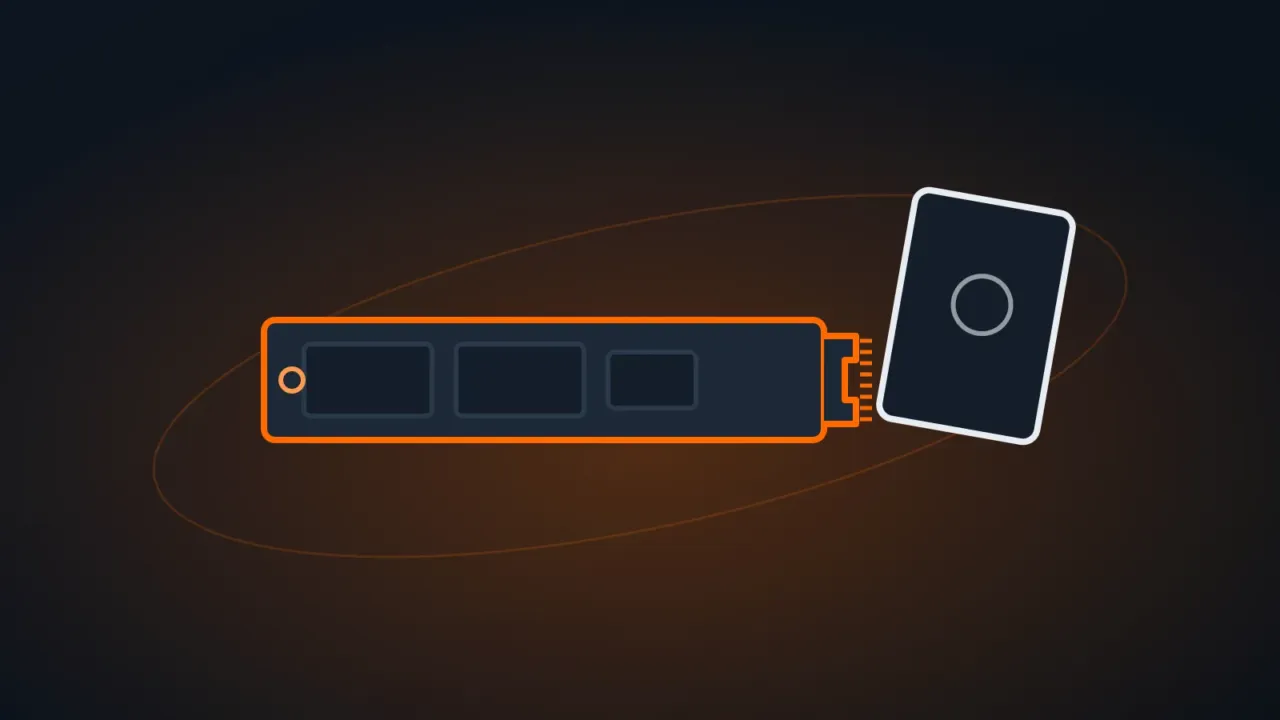
Swapping a hard drive for an SSD is the upgrade that most changes how fast a computer feels. The question comes at checkout: SATA or NVMe? Both are far faster than a hard drive, but they work differently — and not every PC or laptop supports both.
In this article
Quick summary
| SATA SSD | NVMe SSD | |
|---|---|---|
| Interface | SATA III (6 Gb/s) | PCI Express (PCIe) |
| Typical sequential speed | up to ~550 MB/s | ~3,500 MB/s (PCIe 3.0) to over 10,000 MB/s (PCIe 5.0) |
| Form factors | 2.5″ or M.2 | M.2 (mostly) |
| Compatibility | Virtually any PC with a SATA port | Needs an M.2 slot with NVMe/PCIe support |
| Best for | Older computers, replacing a hard drive | Current PCs and laptops, large-file work |
Why NVMe is faster
SATA was designed for hard drives and tops out at 6 Gb/s — roughly 550 MB/s in practice. A SATA SSD already hits that ceiling.
NVMe is a protocol built for flash memory that talks directly to the CPU over PCIe lanes. Each PCIe generation roughly doubles the maximum speed:
| Generation | Typical sequential speed (x4) |
|---|---|
| PCIe 3.0 | up to ~3,500 MB/s |
| PCIe 4.0 | up to ~7,000 MB/s |
| PCIe 5.0 | above 10,000 MB/s |
Watch out for M.2
M.2 is a physical form factor, not a type of SSD. There are M.2 SATA and M.2 NVMe drives that look almost identical. An M.2 slot may accept only SATA, only NVMe, or both — it depends on the motherboard or laptop.
- M.2 NVMe drives usually have a single notch in the connector (M key).
- M.2 SATA drives usually have two notches (B+M key).
- The most common length is 2280 (22 mm × 80 mm). Thin laptops sometimes use 2242 or 2230.
How to check what your computer supports
- Look up the manual or spec page for your exact laptop or motherboard model. Search for “M.2”, “PCIe”, “NVMe” or “SATA”.
- Check the type of drive you already have. In PowerShell:
Get-PhysicalDisk | Select-Object FriendlyName, MediaType, BusType, Size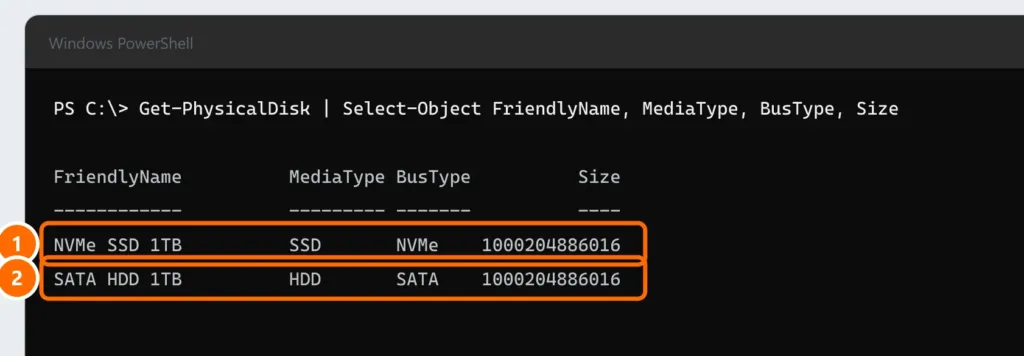
- If the computer has no M.2 slot, go with a 2.5″ SATA SSD, which replaces the hard drive in the same bay.
A PCIe 4.0 SSD works in a PCIe 3.0 slot, just limited to 3.0 speeds. So there’s no point paying more for PCIe 5.0 if your computer only supports 3.0.
Beyond speed: what to look for
- Endurance (TBW): how many terabytes can be written during the warranty. For home use, any current drive from a reputable brand is enough; for servers and heavy editing, choose a higher TBW.
- Memory type: TLC drives usually sustain speed better during long copies and last longer than QLC drives.
- DRAM cache: drives with DRAM (or HMB on DRAM-less NVMe drives) deliver more consistent performance.
- Heat: PCIe 4.0 and 5.0 NVMe drives run hot. In desktops, use the motherboard heatsink; PCIe 5.0 drives usually require one.
- Warranty: 3 to 5 years is standard from good manufacturers.
Which one to choose
| Scenario | Recommendation |
|---|---|
| Older PC or laptop without an M.2 slot | 2.5″ SATA SSD |
| Laptop with an M.2 NVMe slot | PCIe 3.0 or 4.0 NVMe (whatever the laptop supports) |
| Gaming PC | PCIe 4.0 NVMe |
| Video editing and large files | PCIe 4.0 or 5.0 NVMe, with high TBW and a heatsink |
| Second drive for storage | Higher-capacity SATA or PCIe 3.0 NVMe |
FAQ
Is a SATA SSD still worth it?
Yes, especially for computers without an M.2 NVMe slot. Replacing a hard drive with a SATA SSD makes the system many times faster.
Can I use an NVMe SSD in any laptop?
No. The laptop needs an M.2 slot with NVMe (PCIe) support. Some models only accept M.2 SATA or have no M.2 slot at all.
Do I need to reinstall Windows when switching SSDs?
Not necessarily. You can clone the old drive to the new one with the SSD maker’s software. A clean install, however, usually results in a more stable system.