You click Print, the document goes to the queue and nothing comes out? Or you get a blank, faded or missing-color page? Follow the steps in order: most cases are a stuck queue or the wrong printer selected.
In this article
Step 1: check the printer
- Look at the printer’s panel: paper, ink/toner, an open cover or a paper jam usually show up there.
- Under Settings › Bluetooth & devices › Printers & scanners, click the printer. If the status is Offline, see printer offline: how to fix it.
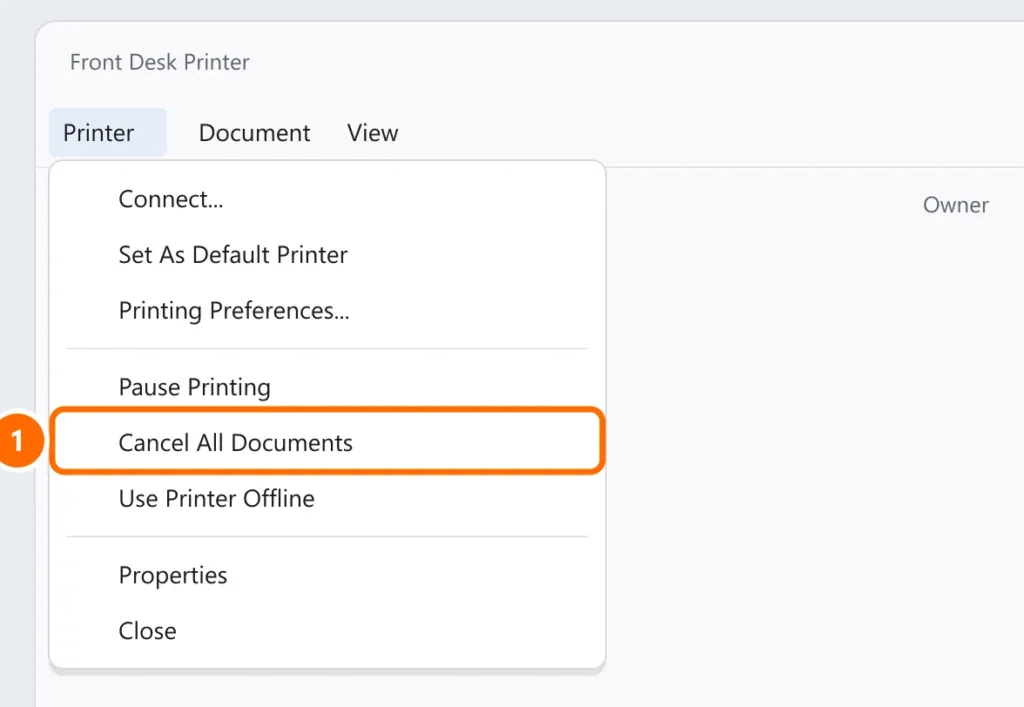
Step 2: clear the print queue
One stuck document holds up all the others.
- On the same page, click Open print queue.
- In the Printer menu, choose Cancel All Documents and confirm.
Step 3: restart the spooler (if the queue won’t clear)
If documents sit at “Deleting” and never leave the queue, clear the print service (spooler). In PowerShell as administrator:
Stop-Service -Name Spooler -Force
Remove-Item C:\Windows\System32\spool\PRINTERS\* -Force
Start-Service -Name Spooler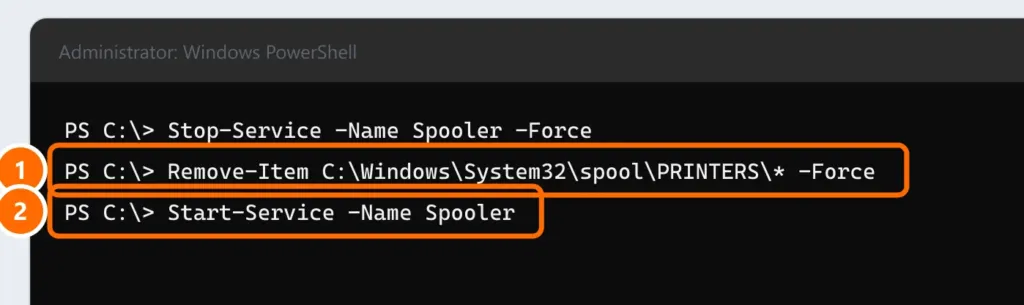
Step 4: is the right printer selected?
Windows can switch the default printer on its own to the last one used — and the document goes to another printer (or “Microsoft Print to PDF”).
- In Printers & scanners, turn off Let Windows manage my default printer.
- Click the right printer and choose Set as default.
- In the app’s print window, check the printer name before printing.
Step 5: reinstall the driver
Remove the printer under Printers & scanners › Remove, download the driver from the manufacturer’s website (for the exact model) and add it again. For network printers, add them by IP address — see how to set up a network printer.
Blank, faded or missing-color pages
- Run head cleaning and a nozzle check from the printer’s panel or the manufacturer’s software.
- On inkjets, check whether a cartridge or tank is empty — many printers stop using all colors when one runs out.
- Printers left unused for weeks dry out: it may take more than one cleaning.
FAQ
The test page prints, but not from Word or the browser.
The driver works; check which printer the app is using (step 4) and try another file.
The queue gets stuck again every day.
Update the driver from the manufacturer’s website and, for network printers, use the IP (TCP/IP) port instead of automatic discovery (WSD).
The printer prints old documents on its own.
They were jobs stuck in the queue. Clear the spooler (step 3).