The printer is switched on, its panel shows no error, yet Windows insists it’s Offline and documents pile up in the queue. In an office, that message almost never means the printer is broken: most of the time the computer is looking for the printer at the wrong address, or can’t confirm its status.
Before you change anything, answer one question: does the printer show as offline on every PC, or just on one? The answer cuts the troubleshooting in half.
In this article
- First, work out where the problem is
- Step 1: check the printer and the network
- Step 2: uncheck “Use Printer Offline”
- Step 3: restart the Print Spooler
- Step 4: check whether the printer’s IP address changed
- Step 5: turn off SNMP status on the port
- Printer shared from another PC
- If nothing worked
- Frequently asked questions
First, work out where the problem is
| What you see | Most likely cause | Start with |
|---|---|---|
| Offline on one PC only; the others print | Offline option checked, stuck queue or an old port on that PC | Steps 2 and 3 |
| Offline on every PC | Printer off the network or on a new IP address | Steps 1 and 4 |
| Goes offline again after the router restarts | The IP handed out by DHCP changed | Step 4 (IP reservation) |
| The printer prints, but the status stays “Offline” | Status query (SNMP) gets no answer | Step 5 |
Printer installed as \\PC-NAME\Printer | The sharing PC is off or asleep | “Printer shared from another PC” section |
Step 1: check the printer and the network
- Look at the printer’s panel for paper, toner or ink, and make sure no cover is open.
- Turn the printer off, unplug it, wait about 30 seconds and turn it back on. That’s the first step Microsoft gives in its guide to troubleshooting offline printer problems in Windows.
- Print the network configuration page from the printer’s menu. Write down the IP address and the name of the network it’s connected to.
- Confirm the computer is on that same network. In offices with a separate guest network, a laptop on guest Wi-Fi can’t see a printer on the internal network.
On Windows 11, Microsoft also recommends running the printer troubleshooter through the Get Help app. It’s worth a try, but it won’t fix a wrong IP address saved in the printer port, which is one of the most common causes on a network.
Step 2: uncheck “Use Printer Offline”
- Open Settings › Bluetooth & devices › Printers & scanners and click the printer.
- Click Open print queue.
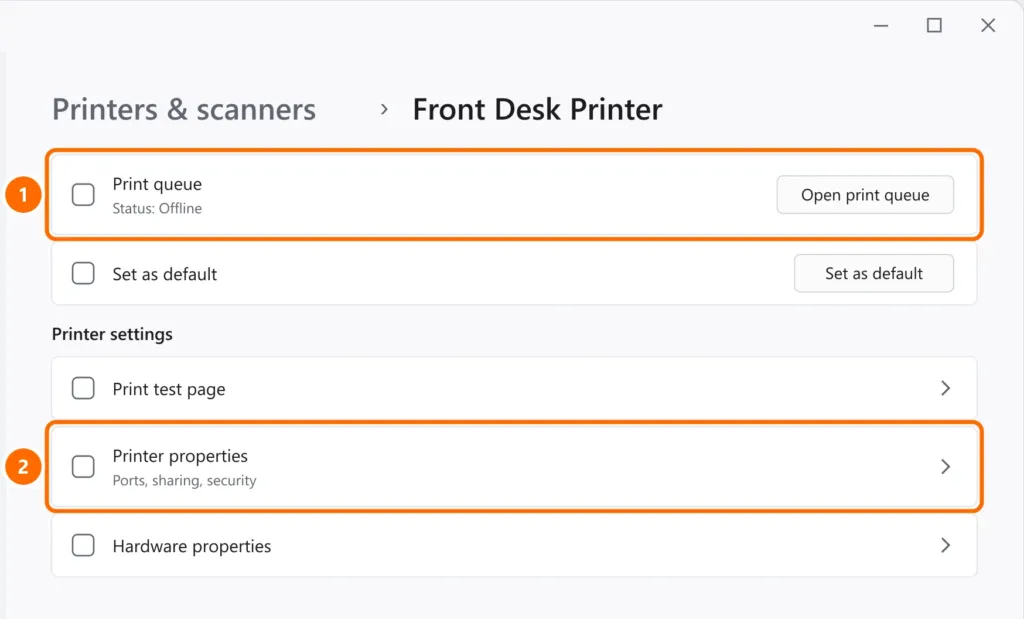
- If the queue window has a Printer menu at the top, open it and uncheck Use Printer Offline. In the same menu, use Cancel All Documents if any jobs are stuck.
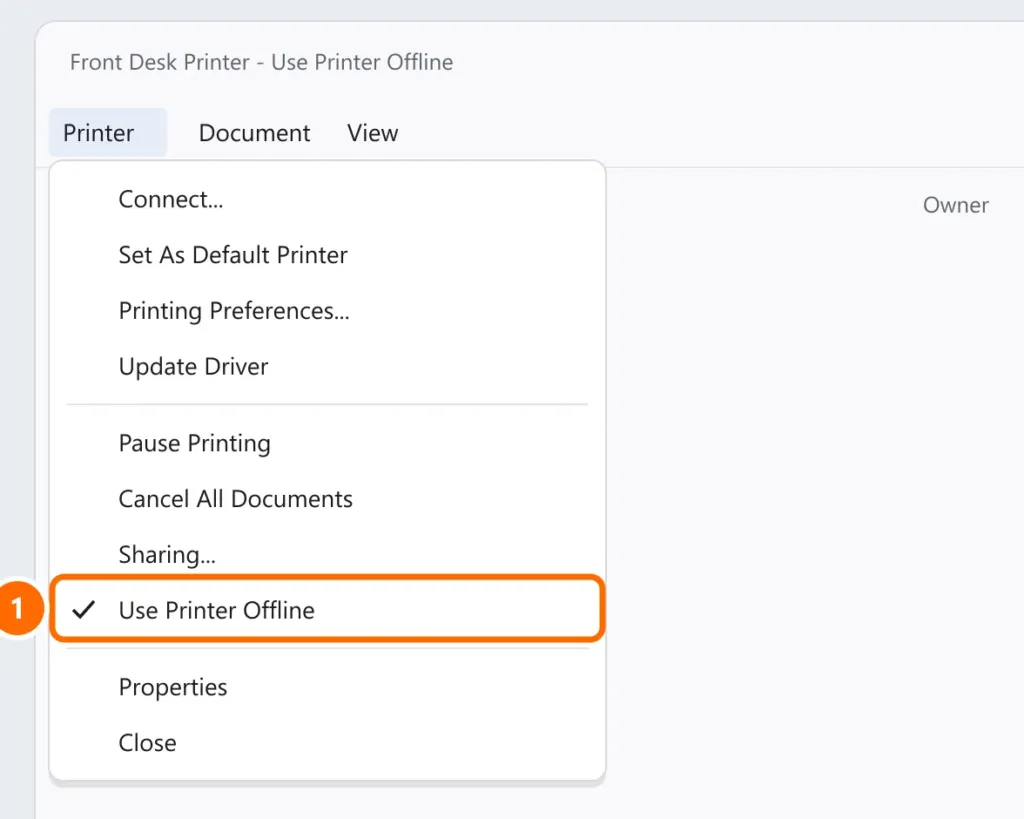
In some versions of Windows 11 the queue opens in the newer layout, with just a … (more options) button that lets you pause and cancel documents. If you can’t find the offline option there, open the classic queue with the command below (replace the name with the printer’s exact name). The /o switch is what displays the queue, according to the printui documentation:
rundll32 printui.dll,PrintUIEntry /o /n "Front Desk Printer"Step 3: restart the Print Spooler
A stuck queue often freezes the status. Through the interface, search for services on the taskbar, open Services, right-click Print Spooler and choose Restart. To also clear the stuck jobs, use PowerShell as administrator:
Stop-Service Spooler -Force
Remove-Item "$env:SystemRoot\System32\spool\PRINTERS\*" -Force
Start-Service SpoolerStep 4: check whether the printer’s IP address changed
This is one of the most common causes in offices. The router hands out addresses through DHCP and, after a power cut or a change of equipment, the printer may get a different IP. The PCs keep trying the old address and mark the printer as offline.
- Open PowerShell as administrator and look at the printer’s port and status, then at the IP address saved in that port:
Get-Printer -Name "Front Desk Printer" | Format-Table Name, PortName, PrinterStatus
Get-PrinterPort -Name IP_192.168.0.50 | Format-Table Name, PrinterHostAddress, SNMPEnabled
- Compare PrinterHostAddress with the IP on the configuration page. If they differ, the port is pointing to the wrong place.
- Create a port with the current IP and assign the printer to it using Add-PrinterPort and
Set-Printer:
Add-PrinterPort -Name "IP_192.168.0.60" -PrinterHostAddress "192.168.0.60"
Set-Printer -Name "Front Desk Printer" -PortName "IP_192.168.0.60"
- Repeat on the other office PCs. If there are many, it may be quicker to reinstall the printer by IP following how to set up a network printer in Windows 11.
- On the router, reserve that IP address for the printer (a DHCP reservation by MAC address, which also appears on the configuration page). Without the reservation, the problem comes back. If you set a static IP on the printer’s panel instead of reserving one, choose an address outside the DHCP range so you don’t cause an IP address conflict.
Step 5: turn off SNMP status on the port
On a TCP/IP port, Windows asks the printer for its status using SNMP. When the printer doesn’t answer that query, because of its own settings or because SNMP is turned off on its panel, Windows marks it offline even though printing works. In the Step 4 diagnosis, the SNMPEnabled column shows whether that query is on.
- In Printers & scanners, open the printer and click Printer properties.
- On the Ports tab, select the checked port and click Configure Port….
- Check the IP address and uncheck SNMP Status Enabled. Click OK and then Apply.
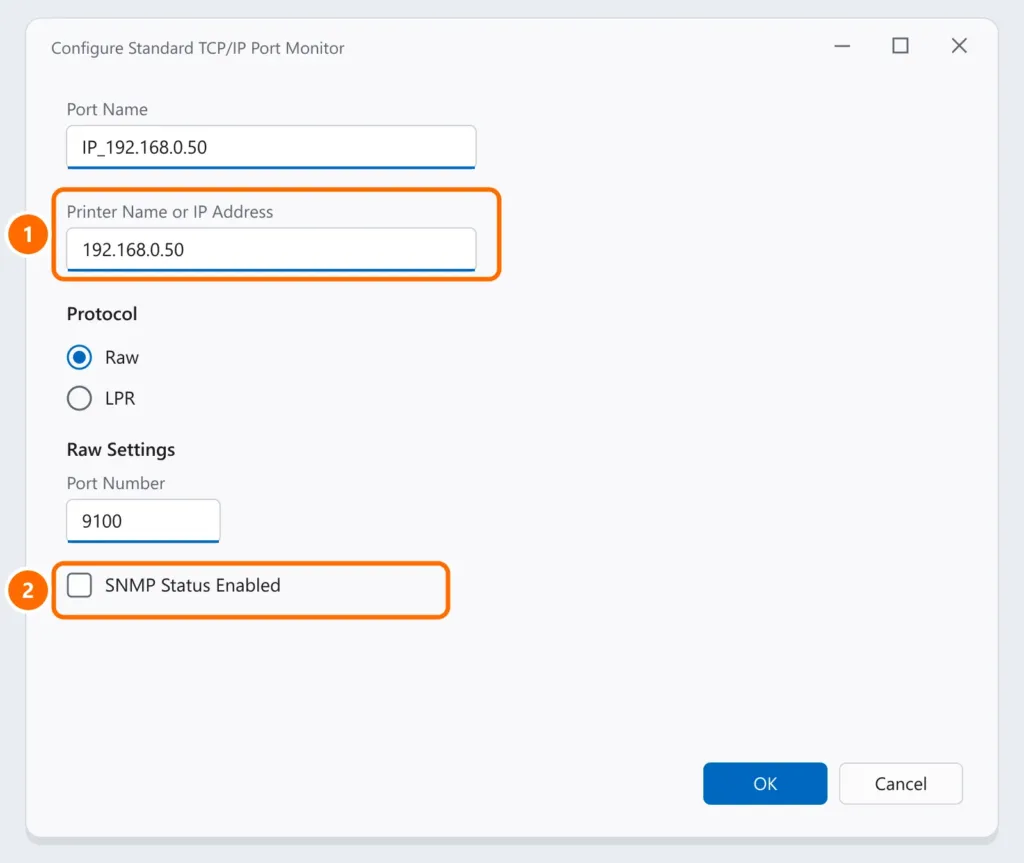
For ports created in PowerShell, the -SNMP parameter of Add-PrinterPort is what turns the query on; the Step 4 command doesn’t use it. To see how the port ended up, run Get-PrinterPort again and look at the SNMPEnabled column.
Printer shared from another PC
In many offices, a USB printer is plugged into the front desk computer and shared with everyone else. In that setup, what’s actually offline is the sharing PC:
- If it shuts down, restarts for an update or goes to sleep, everyone else loses the printer.
- Adjust that PC’s power settings so it doesn’t sleep during office hours, or connect the printer straight to the network if it has a network port.
- Permission and firewall problems in this scenario are covered in how to share a printer on the network in Windows 11.
If nothing worked
- In Printers & scanners, remove duplicate copies such as “Front Desk Printer (Copy 1)” and confirm which one is the default.
- Remove the printer, install the latest driver from the manufacturer’s website and add it again with Add device, preferably by IP address.
- If the printer leaves the offline state but documents still don’t come out, it’s a different problem: see printer not printing.
Frequently asked questions
Why does the printer go offline every Monday?
Almost always because the router, the printer or both were switched off over the weekend and the printer came back with a different IP address. Reserve the IP on the router and use a TCP/IP port with that address on every PC.
Does turning off SNMP make the network less secure?
It doesn’t open anything new on the network: unchecking the option only makes Windows stop asking the printer for its status over that protocol. The practical effect is losing the paper and toner warnings on the computer.
Do I need to apply the fix on every computer?
The IP reservation on the router is done once. The offline option, the spooler and the printer port, however, are per-PC settings, so check each one that shows the printer as offline.