You connected a second monitor and it shows “no signal”, or Windows simply doesn’t recognize it. Most of the time the problem is the cable or the monitor’s selected input, Windows’ projection mode, or the graphics driver.
In this article
Step 1: check the cable and monitor input
- Make sure the cable is firmly connected at both ends and, if possible, try another cable.
- Using the monitor’s own buttons, choose the correct input (HDMI 1, HDMI 2, DisplayPort).
- On desktops with a dedicated graphics card, plug the monitor into the graphics card’s outputs, not the motherboard’s.
Step 2: use Windows + P
Press Windows + P and choose Extend. If it’s set to “PC screen only”, the second monitor stays off.
Step 3: ask Windows to detect the display
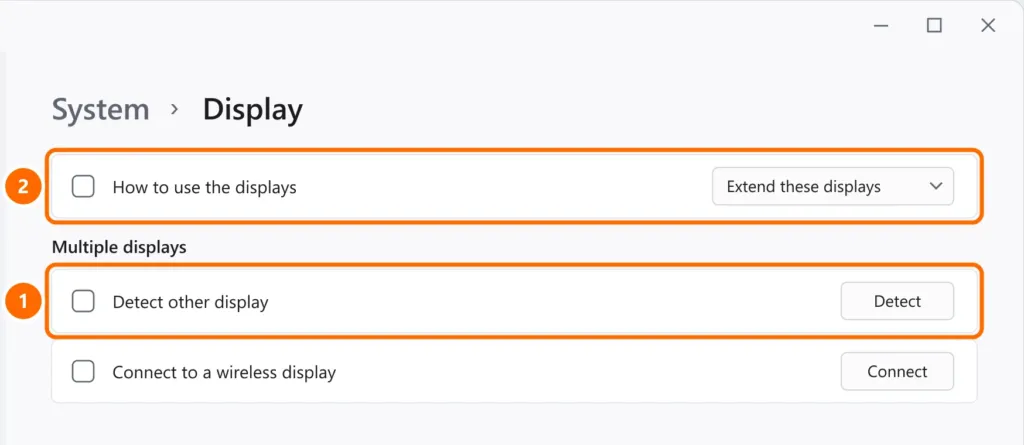
- Open Settings › System › Display.
- Under Multiple displays, click Detect.
- When the monitor appears, choose Extend these displays.
Step 4: restart and update the graphics driver
- Press Windows + Ctrl + Shift + B to restart the graphics driver.
- Update the driver from NVIDIA, AMD, Intel or your laptop maker’s website.
- If it stopped after an update, use Roll Back Driver in Device Manager under Display adapters.
Step 5: laptops with USB-C and docks
- Not every USB-C port carries video. Look for the DisplayPort or Thunderbolt symbol next to the port or check the manual.
- Docks and adapters that use DisplayLink need the DisplayLink driver installed.
- Cheap adapters sometimes don’t support the monitor’s resolution or refresh rate.
FAQ
The monitor works on another PC but not on mine.
Try another video port on your computer and update the graphics driver. On laptops, confirm the port supports video.
The second monitor is detected but stays black.
Change the mode with Windows + P, lower the resolution or refresh rate, and try another cable — older HDMI cables don’t support high resolutions.
Can I use three monitors?
It depends on your outputs and graphics card. Many laptops support three displays only with a Thunderbolt or DisplayLink dock.