Your laptop touchpad stopped responding, the cursor won’t move or only two-finger gestures stopped working? Most of the time the touchpad was turned off by a key or a setting — and you can fix it in a few minutes.
In this article
Step 1: the key that turns the touchpad on and off
Look for a key with a touchpad icon (a rectangle, sometimes crossed out). It’s usually F5, F6, F7 or F9, alone or with Fn. Press it once and test.
Some laptops have a dot in the corner of the touchpad: double-tapping it turns the touchpad on and off.
Step 2: turn on the touchpad in Settings
- Open Settings › Bluetooth & devices › Touchpad.
- Turn on the Touchpad toggle.
- Click Touchpad to expand it and check Leave touchpad on when a mouse is connected — without it, the touchpad turns off whenever a USB or Bluetooth mouse is connected.
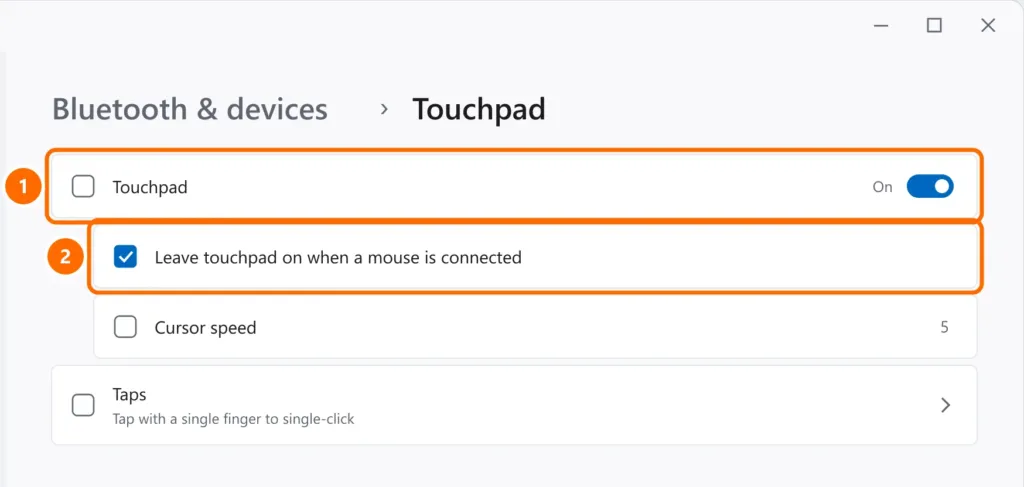
If gestures stopped, check that the options under Three- and four-finger gestures and Taps are on. At the bottom of the page, Reset restores the touchpad defaults.
Step 3: reinstall the driver
- Right-click the Start button and open Device Manager.
- Expand Mice and other pointing devices and Human Interface Devices. The touchpad may show up as I2C HID Device, Synaptics, ELAN or Precision touchpad.
- If there’s a yellow warning or the device is disabled, right-click it and choose Enable device or Uninstall device, then restart.
- If it continues, download the touchpad (and chipset) driver from your laptop maker’s website, searching for your exact model.
Step 4: check the BIOS
On some models, the touchpad can be disabled in the BIOS/UEFI. Enter the BIOS (usually F2, F10 or Del at startup) and look for Touchpad or Internal Pointing Device: it should be Enabled. Some Lenovo laptops have an Advanced/Basic option — use Advanced on Windows 11.
FAQ
The cursor moves on its own or jumps.
Clean the touchpad, dry your hands and lower the sensitivity under Taps. It also happens when a swollen battery pushes the touchpad from below: if the touchpad is raised or the case is bulging, stop using the laptop and get it serviced.
Clicking works, but tapping doesn’t.
In Settings › Touchpad › Taps, turn on Tap with a single finger to single-click.
It worked after an update and then stopped again.
Install the laptop maker’s driver instead of the generic one, and check for pending optional driver updates under Windows Update › Advanced options › Optional updates.