
Every Excel error starts with # and points to a different cause. Before touching the formula, identify the code — the fix gets much faster.
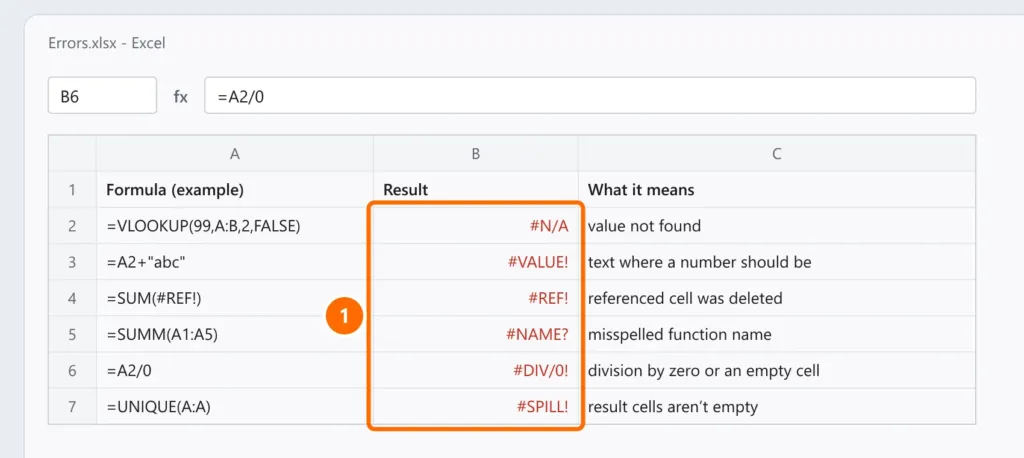
Quick reference
| Error | What it means | How to fix it |
|---|---|---|
| #N/A | A lookup value wasn’t found | See VLOOKUP not working: spaces, text vs. number, FALSE |
| #VALUE! | Wrong type: text where a number or date should be | Check cells with text, spaces or dates typed as text |
| #REF! | The formula points to a cell that was deleted | Undo the deletion (Ctrl + Z) or rebuild the reference |
| #NAME? | Excel doesn’t recognize a function or range name | Fix the spelling; check quotes around text ("text") |
| #DIV/0! | Division by zero or by an empty cell | Fill in the divisor or handle the case (below) |
| #SPILL! | An array formula has no room to show its result | Clear the cells below/next to the formula |
| #NUM! | An impossible or too-large numeric result | Check the arguments (square root of a negative, invalid dates) |
| #NULL! | A separator between ranges is missing | Use , between arguments or : in ranges |
| ##### | Not an error: the column is too narrow | Double-click the border of the column header |
How to find where the error comes from
- Click the cell with the error and the warning icon (yellow diamond) next to it: Show Calculation Steps shows where the error starts.
- Under Formulas › Formula Auditing, Trace Precedents draws arrows to the cells the formula uses.
- An error in one cell “spreads” to every formula that depends on it: fix the first one.
Hiding the error — carefully
The IFERROR function replaces the error with another value:
=IFERROR(A2/B2,0)Use it only when the error is expected (for example, a divisor not filled in yet). Hiding #REF! or #NAME? erases the sign that the spreadsheet has a real problem.
FAQ
The error only appears when I open the spreadsheet on another computer.
It may be a function that doesn’t exist in that computer’s Excel version (#NAME?), or a link to another file that isn’t there (#REF!). Check under Data › Edit Links.
The formula doesn’t error, but it doesn’t calculate either.
#SPILL! appeared after an Excel update.
In Microsoft 365, formulas that return several values “spill” into neighboring cells. Clear those cells or put @ before the formula to return a single value.