
There are two different symptoms, with different causes:
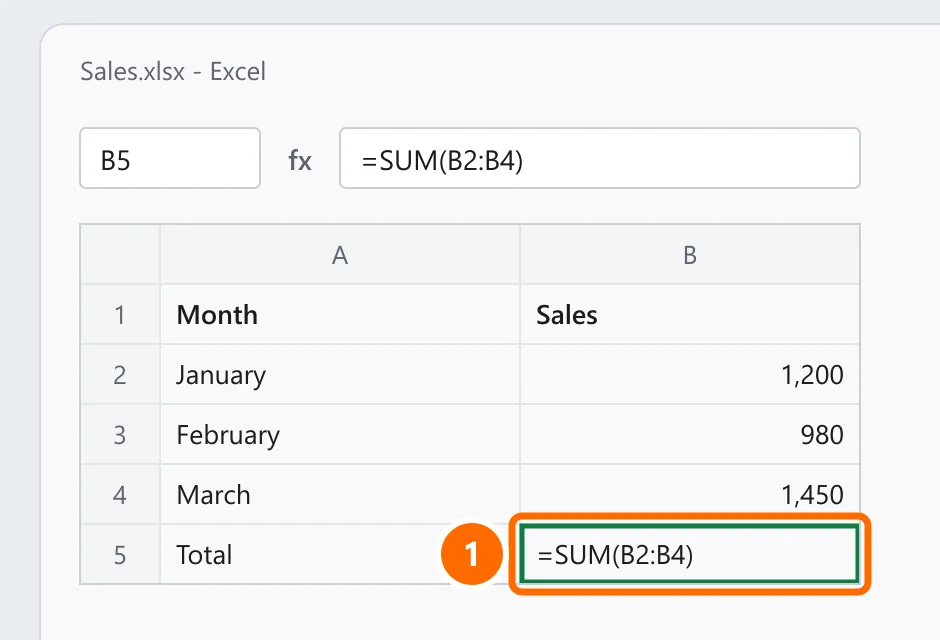
- The cell shows the formula as text (
=SUM(B2:B4)) instead of the result. - The result shows, but doesn’t update when you change the numbers.
In this article
If the formula shows as text
Cause 1: the cell is formatted as Text
- Select the cell and, under Home › Number, change Text to General.
- Click the cell, press F2 and Enter so Excel reads the formula again.
- For many cells at once: select the column, then Data › Text to Columns › Finish.
Cause 2: “Show Formulas” is on
If every formula in the sheet shows as text, Show Formulas is on. Press Ctrl + ` (the grave accent key, left of 1 on US keyboards) or turn it off under Formulas › Show Formulas.
Cause 3: a space or apostrophe before =
The formula must start exactly with =. A space ( =SUM) or apostrophe ('=SUM) turns everything into text. Delete the character in the formula bar.
If the result doesn’t update
Cause 4: manual calculation
- Under Formulas › Calculation Options, choose Automatic.
- Or under File › Options › Formulas, in Workbook Calculation, select Automatic.
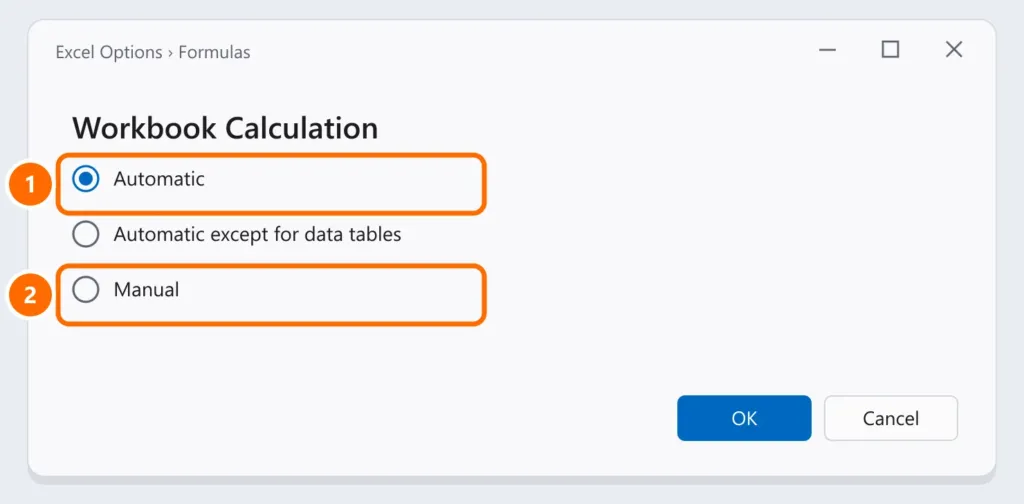
While in Manual, F9 recalculates everything.
Cause 5: numbers stored as text
Numbers imported from other systems or pasted from the web may be text (left-aligned, with a green triangle). SUM ignores them. Select them, click the warning and choose Convert to Number.
Cause 6: circular reference
If the formula uses its own cell (directly or indirectly), Excel warns about a circular reference and shows 0. Under Formulas › Error Checking › Circular References, see which cell to fix.
FAQ
SUM returns zero, but the numbers are there.
The numbers are probably text (cause 5).
I get an error like #VALUE! or #N/A.
That’s a different case: see Excel errors explained.
The workbook got slow after switching to Automatic.
Very large workbooks recalculate on every change. Avoid whole columns in heavy formulas (A:A) and too many volatile functions like TODAY and INDIRECT. Also see Excel not responding.