Microsoft Teams won’t open, sits on the loading screen, won’t sign in, or can’t find your microphone and camera in meetings? These steps apply to the new Teams on Windows 11, used with both work and personal accounts.
In this article
Step 1: test Teams on the web
Open teams.microsoft.com in a browser and sign in with the same account.
- It works on the web: the problem is the desktop app — follow the steps below.
- It fails on the web too: check your password, two-factor authentication and whether your account has a Teams license (at work, contact your administrator).
Step 2: fully close Teams
Right-click the Teams icon near the clock and choose Quit. Check Task Manager (Ctrl + Shift + Esc) for leftover Teams processes, then open it again.
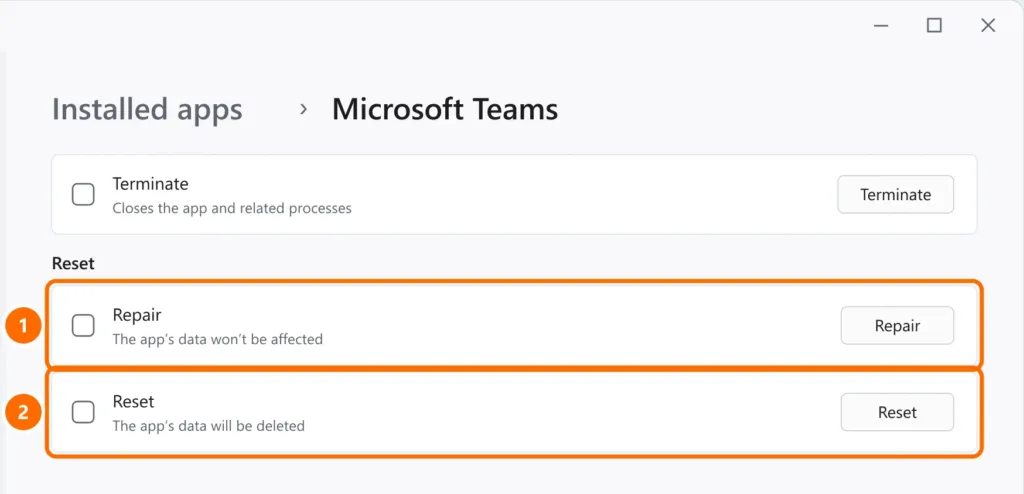
Step 3: repair or reset the app
- Open Settings › Apps › Installed apps.
- Find Microsoft Teams, click the three dots and then Advanced options.
- Click Repair. If that doesn’t help, use Reset.
Step 4: clear the Teams cache
With Teams closed, press Windows + R, paste the path below and delete the contents of the folder that opens:
%localappdata%\Packages\MSTeams_8wekyb3d8bbwe\LocalCache\Microsoft\MSTeamsStep 5: microphone and camera not detected
- In Teams, open Settings › Devices and select the correct microphone, speaker and camera.
- In Windows, under Settings › Privacy & security, open Microphone and Camera and allow desktop apps — see microphone not working on Windows 11.
- Close other apps that might be using the camera (Zoom, the Windows Camera app, a browser).
Step 6: update
Update Windows and, in Teams, click the three dots › Settings › About Teams to check for updates.
FAQ
It says “You don’t have the required permissions to access this org”.
Your account doesn’t have access to the organization or team you’re trying to open. Ask the administrator to add you, or check that you signed in with the right account.
Does classic Teams still work?
Classic Teams has been replaced by the new Teams. If it’s still installed, uninstall it and use the new version.
The camera works in other apps but not in Teams.
Select the camera under Teams Settings › Devices and check the camera permission for desktop apps in Windows.