You plug in your external hard drive or install a new SSD and it just doesn’t appear in This PC. First, figure out which state the disk is in — the fix is different for each, and in one of them formatting deletes your files.
In this article
Step 1: rule out the cable, port and power
- Try another USB port (on desktops, use the rear ports) and another cable.
- Don’t use unpowered USB hubs for external hard drives.
- 3.5″ external drives need their own power adapter plugged in.
- Try the drive on another computer: if it doesn’t show up there either, the drive or enclosure is probably the problem.
Step 2: open Disk Management
Press Windows + X and click Disk Management. See how the disk appears:
| How the disk appears | What it means | What to do |
|---|---|---|
| It doesn’t appear | Windows doesn’t detect the disk | Steps 1 and 5 |
| It has a partition but no letter | Only the drive letter is missing | Step 3 |
| “Not Initialized” and “Unallocated” (new disk) | The disk was never set up | Step 4 |
| “Unallocated” or “RAW” on a disk with files | Damaged partition | Don’t format — see the warning below |
You can also list disks in PowerShell:
Get-Disk | Select-Object Number, FriendlyName, PartitionStyle, OperationalStatus, SizeStep 3: assign a drive letter
- In Disk Management, right-click the disk’s partition.
- Choose Change Drive Letter and Paths › Add, pick a free letter and confirm.
Step 4: initialize a new disk
New drives and SSDs arrive with no partition and show as “Not Initialized”.
- Right-click the disk (on the left, where it says “Disk 1”) and choose Initialize Disk.
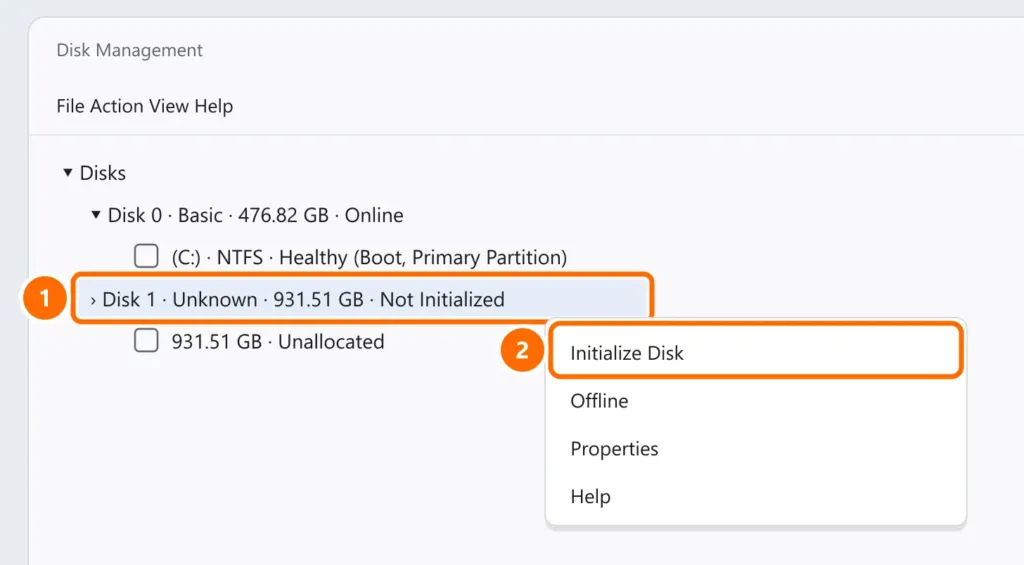
- Select GPT and click OK.
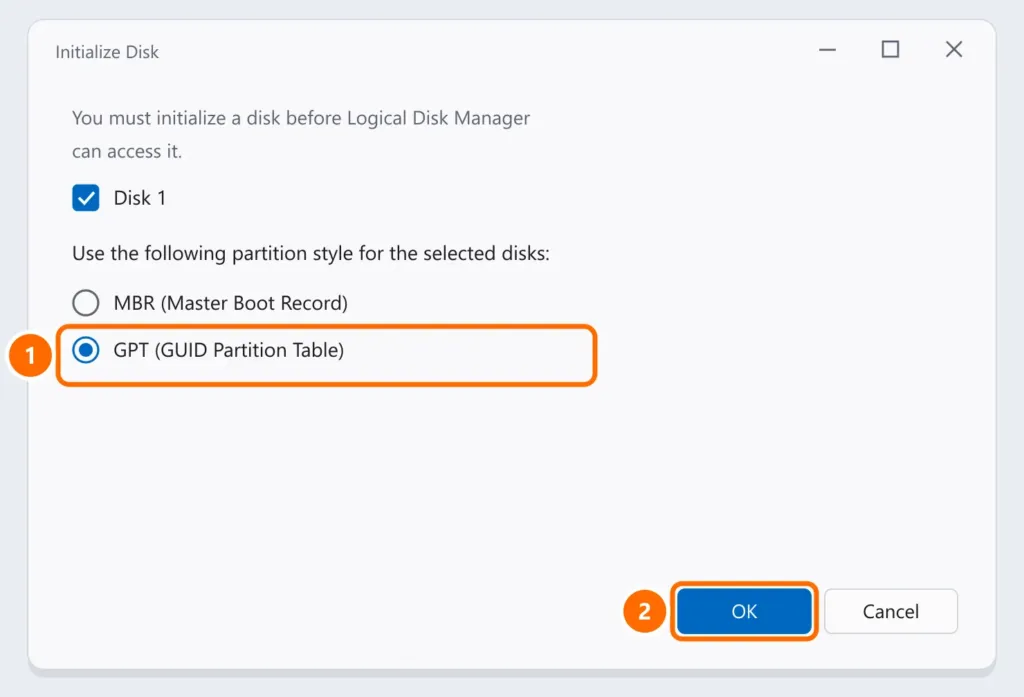
- Right-click the Unallocated space › New Simple Volume and follow the wizard. Use NTFS for Windows only, or exFAT to also use it on a Mac or TV.
Step 5: if the disk doesn’t show up anywhere
- Device Manager: under Disk drives and Universal Serial Bus controllers, uninstall the problem device and use Action › Scan for hardware changes.
- USB selective suspend: in Control Panel › Power Options › Change plan settings › Change advanced power settings, turn off USB selective suspend.
- Internal SSD: check whether it appears in the BIOS/UEFI. An M.2 NVMe SSD in a slot that only supports SATA won’t be detected — see NVMe vs SATA SSD: which one to choose.
SSD not showing up during Windows setup
On many laptops with Intel processors, VMD/RST technology hides the NVMe SSD from Windows Setup.
FAQ
The external drive makes noise but doesn’t show up. Now what?
Repeated clicking or grinding may mean mechanical failure. Stop using the drive so it doesn’t get worse and, if the data matters, contact a professional recovery service.
The drive shows as RAW and asks to be formatted. Should I?
No, if it has important files. Recover the data first; formatting is the last step.
What’s the best file system for an external drive?
NTFS if you only use Windows; exFAT to share between Windows, Mac, TVs and game consoles.