You connect your laptop or PC to the TV with an HDMI cable and the screen says “No signal”, stays black, or the picture shows up with no sound? Follow the steps in order — most cases are solved in the first three.
In this article
Step 1: the right input on the TV
Press Source or Input on the remote and choose the exact HDMI port the cable is plugged into (HDMI 1, HDMI 2…). The number is printed next to the port, on the back or side of the TV.
Step 2: cable, port and power-on order
- Make sure the cable is firmly seated at both ends. Try another cable and another HDMI port on the TV.
- Turn the TV on first, then connect the cable with the computer running.
- On desktops with a graphics card, use the graphics card’s HDMI port, not the motherboard’s.
Step 3: tell Windows to send the picture
Press Windows + P and choose Duplicate (same picture on the laptop and TV) or Extend. If it’s set to “PC screen only”, the TV gets nothing.
If the TV doesn’t show up, open Settings › System › Display and click Detect — the full steps are in second monitor not detected.
Step 4: a resolution and refresh rate the TV accepts
If the picture appears and disappears, flickers or the TV says “format not supported”, open Settings › System › Display, select the TV and try 1920 × 1080 at 60 Hz. For 4K at 60 Hz, many TVs require turning on an option like HDMI Ultra HD Deep Color or HDMI Enhanced for that port.
Step 5: USB-C to HDMI adapters
Not every USB-C port carries video — look for the DisplayPort or Thunderbolt symbol next to it. Cheap adapters often limit the resolution too. Try another adapter or the laptop’s own HDMI port, if it has one.
Picture on the TV, but sound on the laptop
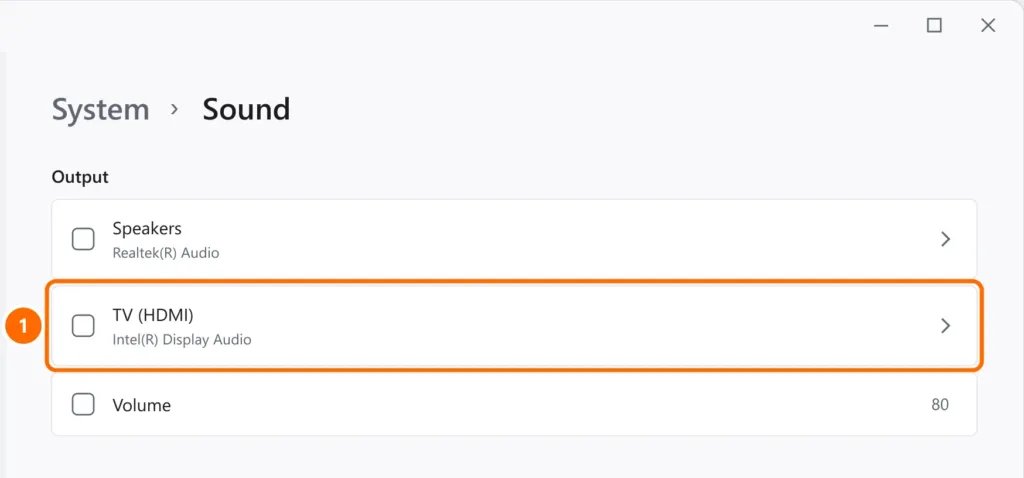
Choose the TV as the sound output: click the sound icon › › next to the volume, or open Settings › System › Sound and, under Output, select the TV (HDMI).
FAQ
It worked and stopped after an update.
Update the graphics driver from Intel, AMD or NVIDIA (or your laptop maker) and press Windows + Ctrl + Shift + B to restart the driver.
The picture is cut off at the edges of the TV.
That’s the TV’s “overscan”. In the TV’s picture menu, look for Picture size › Fit to screen (or “Just Scan”, “Screen Fit”).
Can I connect without a cable?
Yes: Miracast-capable TVs appear under Windows + K. Quality depends on Wi-Fi and there’s usually some lag — for videos and presentations, a cable is more stable.