
Your screen keeps flickering, shaking or going black for a moment? Before changing anything, run a simple test that Microsoft itself recommends: it shows whether the cause is the graphics driver or an app.
In this article
Step 1: the Task Manager test
Press Ctrl + Shift + Esc and watch the Task Manager window.
| What happens | Likely cause | Go to |
|---|---|---|
| Task Manager flickers too | Graphics driver or display settings | Steps 2 to 4 |
| Everything flickers except Task Manager | An incompatible app | Step 5 |
| Only the external monitor flickers | Cable, port or refresh rate | Step 3 and FAQ |
Step 2: restart and update the graphics driver
- Press Windows + Ctrl + Shift + B to restart the graphics driver (the screen goes black for a second).
- Update the driver from Intel, AMD or NVIDIA, or your laptop maker’s website.
- If it started after an update, open Device Manager › Display adapters, right-click the graphics card, then Properties › Driver › Roll Back Driver.
Step 3: refresh rate
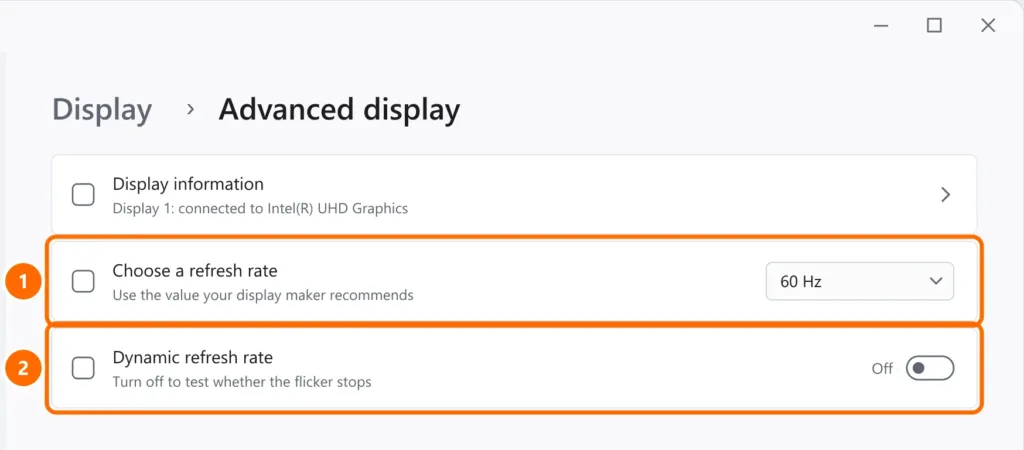
- Open Settings › System › Display › Advanced display.
- Under Choose a refresh rate, try the value the manufacturer recommends (60 Hz is the most compatible).
- If Dynamic refresh rate is available, turn it off and watch.
Step 4: automatic brightness and HDR
- In Settings › System › Display › Brightness, uncheck Change brightness automatically when lighting changes and content adaptive brightness control, if shown.
- If HDR is on, turn it off and test.
Step 5: incompatible app
If Task Manager doesn’t flicker, a program is causing it — antivirus, display utilities or old apps are the usual suspects.
- Think about what was installed or updated right before it started.
- In Settings › Apps › Installed apps, update or uninstall that program and restart.
FAQ
Only the external monitor flickers.
Swap the cable (older HDMI cables can’t handle high resolutions and refresh rates), try another port and check that monitor’s refresh rate. Also see second monitor not detected.
The laptop screen flickers when I move the lid.
That points to the internal display cable or the hinge. It’s hardware: get it serviced.
The screen flickers and shows colored lines.
If the lines also appear in the BIOS (before Windows loads), the problem is physical — the screen, cable or graphics card.


