The battery icon says “plugged in, not charging”, the charge always stops at 60% or 80%, or the laptop only works when plugged in? It’s not always a fault: many laptops limit charging on purpose to preserve the battery. Follow the steps in order.
In this article
Step 1: check the outlet, cable and charger
- Try another outlet, without a power strip or extension cord.
- Check whether the charger’s light is on and the connector is firmly seated.
- If the laptop charges over USB-C, use the original charger or one with equal or higher wattage (for example, 65 W). Phone chargers aren’t enough, and Windows shows slow charging or no charging.
- Plug the charger directly into the laptop, without a dock or hub.
Step 2: the manufacturer’s charge limit
Many laptops stop charging at 55–60% or 80% when battery protection mode is on. It’s intentional and shows up as “plugged in, not charging”.
| Manufacturer | Where to find the option |
|---|---|
| Lenovo | Lenovo Vantage › Power › Conservation mode |
| Dell | Dell Power Manager (or Dell Optimizer) › Battery settings |
| ASUS | MyASUS › Device settings › Battery health charging |
| HP | BIOS › Advanced › Battery Health Manager |
| Samsung | Samsung Settings › Protect battery |
If you need a full charge (before a trip, for example), turn the option off. For everyday use, keeping the limit extends battery life.
Step 3: reset the battery reading
- Right-click the Start button and open Device Manager.
- Expand Batteries and uninstall Microsoft ACPI-Compliant Control Method Battery (don’t uninstall the “AC Adapter”).
- Shut down the laptop, unplug the charger, hold the power button for 30 seconds, plug the charger back in and turn it on.
Step 4: check battery wear
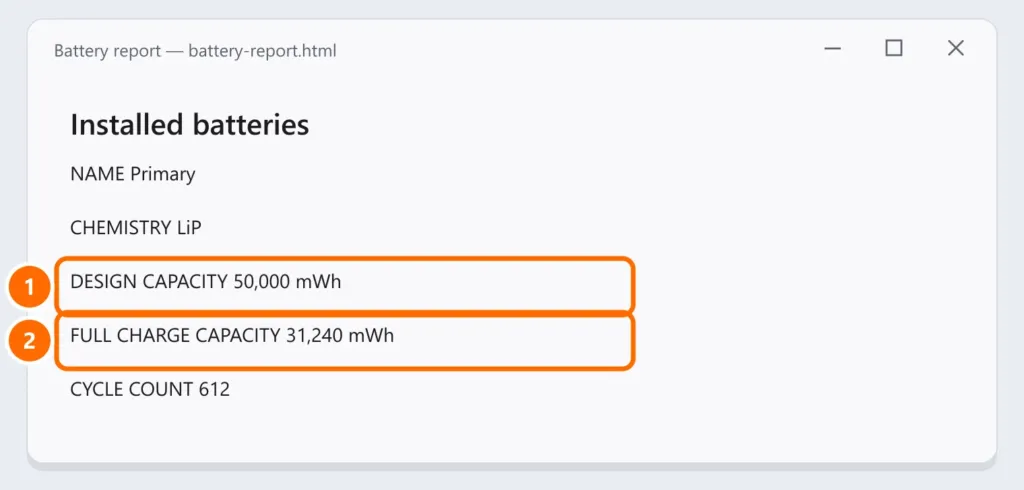
In PowerShell or Command Prompt, generate the battery report:
powercfg /batteryreportWindows tells you where it saved battery-report.html. Open it in your browser and, under Installed batteries, compare the two capacities:
Step 5: update the BIOS and drivers
BIOS updates fix many charging problems. Download them from your laptop maker’s website or app, with the charger connected.
FAQ
Can I leave my laptop plugged in all the time?
Yes. With the manufacturer’s charge limit on (step 2), keeping it plugged in is actually better for battery life.
The laptop stops charging when it gets hot.
That’s protection: batteries don’t charge at high temperatures. See laptop overheating and shutting down.
The laptop won’t turn on even with the charger.
Do the power reset in step 3. If there’s still no sign of life, it may be the charger or the motherboard: test with another compatible charger.