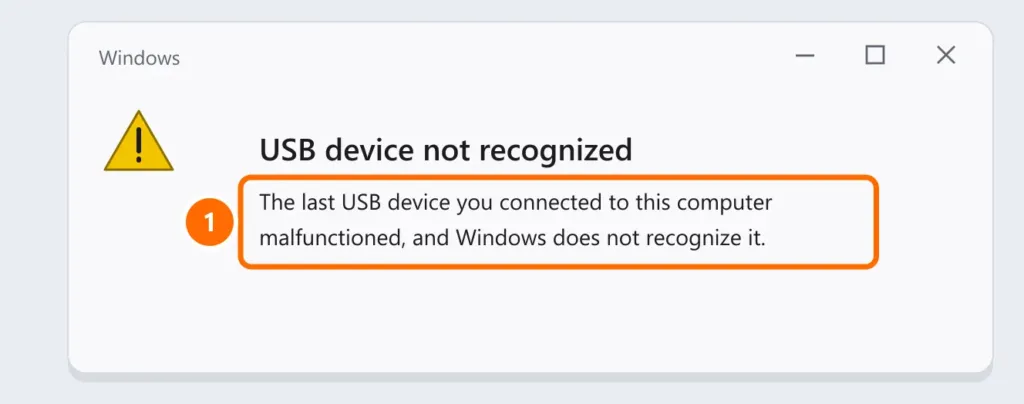
You plug in a USB flash drive (or another USB device) and nothing happens, it doesn’t show up in File Explorer, or you get the “USB device not recognized” notification? Follow the steps in order: the first ones fix most cases in seconds.
In this article
Step 1: port, cable and another computer
- Try another USB port, ideally directly on the computer (on desktops, use the rear ports connected to the motherboard), without a hub or extension.
- If the device uses a cable, swap the cable — many cheap cables only charge and don’t carry data.
- Test the device on another computer. If it doesn’t work there either, the device is the problem.
Step 2: does the drive show up in Disk Management?
Right-click the Start button and open Disk Management.
| What you see | What to do |
|---|---|
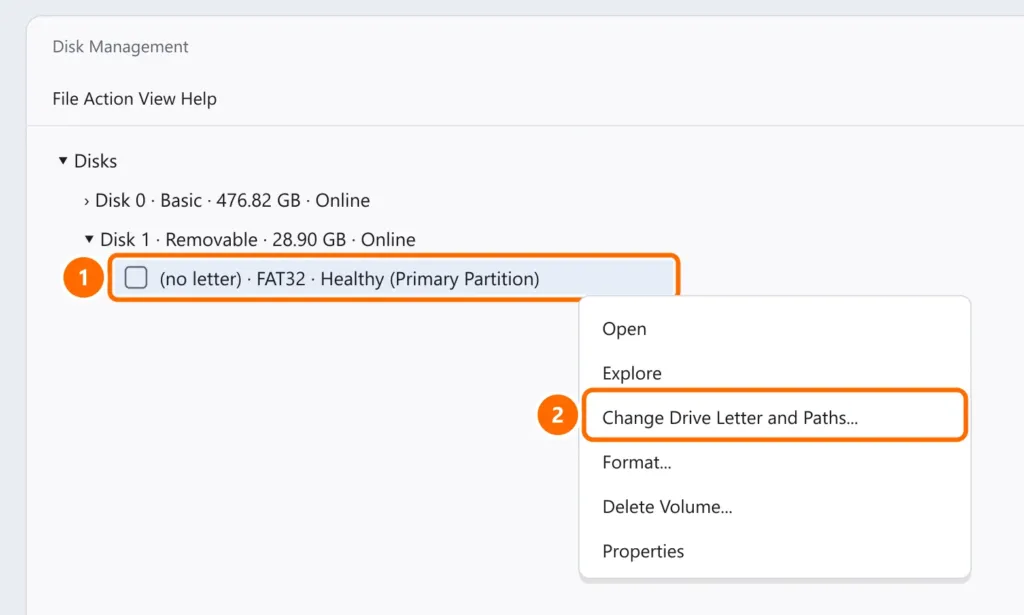
| Healthy volume with no letter | Assign a drive letter (below) |
| Unallocated | No partition: create a volume (the drive will be empty) |
| RAW or asks to format | Damaged file system: recover data before formatting |
| Not listed | Go to step 3 |
To assign a letter: right-click the volume, Change Drive Letter and Paths › Add, choose a letter and confirm.
Step 3: reinstall the USB controllers
- Right-click the Start button and open Device Manager.
- With the device plugged in, look for items with a yellow warning under Universal Serial Bus controllers or Disk drives (for example, “Unknown USB Device (Device Descriptor Request Failed)”).
- Right-click it, choose Uninstall device, unplug the USB device and restart the computer.
- Also update the chipset driver from your computer maker’s website.
Step 4: turn off USB power saving
Windows can turn off USB ports to save power — the device disappears after a while or isn’t recognized.
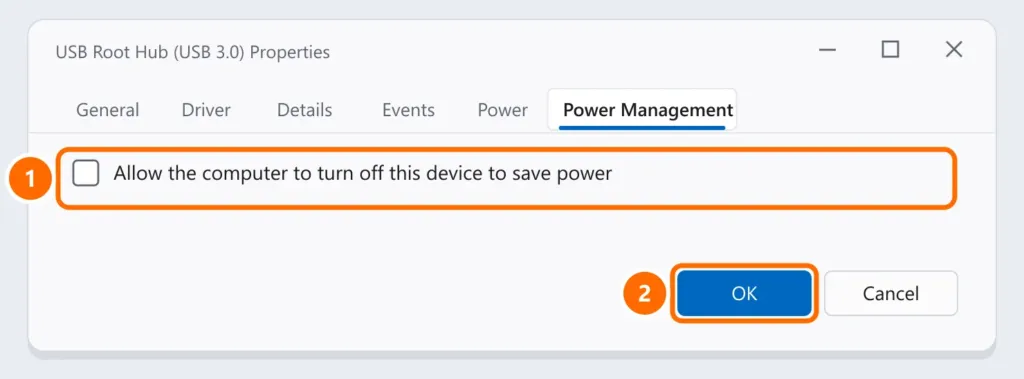
- In Device Manager, under Universal Serial Bus controllers, open each USB Root Hub (or Generic USB Hub).
- On the Power Management tab, uncheck Allow the computer to turn off this device to save power and click OK.
FAQ
My external hard drive doesn’t show up.
The steps are similar, but external HDDs and SSDs have their own causes (uninitialized disk, not enough power). See external hard drive not showing up.
“USB device not recognized” appears with nothing plugged in.
An internal device or a connected peripheral is failing. Unplug USB devices one by one until the notification stops, then reinstall that device’s driver (step 3).
The flash drive works on my phone but not on my PC.
Phones read some formats Windows doesn’t use. Copy the files off with your phone before formatting the drive on the PC as exFAT, which works on both.