A hard drive that dies, a stolen laptop, a folder deleted by mistake or a ransomware attack that encrypts everything: without a backup, the outcome is the same. The 3-2-1 rule is the most widely used standard to prevent that, at home and in business.
In this article
What the 3-2-1 rule means
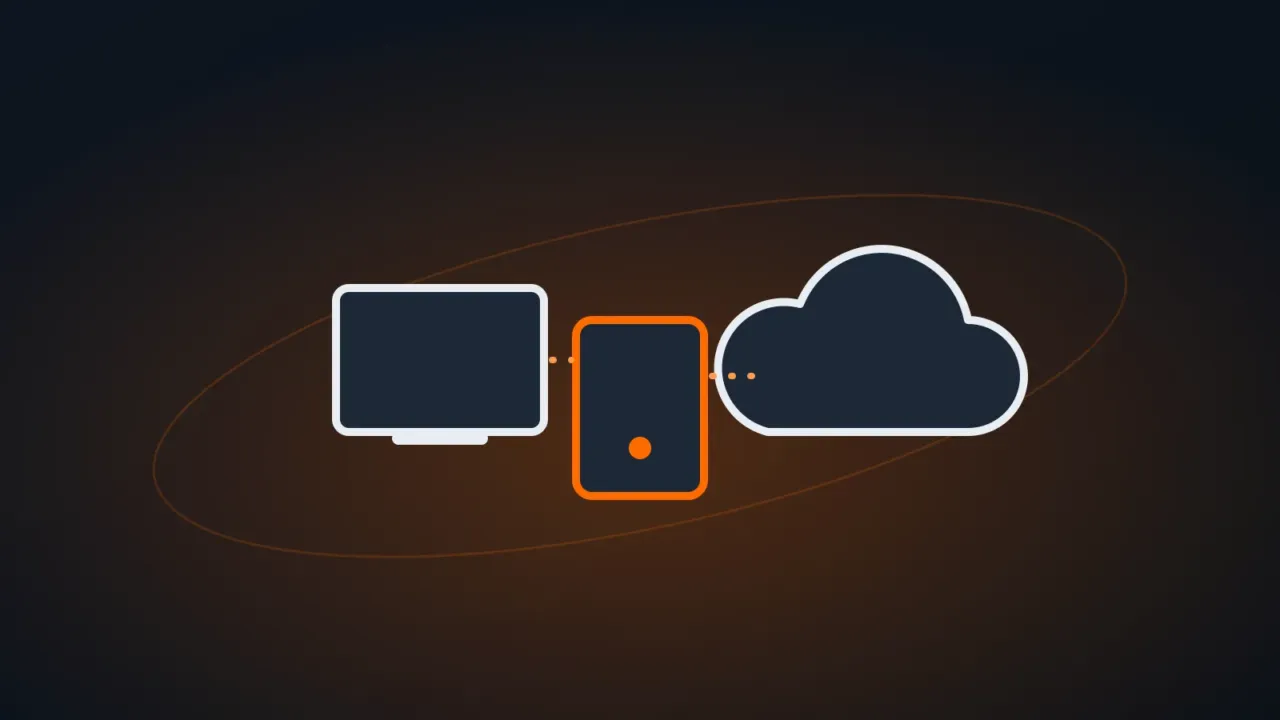
- 3 copies of your data: the original plus two copies.
- 2 different types of media: for example, the computer’s drive and an external drive or NAS.
- 1 copy offsite: in the cloud or at another physical location, to survive fire, theft or flooding.
Because of ransomware, many companies now follow the 3-2-1-1-0 version:
- plus 1 offline or immutable copy that an attacker can’t change or delete;
- 0 errors when verified: the backup is tested with regular restores.
Syncing is not backing up
OneDrive, Google Drive and Dropbox sync: if a file is deleted or encrypted on your computer, that change is replicated to the cloud. Version history and the recycle bin help, but they have time limits.
Setting it up at home
| Layer | Example |
|---|---|
| Original | Files on your computer |
| Local copy | External HDD or SSD with automatic backups |
| Offsite copy | A cloud backup service or cloud storage with versioning |
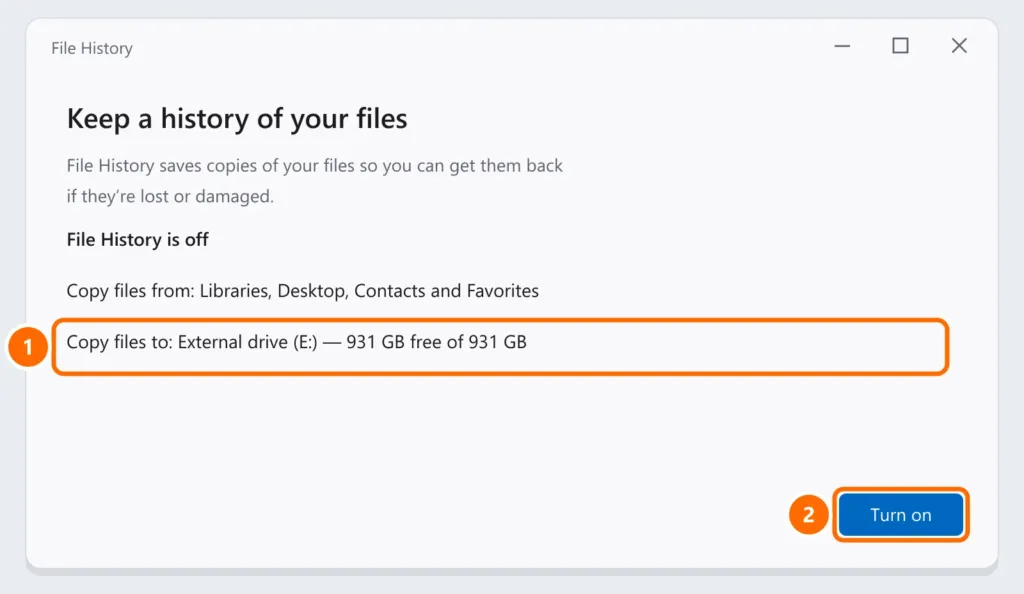
On Windows 11, File History makes automatic, versioned copies to an external drive:
- Connect the external drive.
- Open Control Panel › System and Security › File History.
- Select the drive and click Turn on.
- Under Advanced settings, choose how often to save copies and how long to keep versions.
To copy a folder manually with a log of what was done, robocopy is built into Windows:
robocopy "C:\Users\YourName\Documents" "E:\Backup\Documents" /E /R:1 /W:1 /LOG:E:\Backup\log.txtSetting it up in a business
- Map what needs backing up: servers, databases, business systems, shared folders — and email and cloud files too (Microsoft 365, Google Workspace).
- Define RPO and RTO: how much data the business can afford to lose (for example, one day at most) and how quickly it must be back up and running.
- Use layered copies: a NAS with snapshots for quick restores, and an immutable cloud copy (locked against deletion for a set period) for disasters and ransomware.
- Protect the backup itself: dedicated credentials, two-factor authentication on the console and a separate network. See how to turn on two-factor authentication.
- Test restores every month — a file, a folder and, periodically, an entire server.
Common mistakes
FAQ
How often should I back up?
It depends on how much you can afford to lose. For personal files, an automatic daily copy is usually enough. In business, critical systems may need hourly copies or continuous replication.
External drive or cloud: which is better?
Both. An external drive restores quickly, and the cloud protects against theft, fire and on-site ransomware. The 3-2-1 rule combines the two.
Is a NAS with RAID a backup?
No. RAID protects against a single drive failing, but not against deletion, corruption or ransomware. The NAS needs snapshots and an offsite copy.