
Microsoft Teams opens but keeps loading, won’t show old messages, images or files, or chats appear blank? Most of the time the problem is the app’s local cache or the connection. Follow the steps in order.
In this article
Step 1: try the web version
Open teams.microsoft.com in your browser and sign in with the same account.
- It works on the web: the problem is the desktop app — go to step 3.
- It doesn’t load on the web either: it’s the connection, account or a service issue — see step 2.
Step 2: connection, VPN and service status
- Make sure your internet is stable — see connected, no internet.
- Disconnect the VPN and test. Some corporate VPNs and proxies block parts of Teams (images and files come from SharePoint/OneDrive).
- Check the computer’s date and time.
- If several coworkers have the same problem at the same time, it may be a Microsoft service issue. IT can check Service health in the Microsoft 365 admin center.
Step 3: sign out and back in
Click your picture in the top-right corner › Sign out. Close Teams, open it again and sign in.
Step 4: clear the Teams cache
- Close Teams completely (right-click its icon near the clock › Quit).
- Press Windows + R, paste the path below and click OK:
%localappdata%\Packages\MSTeams_8wekyb3d8bbwe\LocalCache\Microsoft\MSTeams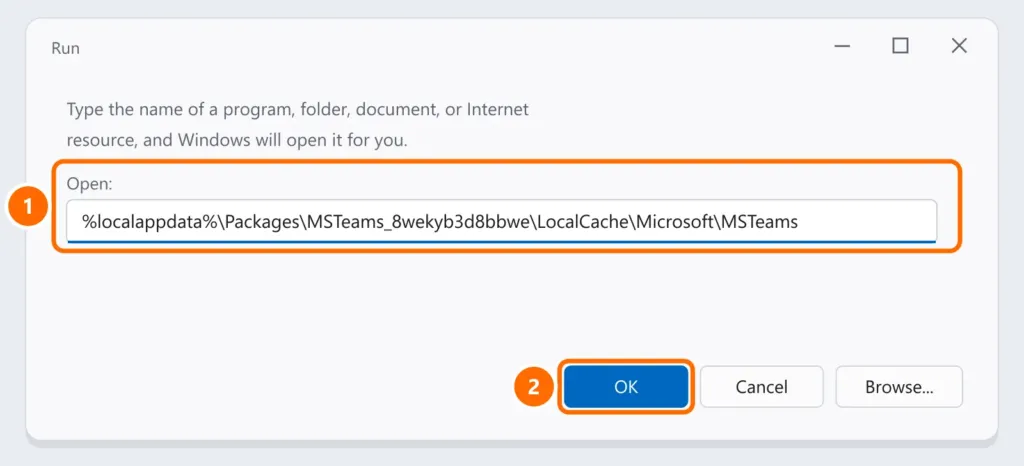
- Delete everything inside that folder and open Teams again. The first load takes a bit longer.
Step 5: repair or reset the app
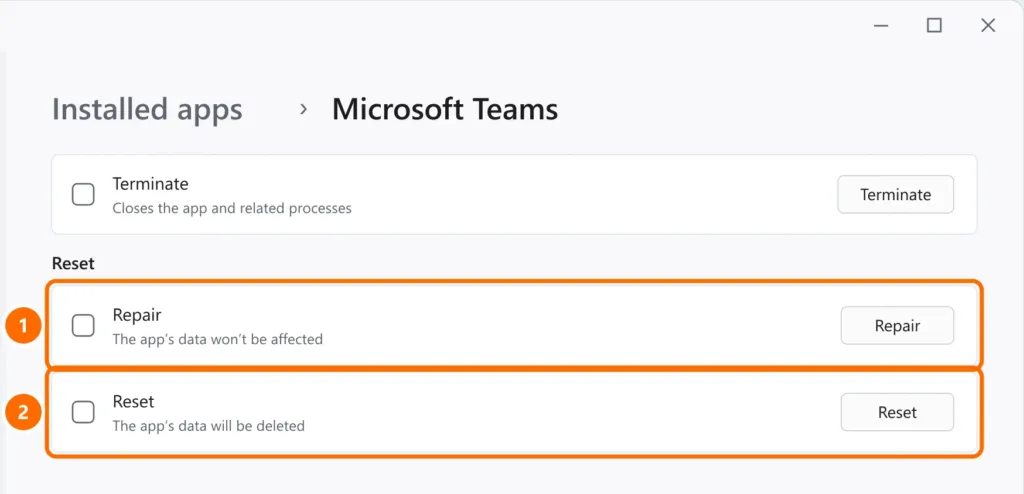
Under Settings › Apps › Installed apps, click ⋯ next to Microsoft Teams › Advanced options. Try Repair first; if that doesn’t help, Reset.
FAQ
Only old messages don’t show up.
Scroll to the top to force them to load. If messages from months ago disappeared for everyone, your company may have a retention policy that deletes old conversations — check with IT.
Images and files won’t open, but messages do.
Teams files live in SharePoint/OneDrive. Try opening the file in the browser and check that you have permission in that team or chat.
Teams won’t even open.
See Teams won’t open or doesn’t detect microphone and camera.