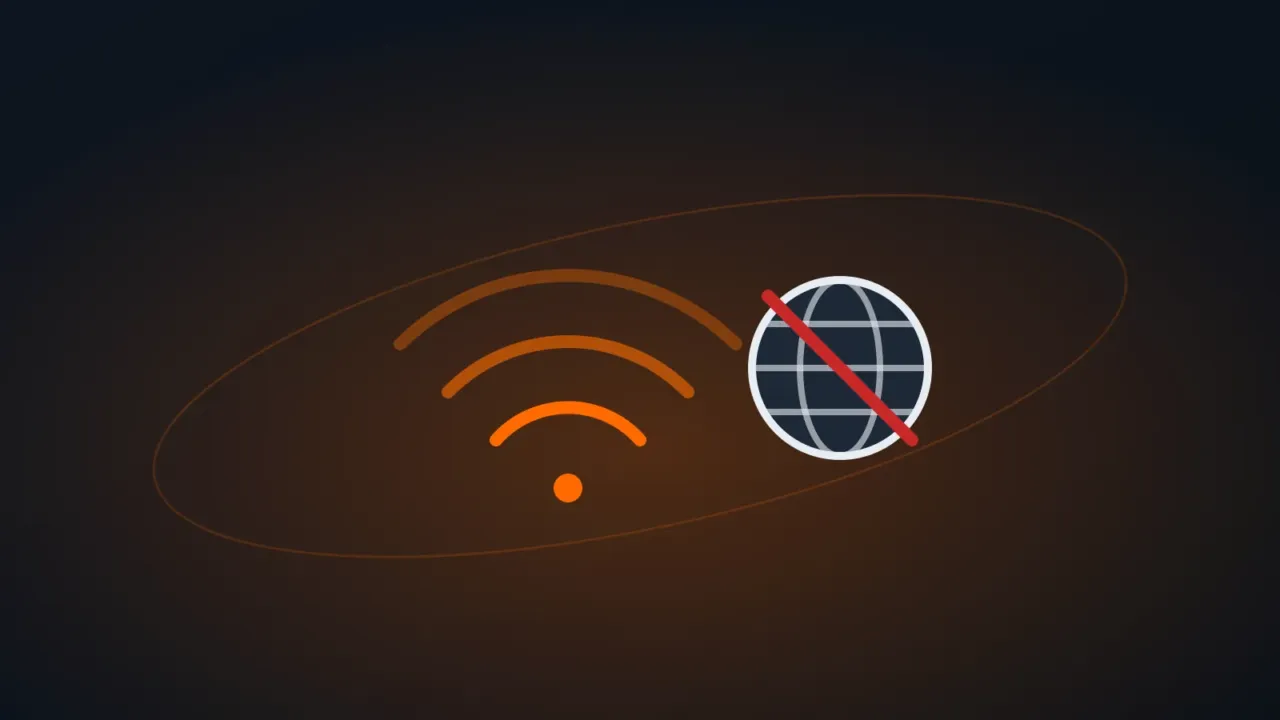
The network icon shows you’re connected, but it says “No internet” — or, over Ethernet, “Unidentified network”? That means the computer is connected to the router, but the path to the internet broke somewhere. The first step is finding out where.
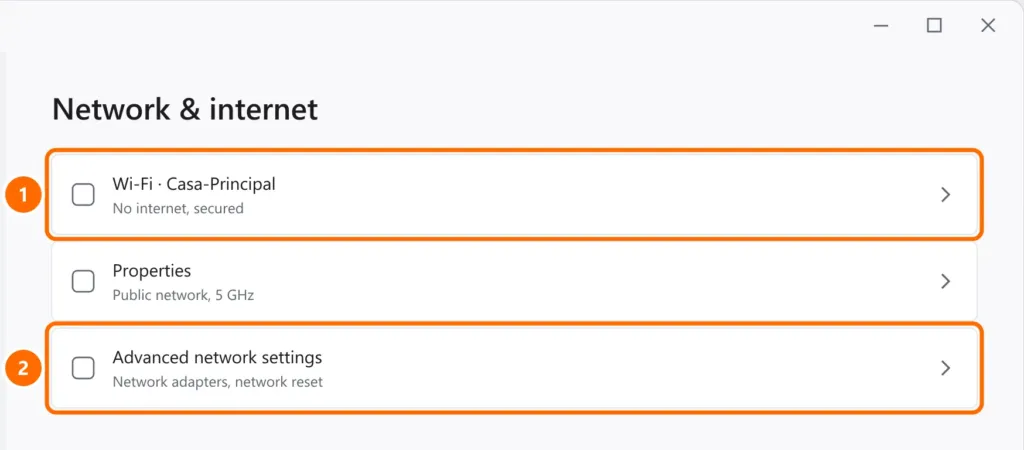
In this article
Step 1: is it the router or the computer?
- Test the internet on your phone, on the same network.
- No device can browse: unplug the router (and the ISP modem, if separate) for 30 seconds and wait 2 minutes after plugging it back in. If it continues, it’s an ISP problem.
- Only the computer can’t browse: follow the next steps.
Step 2: check whether the PC got an IP address
In Command Prompt or PowerShell, run ipconfig and find the adapter you’re using (Wi-Fi or Ethernet).
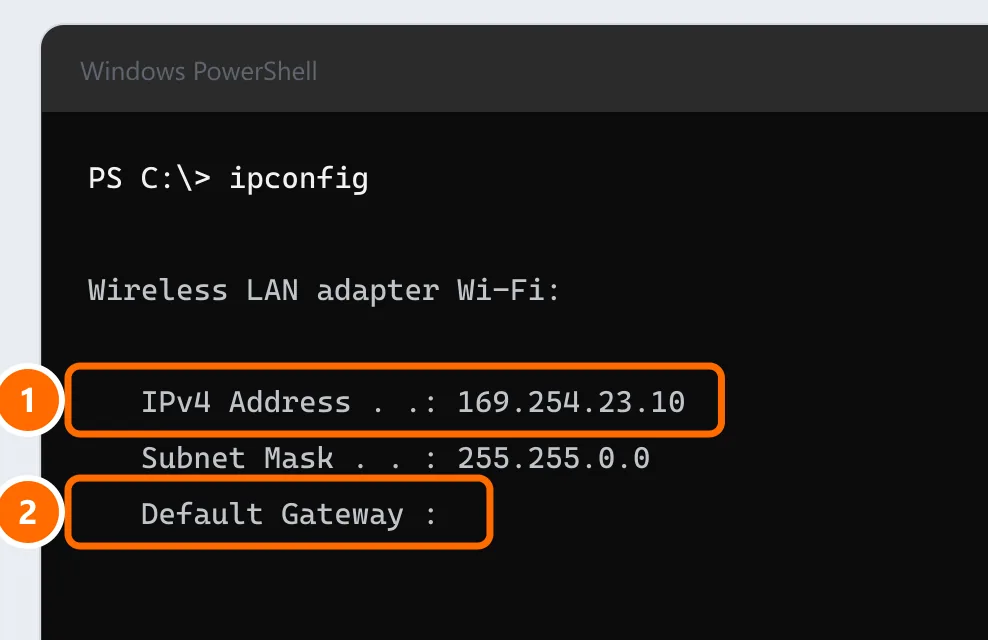
An address starting with 169.254 means the computer didn’t get an IP from the router. Request a new one:
ipconfig /release
ipconfig /renewStep 3: forget the Wi-Fi network and reconnect
Under Settings › Network & internet › Wi-Fi › Manage known networks, click Forget next to your network and reconnect by typing the password.
Step 4: reset Windows networking
In PowerShell as administrator, reset the network components and restart the computer:
netsh winsock reset
netsh int ip reset
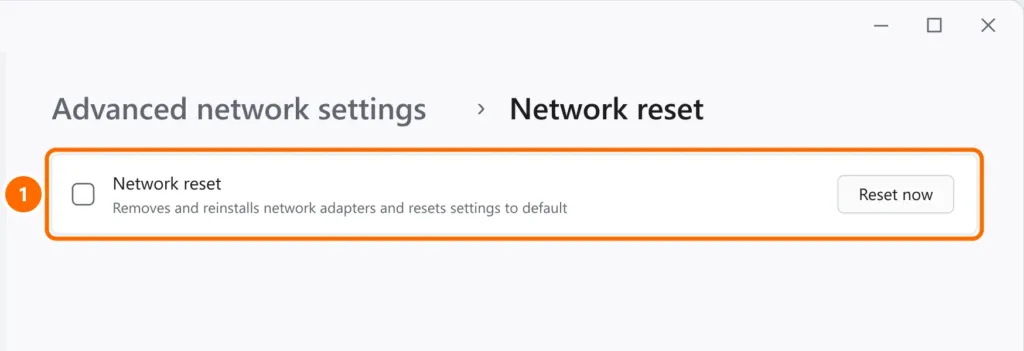
If that doesn’t help, use the full reset under Settings › Network & internet › Advanced network settings › Network reset:
Step 5: DNS, VPN and proxy
- Sites won’t load, but the IP is fine: it may be DNS — see DNS server not responding.
- VPN or proxy: disconnect the VPN and, under Settings › Network & internet › Proxy, turn off any proxy you didn’t set up.
FAQ
The internet works but keeps dropping.
That’s a different problem, usually signal or adapter power saving. See internet keeps dropping on your PC.
It says “No internet”, but websites load.
Windows checks the connection by reaching a Microsoft address; corporate or filtered networks may block that check. If everything works, you can ignore the notice.
It started after an update.
Update the network adapter driver from your computer maker’s website or use the network reset (step 4), which reinstalls the adapters.