Files stuck with the arrows icon, a red X on a folder, or a message that OneDrive isn’t connected? Most of the time sync is paused, storage is full, or a file has a name or path OneDrive doesn’t accept.
In this article
Step 1: see what OneDrive is telling you
Click the cloud icon in the taskbar (near the clock). The panel shows the status and, when there’s a problem, the error message.
| Icon or message | Meaning |
|---|---|
| Gray cloud | Not signed in — sign in with your account |
| Cloud with pause | Sync paused — click Resume syncing |
| Red X on a file | That file couldn’t sync — see the reason in the panel |
| Storage warning | Your account storage is full |
Step 2: check space and file names
- Space: the free plan includes 5 GB. Free up space in OneDrive or upgrade your plan.
- Invalid characters: names with
" * : < > ? / \ |won’t sync. Rename the file. - Long paths: deeply nested folders with long names cause errors. Shorten names or move the folder closer to the root.
- Open files: files locked by another program (such as a database or an Outlook PST) don’t sync while in use.
Step 3: restart and check the connection
- In the OneDrive panel, click the gear › Pause syncing, then Resume.
- Quit OneDrive (gear › Quit OneDrive) and reopen it from the Start menu.
- Error 0x8004de40 means a connection problem: test your internet, turn off VPN or proxy, and check that the date and time are correct.
Step 4: reset OneDrive
A reset rebuilds the sync settings without deleting your files. Press Windows + R and run the command below:
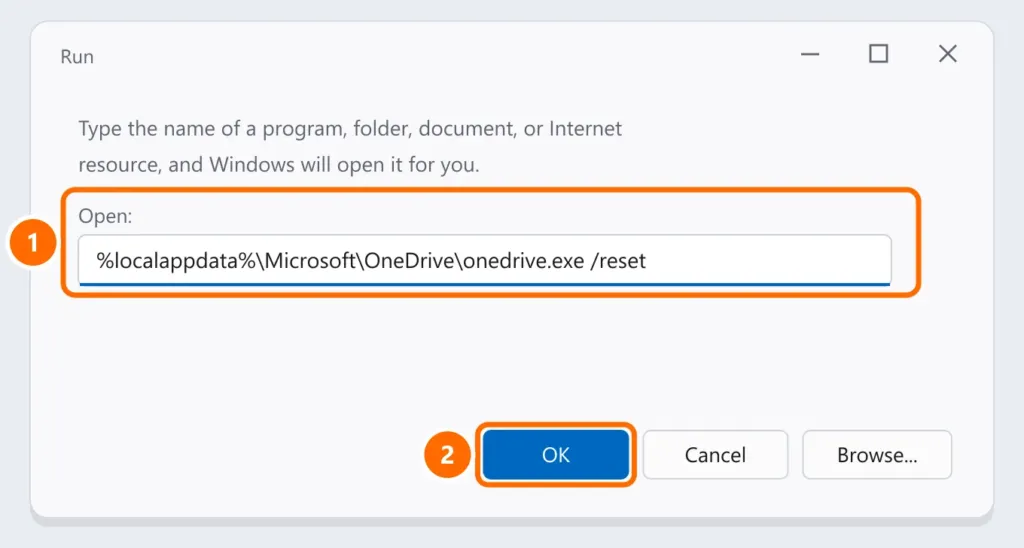
%localappdata%\Microsoft\OneDrive\onedrive.exe /resetStep 5: unlink and relink the PC
Under gear › Settings › Account, click Unlink this PC, sign in again and choose the same OneDrive folder. Files in the cloud aren’t deleted.
FAQ
OneDrive has been “Processing changes” for hours. Is that normal?
With lots of small files, the first sync can take hours. If it doesn’t progress within a day, follow steps 3 and 4.
Can I sync a folder outside OneDrive?
Not directly. Move the folder into your OneDrive folder, or use folder backup (Desktop, Documents and Pictures) in settings.
Does unlinking the PC delete my files?
No. Files stay in the cloud, and the ones already downloaded stay on your computer.