You click Outlook and it won’t open, sits on “Loading profile” or closes by itself? Follow the steps in order. They apply to classic Outlook (Microsoft 365, 2021, 2019), the version most companies use.
In this article
Step 1: end a stuck Outlook
- Press Ctrl + Shift + Esc to open Task Manager.
- In Processes, select Microsoft Outlook and click End task.
- Open Outlook again. If that doesn’t help, restart the computer.
Step 2: open it in safe mode
Safe mode opens Outlook without add-ins. Press Windows + R and run:
outlook.exe /safe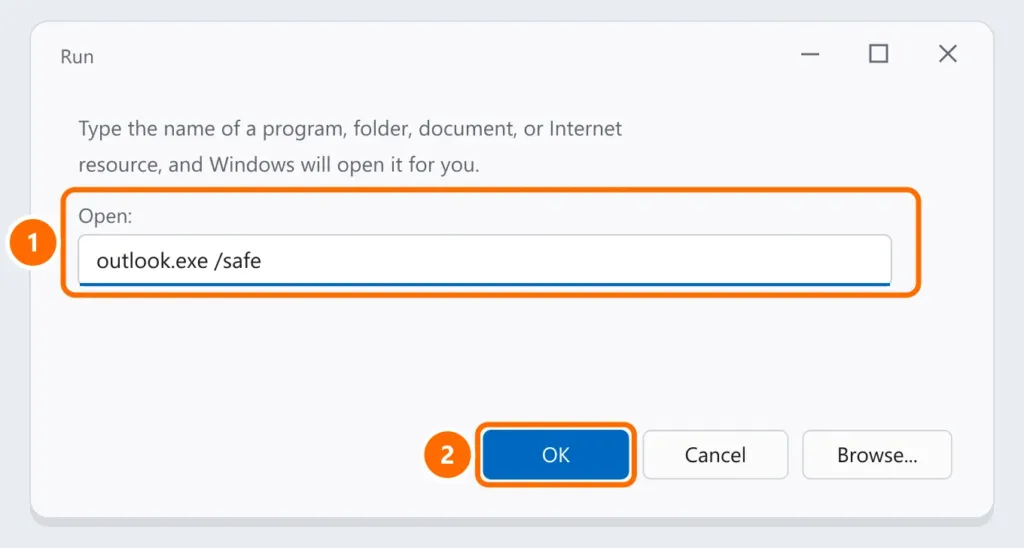
Step 3: repair Office
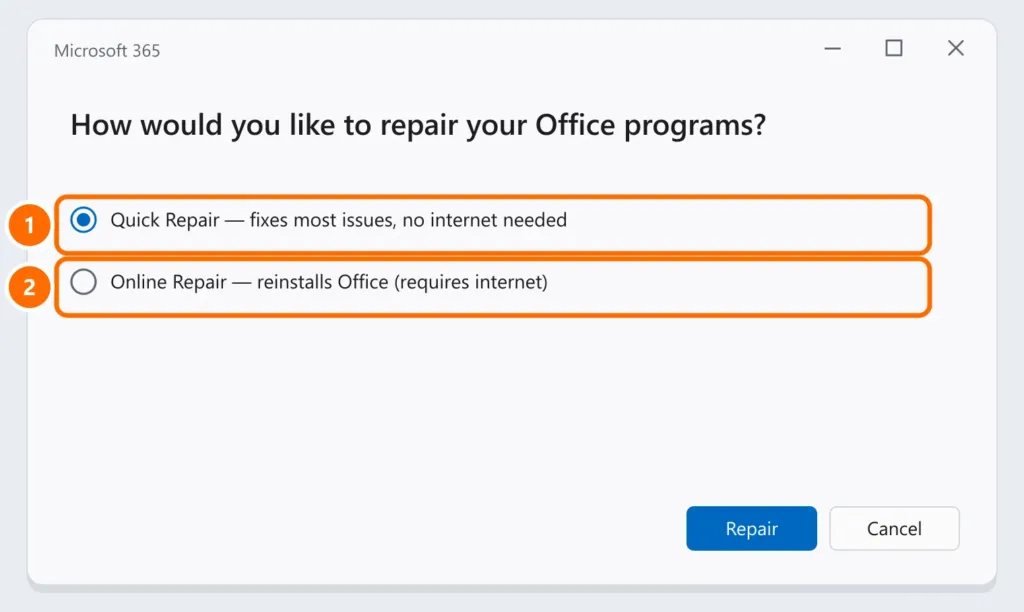
Under Settings › Apps › Installed apps, click ⋯ next to Microsoft 365 (or Office), Modify, and choose Quick Repair. If that doesn’t help, use Online Repair.
Step 4: create a new profile
A corrupted profile leaves Outlook stuck on “Loading profile”.
- Close Outlook and open Control Panel › Mail (Microsoft Outlook).
- Click Show Profiles › Add, give it a name and set up the email account.
- Select Always use this profile, choose the new one and click OK.
Microsoft 365 and Exchange accounts download everything again from the server — nothing is lost.
Step 5: repair the data file (.pst/.ost)
For POP/IMAP accounts with a .pst file, close Outlook and run the Inbox Repair Tool (SCANPST.EXE). On Microsoft 365, it’s at:
C:\Program Files\Microsoft Office\root\Office16\SCANPST.EXESelect the .pst file (in Documents\Outlook Files) and click Start, then Repair. Make a copy of the file first.
FAQ
New Outlook opens, but classic doesn’t.
They’re different apps. The steps above are for classic; for new Outlook, reset the app under Settings › Apps › Installed apps › Outlook (new) › Advanced options › Reset.
Word and Excel won’t open either.
The whole Office suite is affected: repair Office (step 3). Also see Excel not responding.
Will I lose email by creating a new profile?
With Microsoft 365, Exchange and IMAP, no: everything is on the server. With POP, email lives in the .pst file — add the same file to the new profile.