Word won’t open, sits on the splash screen, closes by itself or shows “Product Activation Failed”? Follow the steps in order. If only one file is the problem, skip to step 5.
In this article
Step 1: end a stuck Word and restart
Press Ctrl + Shift + Esc, select Microsoft Word under Processes, click End task and open Word again. If that doesn’t help, restart the computer.
Step 2: open it in safe mode
Press Windows + R and run:
winword /safe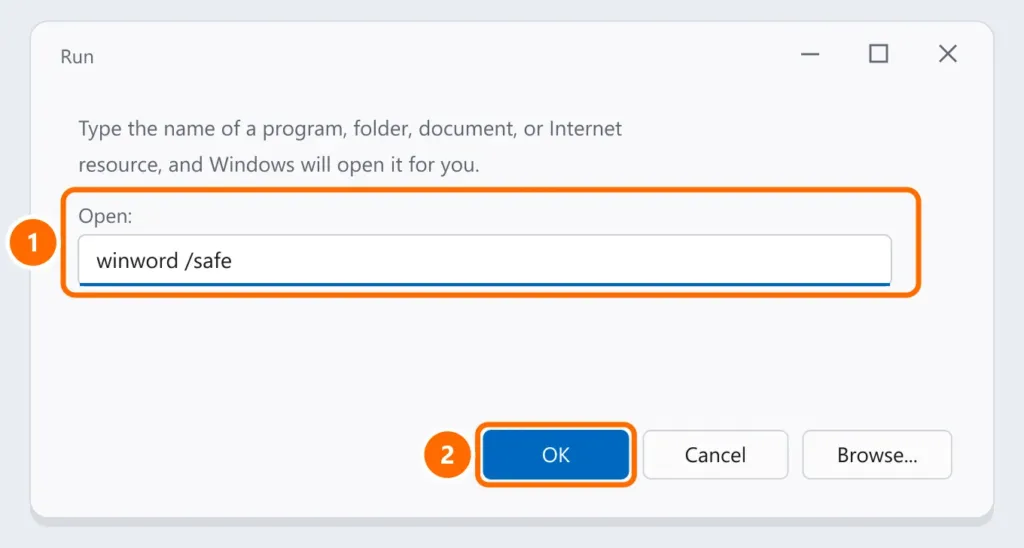
Step 3: recreate the Normal.dotm template
The Normal.dotm file stores default styles and macros; when it’s corrupted, Word freezes on startup. With Word closed, press Windows + R, run the command below and rename Normal.dotm to Normal.old:
%appdata%\Microsoft\TemplatesWord creates a new template when it opens. Old custom styles stay in the renamed file.
Step 4: repair Office
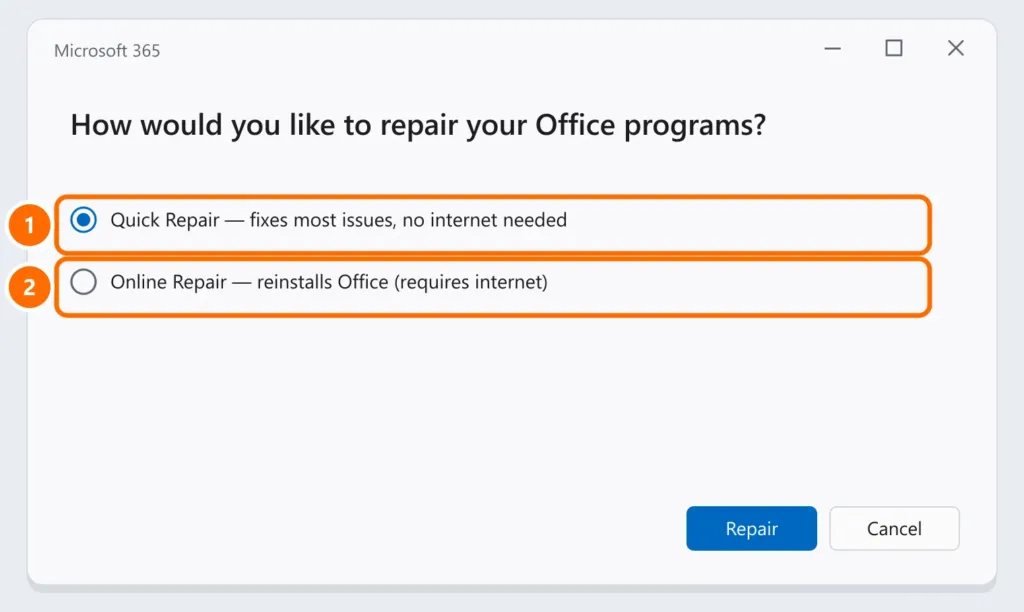
Under Settings › Apps › Installed apps, click ⋯ next to Microsoft 365 (or Office), Modify, and choose Quick Repair. If it continues, use Online Repair.
Step 5: only one file won’t open
- In Word, go to File › Open › Browse and select the file.
- Click the arrow next to Open and choose Open and Repair.
- Files received by email or downloaded open in Protected View: click Enable Editing only if you trust the sender.
“Product Activation Failed”
Word opens in read-only mode. Under File › Account, check that you’re signed in with the account that has the license (your work account, at companies). Sign out and back in; if the subscription expired, the admin or owner needs to renew it.
FAQ
Excel and Outlook won’t open either.
The whole Office suite is affected: do step 4. Also see Excel not responding and Outlook won’t open.
Word closes when printing.
It’s usually the printer driver. Try printing to Microsoft Print to PDF; if that works, reinstall the driver — see printer not printing.
I lost my document when Word closed.
Open Word and look for the Document Recovery pane, or go to File › Info › Manage Document › Recover Unsaved Documents.