Windows 11 has several ways to capture the screen, and each shortcut does something different: some only copy the image, others save a file automatically. Here’s which one to use and when.
In this article
Shortcut summary
| Shortcut | What it does | Where the image goes |
|---|---|---|
| Windows + Shift + S | Opens Snipping Tool to choose an area, window or full screen | Clipboard (and, in current versions, also saved to a file) |
| Print Screen | By default, opens the same Snipping Tool | Same as above |
| Windows + Print Screen | Captures the full screen and saves it immediately | Pictures\Screenshots folder |
| Alt + Print Screen | Captures only the active window | Clipboard |
| Windows + Shift + R | Records the screen with Snipping Tool | Videos folder (when you save) |
1. Snip part of the screen (Windows + Shift + S)
This is the most versatile option.
- Press Windows + Shift + S. The screen dims and a toolbar appears at the top.
- Pick a mode: Rectangle, Freeform, Window or Full screen.
- Select the area. The image goes to the clipboard, ready to paste with Ctrl + V into chat, email or Word.
- Click the notification in the corner of the screen to open the snip, annotate it and save it.
2. The Print Screen key
On Windows 11, the Print Screen key opens Snipping Tool by default (the same as Windows + Shift + S).
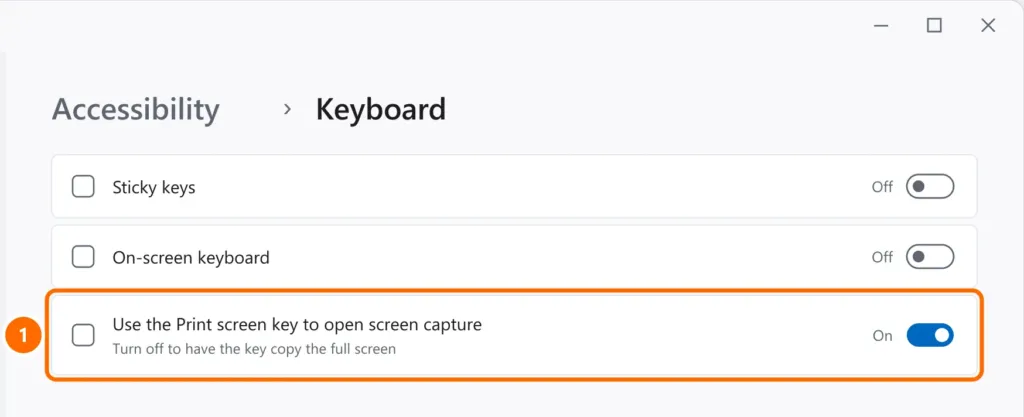
If you prefer the old behavior — copying the full screen straight to the clipboard — go to Settings › Accessibility › Keyboard and turn off the option that uses the Print Screen key to open screen capture.
3. Save the full screen instantly (Windows + Print Screen)
Press Windows + Print Screen. The screen dims briefly and the image is saved as a PNG, with nothing to paste:
C:\Users\YourName\Pictures\Screenshots4. Capture a single window (Alt + Print Screen)
Click the window you want to capture and press Alt + Print Screen. Only that window goes to the clipboard, without the taskbar or the rest of the screen.
5. Delayed screenshot
To capture a menu that closes when you press a key:
- Open Snipping Tool from the Start menu.
- Choose a delay (3, 5 or 10 seconds) from the clock icon.
- Click New, open the menu you want to show and wait.
6. A full web page
Windows can’t capture a scrolling page on its own, but Microsoft Edge can:
- Open the site in Edge and press Ctrl + Shift + S.
- Choose Capture full page.
- Save or copy the image.
7. Record the screen
- Windows + Shift + R starts a Snipping Tool recording: select the area and click Start.
- In games, Xbox Game Bar (Windows + G) records with Windows + Alt + R and saves to
Videos\Captures.
FAQ
Where are screenshots saved on Windows 11?
Screenshots taken with Windows + Print Screen (and, in current versions, with Snipping Tool) go to Pictures › Screenshots. Game Bar captures go to Videos › Captures.
The Print Screen key does nothing. What should I do?
Try Fn + Print Screen, check whether another app (such as OneDrive or a screenshot tool) has taken over the key, and review the Print Screen option under Settings › Accessibility › Keyboard.
How do I get back screenshots I copied earlier?
Turn on clipboard history with Windows + V. It keeps your most recently copied images and text.


