The volume icon is there, the video plays, but there’s no sound — or audio disappeared after an update. Most of the time Windows is sending sound to the wrong device (such as an HDMI monitor) or the audio driver has stopped working. Follow the steps in order.
In this article
Step 1: check the basics
- Turn the volume up from the taskbar icon and your laptop’s keys, and make sure it isn’t muted.
- For external speakers, check they’re powered on and plugged into the green output (or USB).
- Test sound in another app or website — if only one app is silent, go to step 3.
Step 2: choose the right output device
This is the most common cause: Windows starts sending sound to a monitor or TV over HDMI, a Bluetooth headset that’s off, or another device.
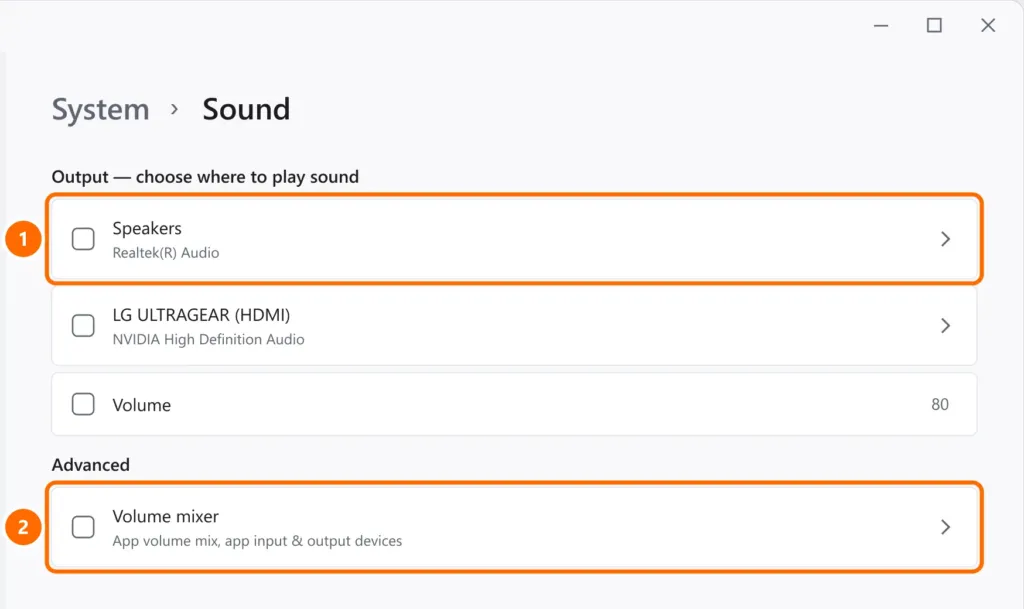
- Open Settings › System › Sound.
- Under Output, select the speakers or headphones you’re using.
Step 3: check the volume mixer
Under Settings › System › Sound › Volume mixer, make sure the app (browser, Teams, game) isn’t muted or sending sound to another device.
Step 4: restart the audio service
In PowerShell as administrator:
Restart-Service -Name Audiosrv -ForceStep 5: turn off audio enhancements
Some manufacturers’ audio enhancements cause crackling, dropouts or no sound after updates.
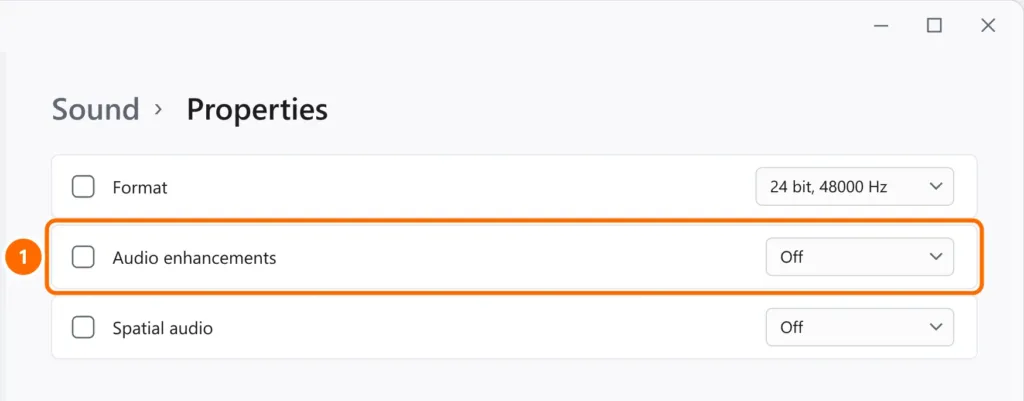
- In Settings › System › Sound, click your output device to open its Properties.
- Set Audio enhancements to Off. If that doesn’t help, try another Format (for example, 24 bit, 48000 Hz).
Step 6: update, roll back or reinstall the driver
- Right-click the Start button and open Device Manager.
- Expand Sound, video and game controllers and open your audio device (for example, Realtek(R) Audio).
- On the Driver tab, use Roll Back Driver if the sound stopped after an update; otherwise, install the latest driver from your computer maker’s website.
- If nothing works, right-click the device › Uninstall device and restart: Windows reinstalls the driver automatically.
Step 7: specific cases
- Front-panel headphone jack doesn’t work: open your maker’s audio app (such as Realtek Audio Console) and check the front jack settings.
- Sound only over HDMI: update your graphics driver, which includes HDMI audio.
- Bluetooth headphones silent or poor quality: remove the device under Settings › Bluetooth & devices and pair it again.
FAQ
Sound stopped after a Windows update. What should I do?
Roll back the audio driver (step 6) or uninstall the update under Settings › Windows Update › Update history › Uninstall updates.
It says “No audio output device is installed”. Now what?
The driver didn’t load. Use Action › Scan for hardware changes in Device Manager and install the audio driver from your computer maker.
The microphone doesn’t work either. Is it the same problem?
It could be the audio driver, but also check permissions under Settings › Privacy & security › Microphone.


