You turned on your computer and, instead of Windows, a blue screen asked for the BitLocker recovery key? BitLocker encrypts the drive to protect your files if the device is stolen. When it detects a change that looks suspicious, it asks for the 48-digit key to make sure the owner is the one starting the computer.
In this article
Step 1: note the key ID
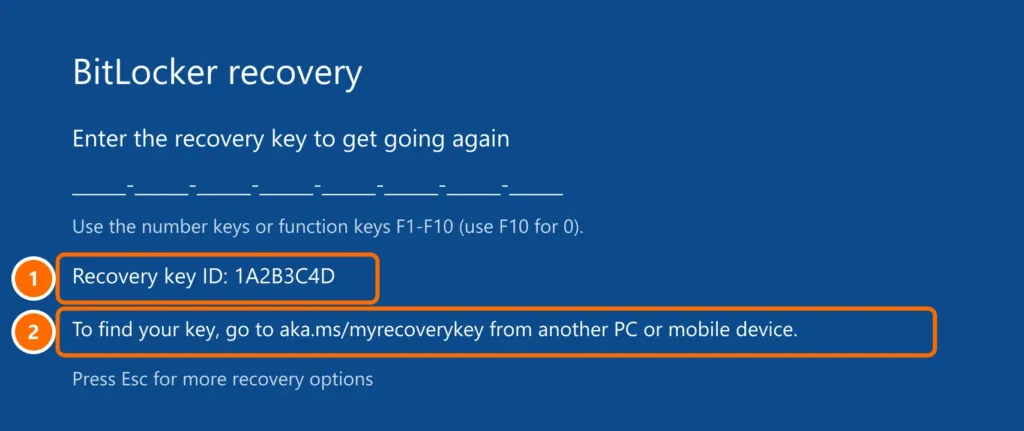
The recovery screen shows a recovery key ID (8 characters). It identifies which key works for this drive — important if you have more than one computer.
Step 2: look for the key in the right place
| Type of computer | Where the key usually is |
|---|---|
| Personal, with a Microsoft account | At aka.ms/myrecoverykey, signed in with the same Microsoft account used on the PC |
| Work or school | With IT support; at many companies also at myaccount.microsoft.com › Devices › View BitLocker Keys |
| Set up manually by you | Printed, in a .txt file or on a USB drive, depending on the option you chose |
In your Microsoft account list, use the key whose ID starts the same as the one on screen and type the 48 digits. Use the number keys or F1–F10 (F10 is zero).
Why the key was requested
- A BIOS/UEFI or firmware update.
- A change in boot order, or a USB drive plugged in at startup.
- Replacing the motherboard or drive, or resetting the TPM.
- Too many wrong PIN or password attempts at startup.
After you enter the key once, Windows usually starts normally again without asking.
How to avoid surprises
- Check today where your key is: go to
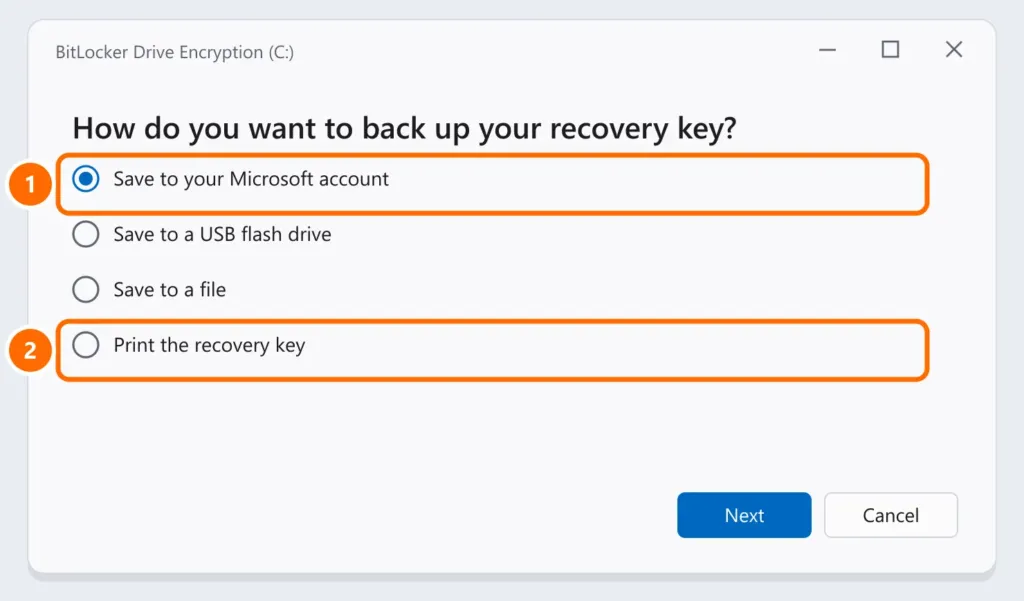
aka.ms/myrecoverykeyand see if the computer is listed. - If it isn’t, search Windows for Manage BitLocker (or Device encryption on Windows 11 Home), click Back up your recovery key and save it in two places.
- Before updating the BIOS or changing hardware, click Suspend protection in BitLocker. Protection resumes on its own after restarting.
FAQ
I never turned on BitLocker. Why did it ask for the key?
Many Windows 11 computers ship with device encryption turned on, and the key is saved automatically to the Microsoft account used during setup.
The key isn’t in my Microsoft account.
Make sure you signed in with the same account used on the computer. If it’s a company computer, IT has the key. If it was set up with a local account, the key only exists where you saved it.
Can I turn off BitLocker?
Yes, under Manage BitLocker › Turn off BitLocker, but then anyone who gets hold of the computer can read the drive. For laptops, we recommend keeping it on and storing the key safely — as part of your 3-2-1 backup.