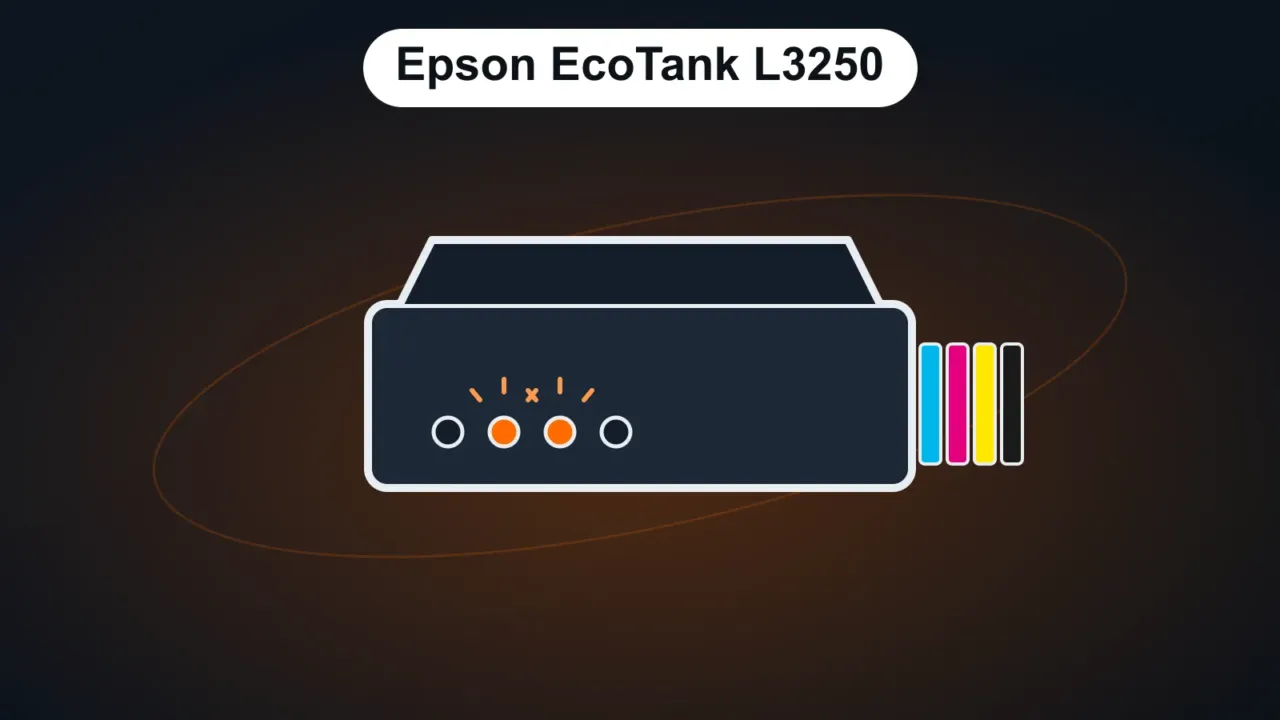
The Epson EcoTank L3250 all-in-one printers (sold in Latin America, Asia and other regions), along with models from the same family such as the L3150, L3210 and L3251, have no screen: they report problems through the lights on the control panel. Each combination has a meaning. The table below follows Epson’s official manual for the L3250.
In this article
What each light means
| Lights | Meaning | What to do |
|---|---|---|
| Power blinking | The printer is busy | Wait for it to stop blinking before turning it off |
| Paper on | No paper, or several sheets were fed at once | Load paper and press a copy button (B&W or color) |
| Paper blinking | Paper jam | Carefully remove the jammed paper and press a copy button |
| Ink on | Initial ink charging not completed | Follow the “Start Here” sheet that came with the printer |
| Ink and paper blinking at the same time | An ink pad is nearing the end of its service life | Contact an Epson authorized service center |
| Ink and paper blinking alternately | The borderless printing ink pad is nearing the end of its life | Epson service; until it’s replaced, borderless printing is unavailable |
| All lights blinking | Printer error: paper or protective material stuck inside | Open the cover, remove anything stuck, then turn the printer off and on |
| Wi-Fi and Wi-Fi Direct blinking | Wi-Fi connection error | Press the Wi-Fi button to clear the error and try again |
| Ink and paper on (network lights off) | The printer was unplugged without using the power button | Press a copy button, run a nozzle check and cancel pending jobs |
| Ink, paper and both Wi-Fi lights on | Firmware update error | Connect with a USB cable and update again |
It turns on, but won’t print
- Check the print queue in Windows and cancel stuck jobs. See printer not printing.
- Offline in Windows? See printer offline.
- Blank or streaky prints: run a nozzle check and a head cleaning from the Epson utility (in Windows, Settings › Bluetooth & devices › Printers & scanners › Epson L3250 › Printing preferences › Maintenance). After 2 or 3 cleanings with no improvement, wait a few hours before trying again.
- Ink in the tanks: make sure the tanks have ink above the minimum line and use genuine ink. The wrong ink clogs the print head.
How to connect the L3250 to Wi-Fi
- Install the full package from Epson’s official support site (search for “L3250”).
- In the installer, choose wireless connection and follow the wizard.
- The computer and the printer must be on the same network, preferably on the 2.4 GHz band.
- If the Wi-Fi light blinks as an error, press the Wi-Fi button and run the installer again.
To print from your phone, use the Epson Smart Panel app.
FAQ
Can I use non-Epson ink?
Epson recommends genuine ink. Poor-quality ink can clog the print head and isn’t covered by the warranty.
Is an ink tank or a laser printer the better deal?
It depends on how much and what you print. See ink tank vs laser printer.