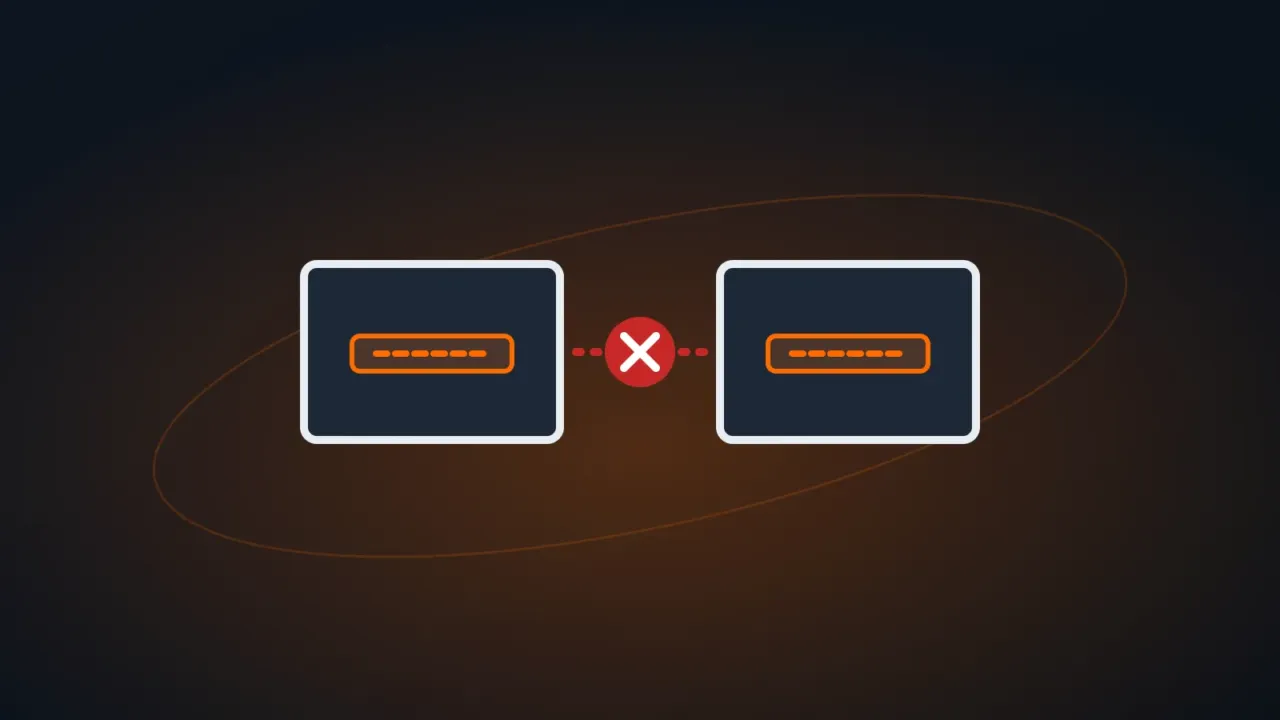
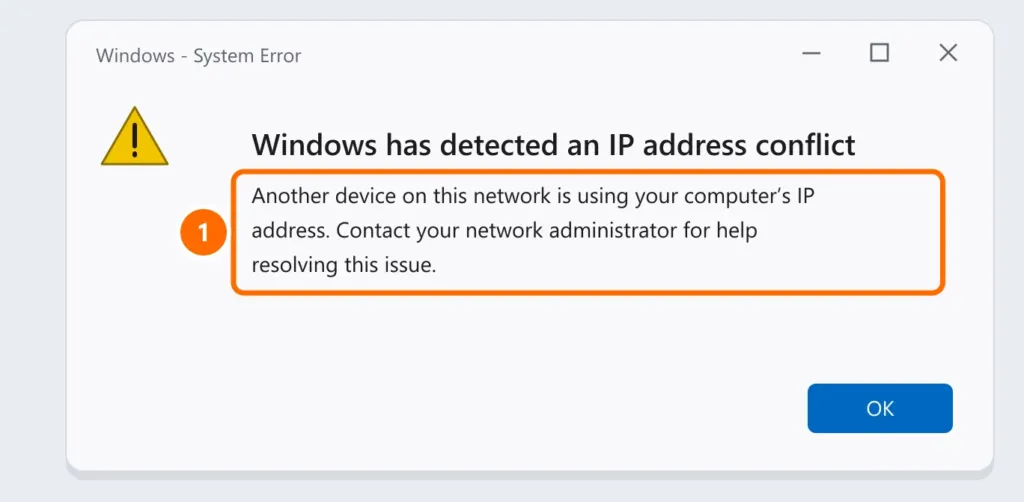
The warning “Windows has detected an IP address conflict” means two devices on the network are using the same address. One of them loses internet access until the conflict is fixed. It’s common in offices with printers, cameras and computers with manually set IPs.
In this article
Step 1: renew the IP
The fastest fix is asking the router for a new address. In Command Prompt as administrator:
ipconfig /release
ipconfig /renew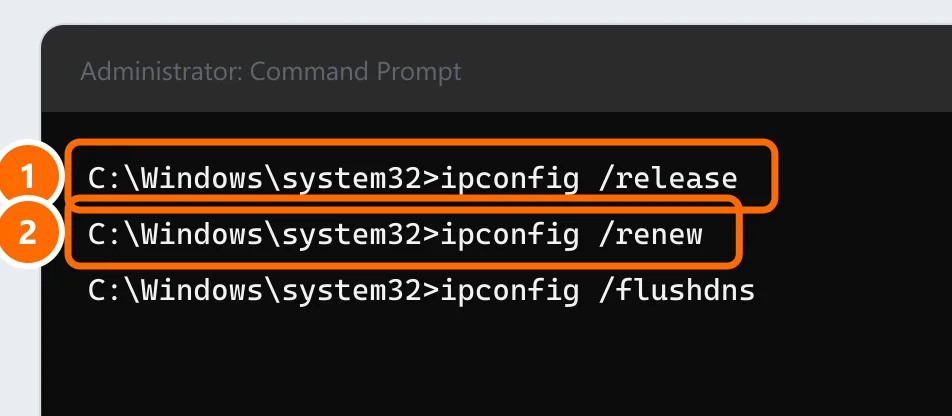
If that doesn’t help, restart the router and then the computer.
Step 2: set the computer to automatic IP
A computer with a static IP set long ago can collide with an address the router gave to another device.
- Open Settings › Network & internet and click the connection in use (Wi-Fi or Ethernet).
- Under IP assignment, click Edit and choose Automatic (DHCP).
Step 3: static IPs the right way — a router reservation
Printers, cameras, NAS devices and servers need an IP that doesn’t change. The right way is a DHCP reservation (also called address binding or static lease on the router):
- Open the router’s admin page and look for DHCP › Address reservation (or similar).
- Link the device’s MAC to an IP and save.
- On the device, leave the IP on automatic. It will always get the same address, with no risk of conflict.
If you’d rather set the IP on the device itself, use an address outside the router’s DHCP range (for example, if the router hands out .100 to .199, use .20).
Step 4: two routers handing out IPs
An extra router used as a repeater or access point with DHCP turned on creates two address ranges and causes conflicts and dropouts. Turn off DHCP on the second router — see how to set up a router as a repeater.
FAQ
The conflict always appears after the printer turns on.
The printer probably has a static IP inside the DHCP range. Create a reservation on the router (step 3) and adjust the printer — see how to set up a network printer.
I’m on a public network (hotel, café) and see the conflict.
Disconnect, forget the network and reconnect. If it continues, tell whoever manages the network.
Can I ignore the warning?
No: while the conflict lasts, one device’s connection stays unstable or drops.