It’s common for an all-in-one printer to print just fine while the scanner doesn’t show up on the computer. That’s because printing and scanning use different drivers and services: Windows usually installs only the basic print driver.
In this article
Step 1: install the manufacturer’s full package
- Write down the printer’s exact model (label on the front or back).
- On the manufacturer’s website, download the full package (“Full Driver & Software Package”), not just the print driver.
- Use the manufacturer’s scanning app: HP Smart, Epson Scan 2, Canon IJ Scan Utility, Brother iPrint&Scan, and others.
Step 2: add the scanner in Windows
- Open Settings › Bluetooth & devices › Printers & scanners.
- Click Add device and wait for Windows to find the scanner.
- To scan without the manufacturer’s app, use the Windows Scan app (Microsoft Store).
Step 3: check the scanning service (WIA)
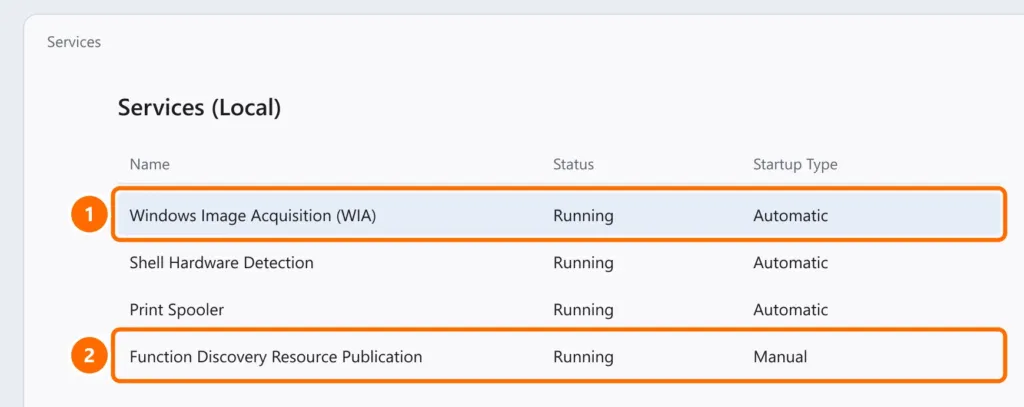
- Press Windows + R, type
services.mscand press Enter. - Find Windows Image Acquisition (WIA): the status should be Running and the startup type Automatic.
- If it’s stopped, right-click it › Start. Under Properties, set the startup type to Automatic.
Step 4: network scanner (Wi-Fi or Ethernet)
- The PC and the printer must be on the same network. A guest network isolates devices.
- If the scanner disappears from time to time, the router may be changing the printer’s IP address. Reserve a fixed IP for it on the router: see how to set up a network printer.
- In the manufacturer’s app, add the scanner by IP address instead of waiting for the automatic search.
- Make sure network discovery is on: Settings › Network & internet › Advanced network settings › Advanced sharing settings › Network discovery.
Step 5: USB scanner
- Plug the cable directly into the PC, without a hub, and try another USB port.
- If you see “USB device not recognized”, see USB device not recognized.
- In Device Manager, check for an item with a yellow triangle under Imaging devices: uninstall it and reinstall the manufacturer’s package.
FAQ
The printer prints over the network, but scanning only works over USB. Why?
Some models only scan over the network with the manufacturer’s software installed and set up with the IP address. Install the full package and add the scanner by IP.
Can I scan straight to email or to a folder?
Many all-in-one printers offer “scan to network folder” or scan to email, set up through the printer’s web page. See how to share a folder on the network.