These are two different errors, with different causes. Find yours below.
In this article
“The disk is write-protected”
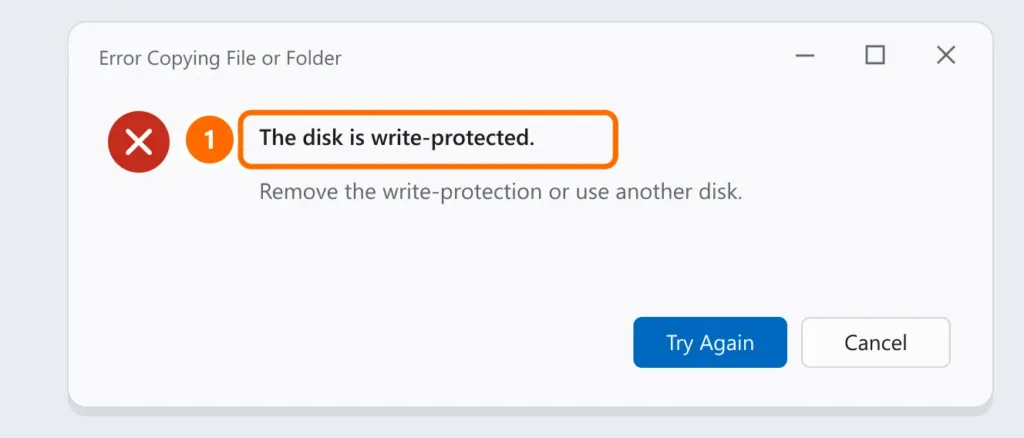
Try these in order:
- Physical switch: some USB drives and SD cards have a small lock switch on the side (“Lock”). Slide it the other way and plug the drive in again.
- Another port and another PC: if it works on another computer, the problem is a setting in your Windows (next section).
- Antivirus and company policies: on work computers, IT may block writing to USB drives on purpose. In that case, talk to your IT team.
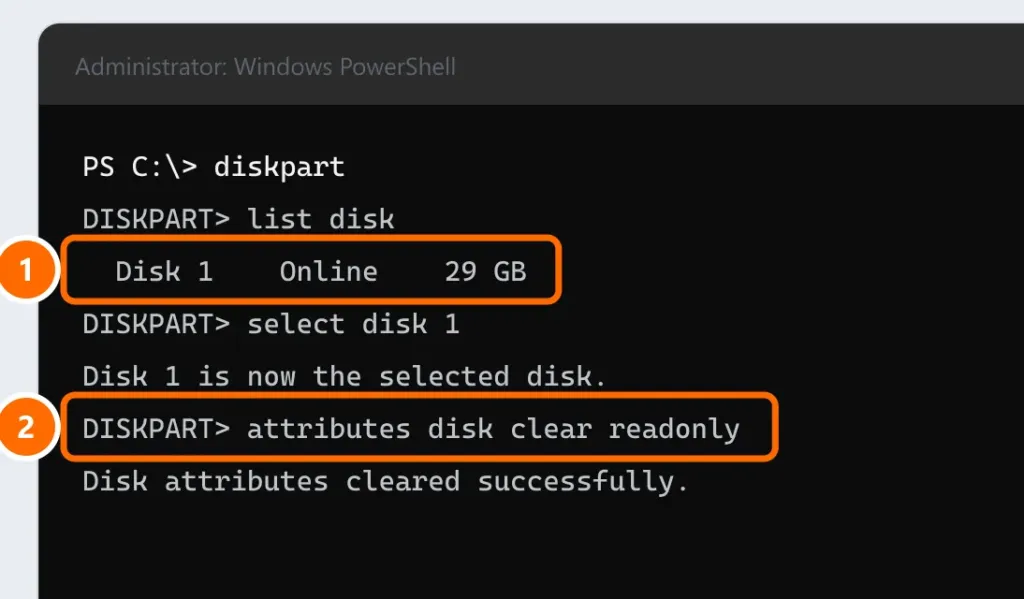
Clear the read-only flag (diskpart)
- Open Terminal (Admin) from the Windows + X menu.
- Type
diskpart, thenlist disk, and identify the USB drive by its size. - Type
select disk N(replace N with the USB drive’s number) and thenattributes disk clear readonly.
If nothing works: USB drives that are starting to fail switch themselves into read-only mode to protect the data. Copy your files to your PC while you can still read them and replace the drive.
“The file is too large for the destination file system”
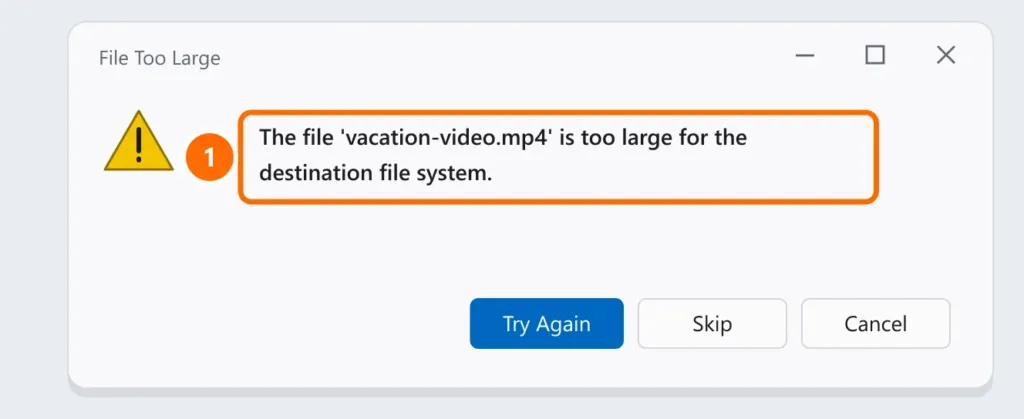
It’s not a lack of space. USB drives usually come formatted as FAT32, which doesn’t accept files larger than 4 GB (long videos, ISO images, backups).
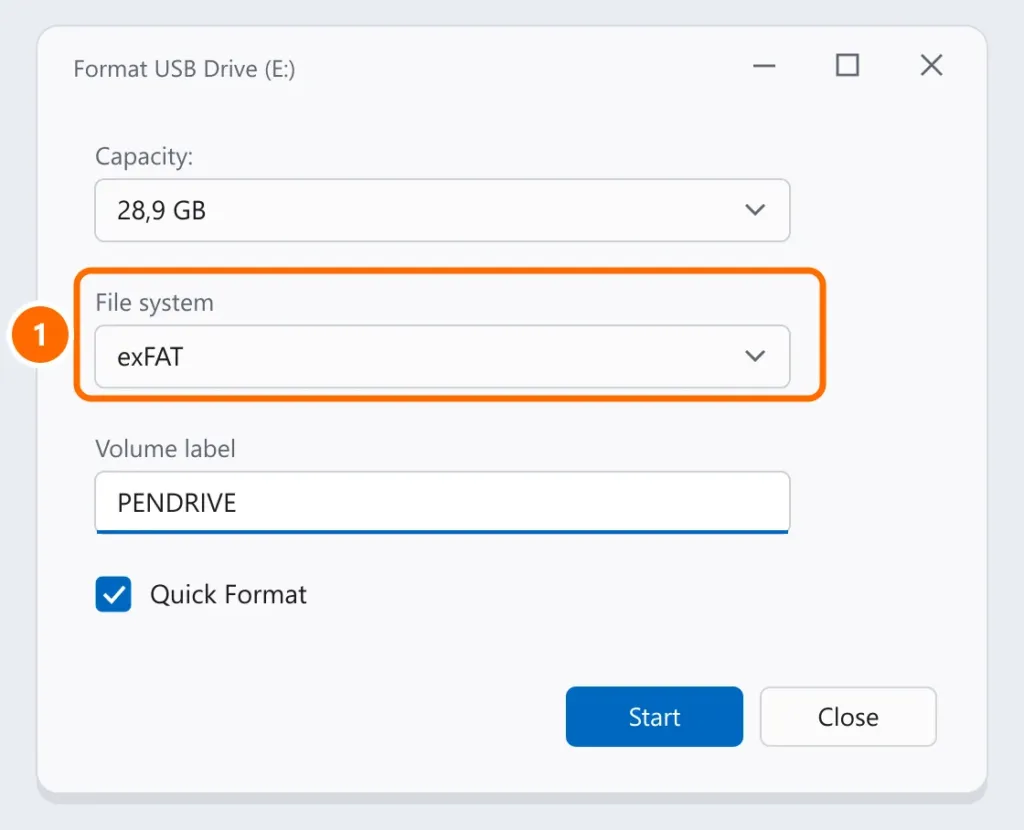
Solution: format the drive as exFAT, which accepts large files and works on Windows, Mac, and many TVs and game consoles.
- Copy everything on the USB drive first: formatting erases everything.
- In File Explorer, right-click the USB drive › Format.
- Under File system, choose exFAT and click Start.
Other common errors
- “Please insert a disk into drive” or a USB drive that shows 0 bytes: this is usually a failure of the drive’s controller. Try another PC; if it still won’t open, the data can only be recovered by a specialized company.
- The USB drive doesn’t show up in Windows: see USB device not recognized.
- Deleted files by accident: see recover deleted files.
FAQ
Does formatting as exFAT make the USB drive slower?
Not noticeably. Speed depends on the drive itself and the USB port.
Can I put a password on a USB drive?
On Windows Pro, with BitLocker To Go. Also see how to password-protect files and folders.