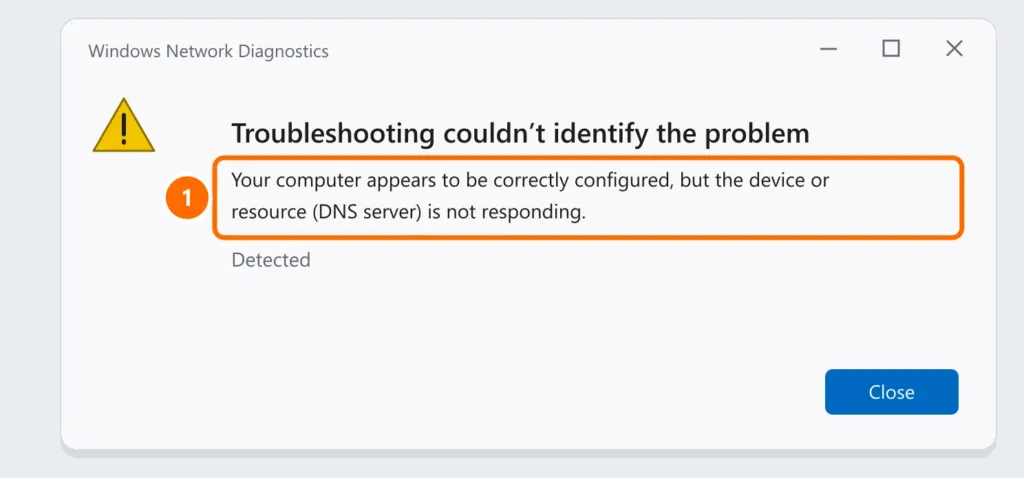
You’re connected to Wi-Fi, but no website loads — and Windows troubleshooting says “The DNS server isn’t responding”. DNS is the service that turns names like google.com into IP addresses. When it fails, you have a connection, but your browser doesn’t know where to go.
In this article
Step 1: find out if it’s only your computer
- Test the internet on your phone, on the same Wi-Fi network.
- If your phone can’t browse either, the problem is the router or your provider: restart the router (unplug it for 30 seconds) and wait two minutes.
- If only the computer fails, continue with the next steps.
Step 2: flush the DNS cache and renew your IP
In Command Prompt or PowerShell as administrator, run these commands one at a time:
ipconfig /flushdns
ipconfig /release
ipconfig /renew
Test whether DNS is responding:
Resolve-DnsName google.comStep 3: change your DNS server
Your provider’s DNS sometimes becomes unstable. Switching to a public DNS usually fixes it immediately — and often makes browsing faster.
- Open Settings › Network & internet and click Wi-Fi (or Ethernet).
- Click Hardware properties.
- Next to DNS server assignment, click Edit.
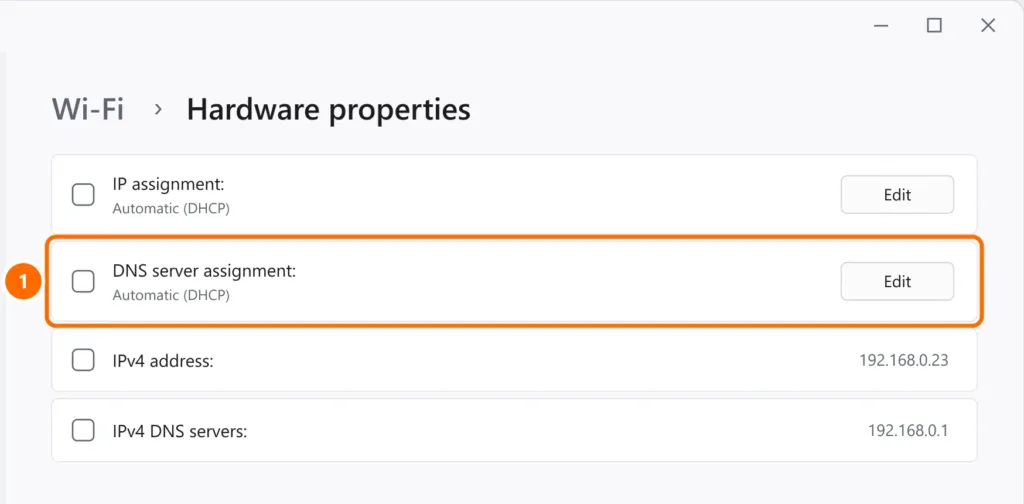
- Change from Automatic to Manual, turn on IPv4 and enter the addresses. Then click Save.
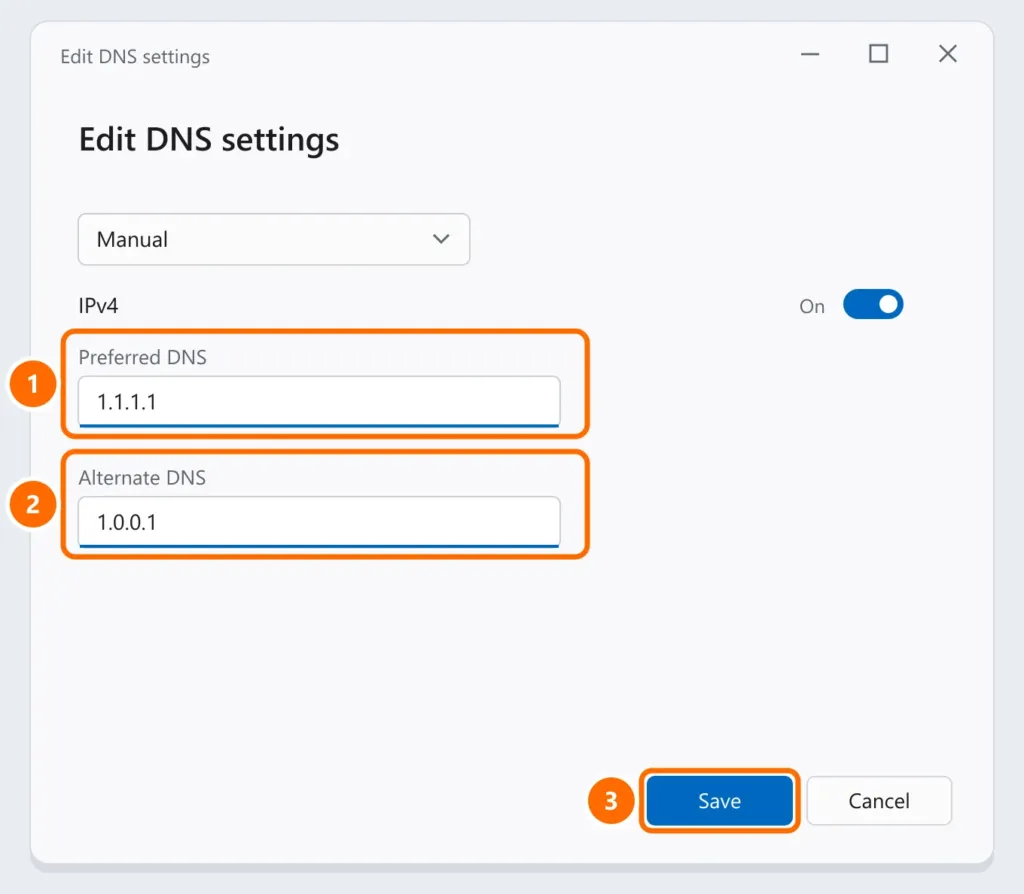
| Service | Preferred DNS | Alternate DNS |
|---|---|---|
| Cloudflare | 1.1.1.1 | 1.0.0.1 |
8.8.8.8 | 8.8.4.4 | |
| Quad9 (blocks malicious sites) | 9.9.9.9 | 149.112.112.112 |
Step 4: reset the network stack
If it still doesn’t work, reset Windows network settings (PowerShell as administrator) and restart your computer:
netsh winsock reset
netsh int ip reset
Step 5: check VPN, antivirus and drivers
- VPN or proxy: disconnect and test again. Misconfigured VPNs often hijack DNS.
- Third-party antivirus or firewall: temporarily turn it off to test and, if that fixes it, adjust its settings or update it.
- Network adapter driver: update it from Device Manager or your laptop maker’s website.
FAQ
What does “the DNS server isn’t responding” mean?
Your computer couldn’t get website addresses from the DNS server. The connection to the router works, but translating names into IP addresses failed.
Is it safe to change my DNS?
Yes, if you use well-known services like Cloudflare, Google or Quad9. You can switch back to “Automatic” at any time.
It happens on every device. What now?
Restart the router. If it continues, set a public DNS on the router itself or contact your provider — the fault is probably on their network.