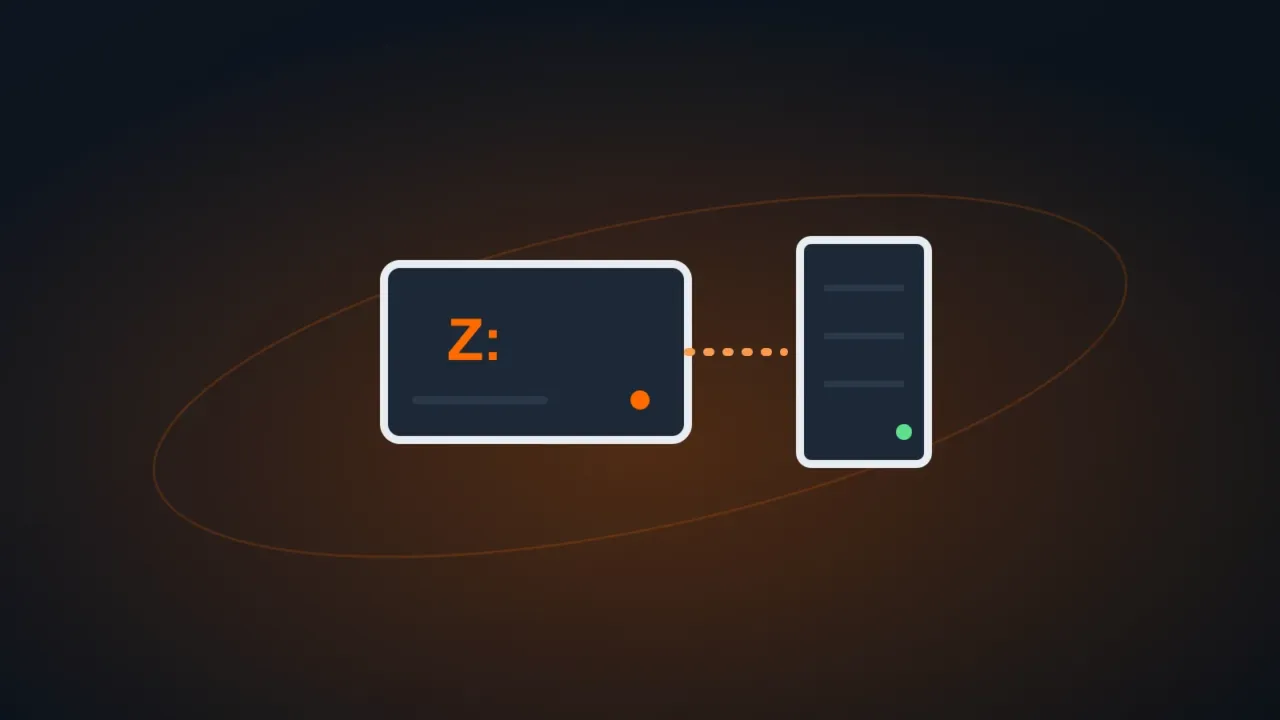
Mapping a network drive makes a folder on another computer, server or NAS show up in This PC with a letter (for example, Z:), as if it were a disk. It’s the most practical way to reach the company folder every day.
Before you start
- Have the folder path, in the form
\\SERVER\Folderor\\192.168.0.10\Folder. - Make sure the folder opens in File Explorer (type the path in the address bar). If you get error 0x80070035, fix that first: see how to fix error 0x80070035.
From File Explorer
- Open File Explorer and click This PC.
- In the ⋯ (See more) menu, choose Map network drive.
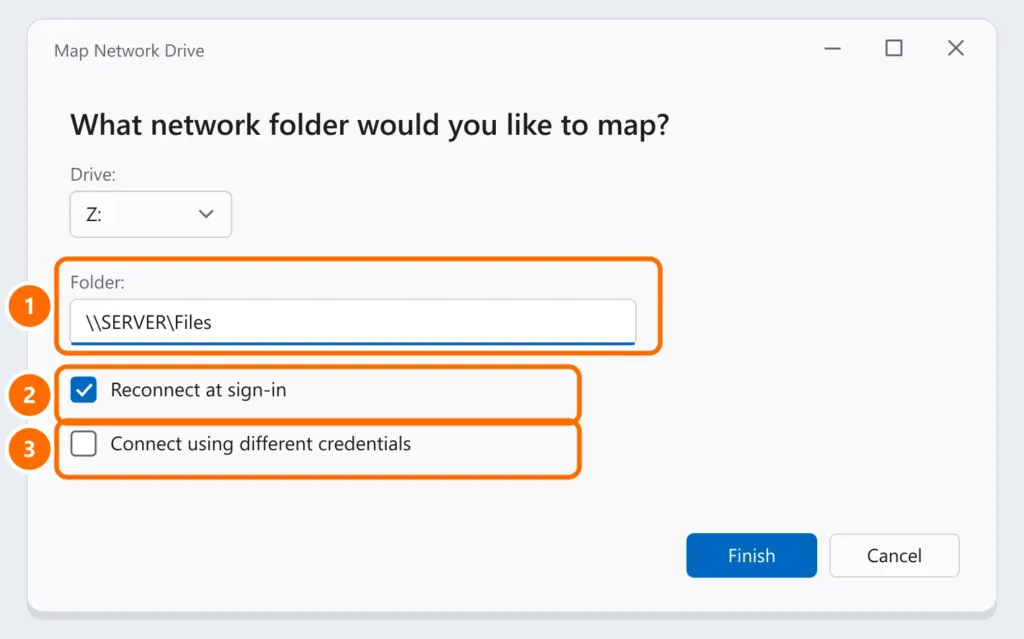
- Pick a letter and type the path under Folder.
- Check Reconnect at sign-in so the drive comes back every time you start the computer.
- If the server or NAS uses a different username and password, check Connect using different credentials.
- Click Finish and enter the credentials if asked, checking Remember my credentials.
With the net use command
Handy for setting up several computers or a sign-in script. In Command Prompt (no admin needed):
net use Z: \\SERVER\Files /persistent:yesWith another user (the * makes Windows ask for the password instead of writing it out):
net use Z: \\NAS\Files /user:NAS\username * /persistent:yesTo remove it: net use Z: /delete.
The drive shows a red X
The X means Windows hasn’t reconnected yet, usually because the network came up after sign-in. Double-click the drive: if it opens, everything is fine. If it asks for a password, the saved credentials changed — update them in Credential Manager (control keymgr.dll).
FAQ
The mapped drive doesn’t show up for programs run as administrator.
That’s expected: mappings are per user and session. Map it in the administrator session too, or use the \\SERVER\Folder path in the program.
Can I map a OneDrive or SharePoint folder?
Not with this feature. Use SharePoint’s Sync button or a OneDrive shortcut.
The drive is slow to open.
The computer name may be resolving slowly. Try mapping by IP address; at companies, ask IT to check DNS.