Chrome shows its error page with the code DNS_PROBE_FINISHED_NXDOMAIN. NXDOMAIN stands for “non-existent domain”: the DNS server did answer, but it said that name doesn’t exist. Your internet connection works; what’s missing is the name. So the real question is who is saying the name doesn’t exist, and whether they’re right.
In this article
- First diagnosis: where does the error appear?
- Step 1: check the address and the browser
- Step 2: ask DNS yourself with nslookup
- Step 3: clear the Windows DNS cache
- Step 4: Chrome’s secure DNS and the hosts file
- Step 5: when the whole network gets the error
- Step 6: your own company’s domain has vanished
- Frequently asked questions
First diagnosis: where does the error appear?
Open the same address on another PC on the network and on a phone using mobile data (with Wi-Fi turned off, so you’re outside the company network).
| What you see | Most likely cause | Where to start |
|---|---|---|
| Only one PC fails; the site opens on the others and on the phone | Cache, an extension, Chrome’s secure DNS or the hosts file on that PC | Steps 1 to 4 |
| Every office PC fails, but the phone on mobile data opens it | The router’s DNS or a network content filter | Steps 2 and 5 |
| It fails everywhere, including outside the office | The domain doesn’t exist, has expired or has broken DNS records | Step 6 |
| Only internal systems fail (intranet, ERP, NAS by name) | The PC isn’t querying the internal DNS | Steps 4 and 5 |
Step 1: check the address and the browser
- Read the address letter by letter. A swapped letter, an extra hyphen or
.cominstead of.co.ukproduces exactly this error, because the name you typed really doesn’t exist. If the address came from a link in an email, compare it with the official site: look-alike domains are a common phishing trick. - Open an Incognito window (Ctrl + Shift + N) and try again. If it opens, an extension or data stored in your profile is the likely culprit.
- Type
chrome://extensionsin the address bar, turn off all extensions and test again. Ad blockers and VPN extensions are the usual suspects. Turn them back on one at a time until you find the one responsible. - Try Microsoft Edge. If the site opens in Edge but not in Chrome on the same PC, go straight to step 4.
Chrome’s help page on connection errors follows the same order, checking the URL, Incognito mode and extensions before suggesting you delete browsing data or reset settings.
Step 2: ask DNS yourself with nslookup
This test tells “the PC is wrong” apart from “the name really doesn’t exist”. Open Command Prompt (administrator rights aren’t needed) and look up the address twice: first with the DNS server the computer already uses, then forcing a public DNS server.
nslookup portal.example.com
nslookup portal.example.com 8.8.8.8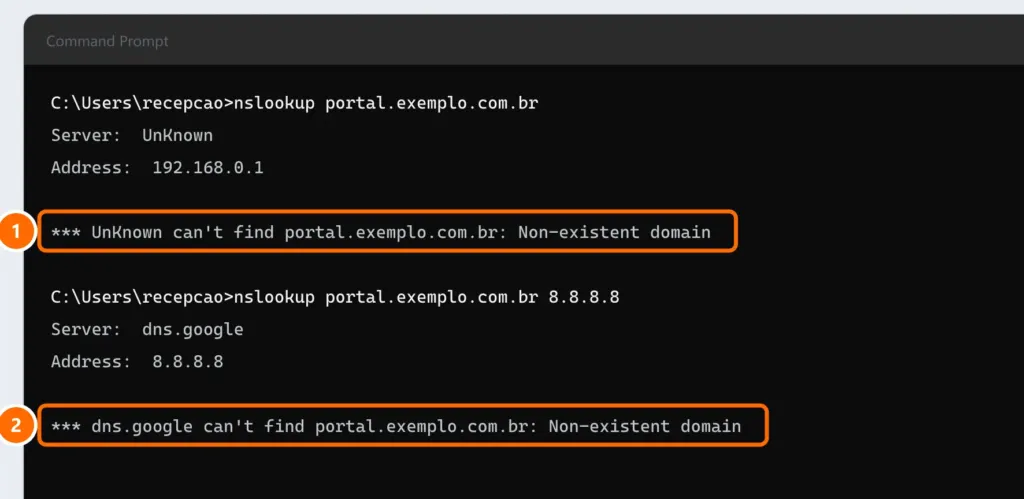
Replace portal.example.com with the address that fails. The line that matters ends in Non-existent domain. How to read the results:
- Both lookups say Non-existent domain: the name doesn’t exist for anyone. Double-check the spelling; if the address is right, the problem lies with the domain (step 6), not the computer.
- Only the first one fails and the second returns an Address: the network’s DNS (router, server or filter) is giving the wrong answer. Go to step 5.
- Both return an address, but Chrome still shows the error: the problem is inside the PC: the cache, the hosts file or Chrome’s secure DNS (steps 3 and 4).
- “Server: UnKnown” appears in the first lookup: this only means the router has no name registered for its own IP address. On its own, it isn’t a fault.
Step 3: clear the Windows DNS cache
Windows remembers recent answers, including negative ones: if the site was down or moved to a new server, the PC may keep remembering the old reply. In Command Prompt:
ipconfig /flushdns
The confirmation message tells you the cache was emptied. Close and reopen Chrome before testing again. The command doesn’t change any settings or files.
Step 4: Chrome’s secure DNS and the hosts file
Secure DNS (when the site opens in Edge but not in Chrome)
Chrome can send lookups on its own to an encrypted DNS provider, bypassing the network’s DNS. For names that only exist inside the company, such as an ERP at erp.office.local or the NAS admin page, the outside provider replies that the name doesn’t exist.
According to Google’s help on secure DNS, the path on a computer is:
- Select More (the three dots at the top right) and then Settings.
- On the left, select Privacy and security and then Security.
- Under Advanced, find Use secure DNS. If a custom provider is selected (Cloudflare, Google or another), switch back to your current service provider or turn the option off to test.
The same page explains that in automatic mode Chrome falls back to an unencrypted lookup when it has trouble finding a site, but with a custom provider it doesn’t. It also notes that on managed devices you can’t use Chrome’s secure DNS, in which case the company policy decides which DNS is used.
The hosts file
The file C:\Windows\System32\drivers\etc\hosts takes priority over DNS. Old programs, business software installers and even malware leave lines there that redirect or block addresses. Microsoft explains in How to reset the Hosts file back to the default that a modified hosts file can override normal network name resolution.
Open the file in Notepad and look for the address that fails. Lines starting with # are comments and have no effect. An active line with the site’s name is suspicious: put a # at the start, save and run ipconfig /flushdns again.
Step 5: when the whole network gets the error
If nslookup fails only with the network’s DNS, the problem is whoever answers lookups for the office:
- Router acting as DNS: restart the router outside busy hours. If it happens again, change the DNS server the router hands out to computers (in the DHCP or LAN section of its admin page). The walkthrough, with the precautions that keep shared folders and printers working, is in our guide to DNS server not responding.
- Server running Active Directory: the PCs must keep using the server’s DNS. Typing
8.8.8.8directly on the workstations fixes public sites, but makes the domain, shared folders and internal systems return NXDOMAIN. The fix belongs on the server (forwarders or the zone for the internal name). - Content filter: firewalls and DNS services that block categories may answer that a blocked site doesn’t exist, depending on the product. Check the filter’s dashboard to see whether the domain shows as blocked before touching the PCs.
- VPN: internal names at another branch or in the data center often exist only while the VPN is connected. If the error started after the VPN dropped, reconnect and repeat the test; if it persists, see our guide on VPN not connecting.
Step 6: your own company’s domain has vanished
If the error appears on any network and the address is correct, the name no longer exists in public DNS. The most common causes:
- Expired domain. Your domain registrar’s control panel shows the status and expiry date; for most generic domains, such as
.com, you can also check registration data with ICANN Lookup. A late renewal usually takes down the website and email at the same time. - Hosting or DNS provider change. When you move providers, it’s easy to forget to recreate a record such as
www,portalor the subdomain of a business system. - New subdomain. A newly created record can take a while to work on every network, because servers keep earlier answers, including the negative one, for the period set in the configuration.
Frequently asked questions
What’s the difference between NXDOMAIN and “DNS server isn’t responding”?
With NXDOMAIN, DNS answered and stated that the name doesn’t exist. With the other error, DNS doesn’t answer at all. That’s why changing DNS servers rarely fixes NXDOMAIN when the address is wrong or the domain has expired.
Will reinstalling Chrome fix it?
Hardly ever, because the wrong answer comes from DNS, the hosts file or the secure DNS setting, not from the browser’s files. Work through the steps above first.