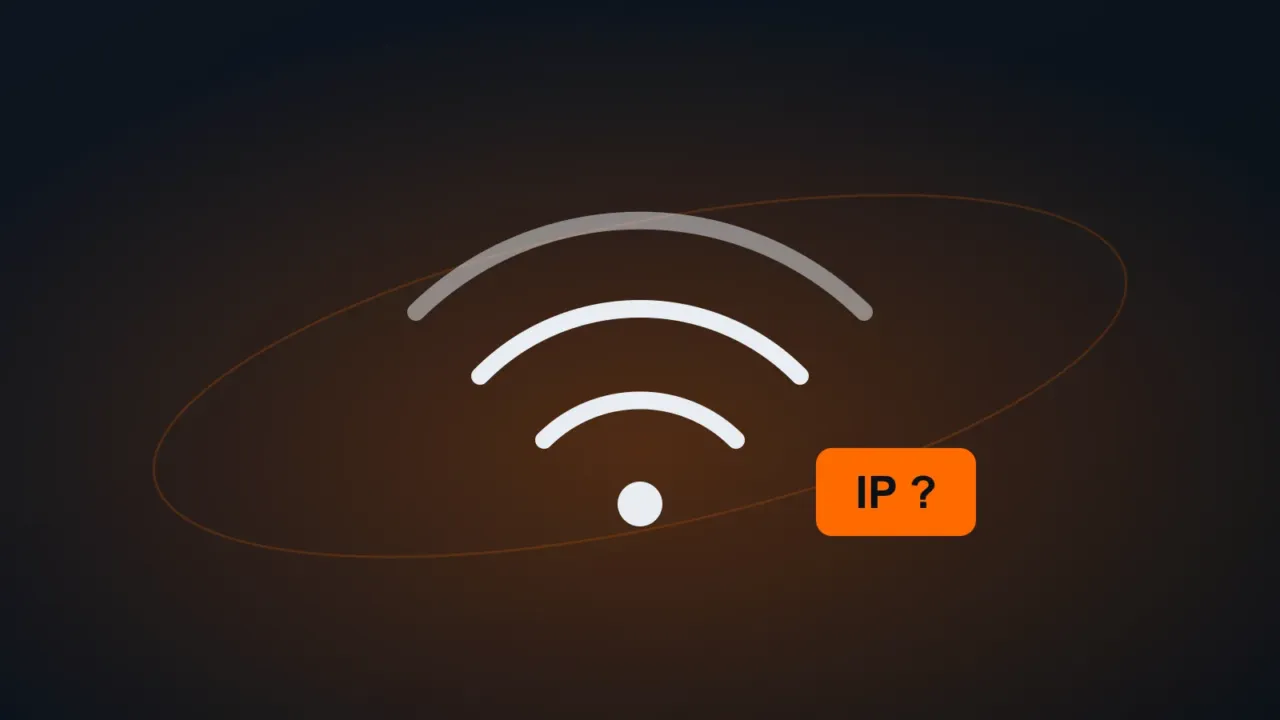
This message appears in Windows Network Diagnostics when your computer connects to Wi-Fi but doesn’t receive an IP address from the router. Without an address, there’s no internet.
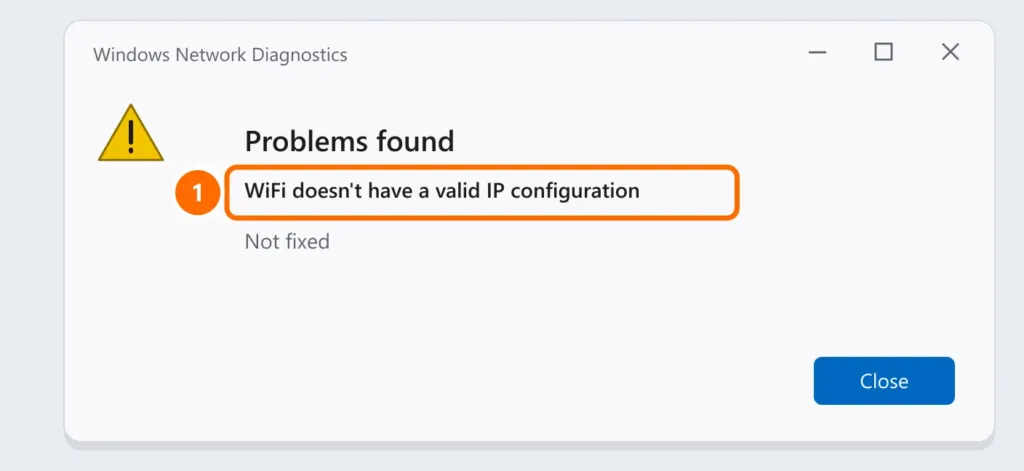
The same goes for the wired version: “Ethernet doesn’t have a valid IP configuration”. Follow the steps in order.
In this article
1. Restart the router and the PC
Unplug the router (and the modem, if they’re separate devices) for 30 seconds, plug it back in, wait 3 minutes and restart your computer. This fixes most cases.
2. Forget the network and reconnect
Settings › Network & internet › Wi-Fi › Manage known networks › choose the network › Forget. Reconnect by entering the password.
3. Renew the IP address
Open Terminal (Admin) (Windows + X) and run these commands:
ipconfig /release
ipconfig /renew
ipconfig /flushdns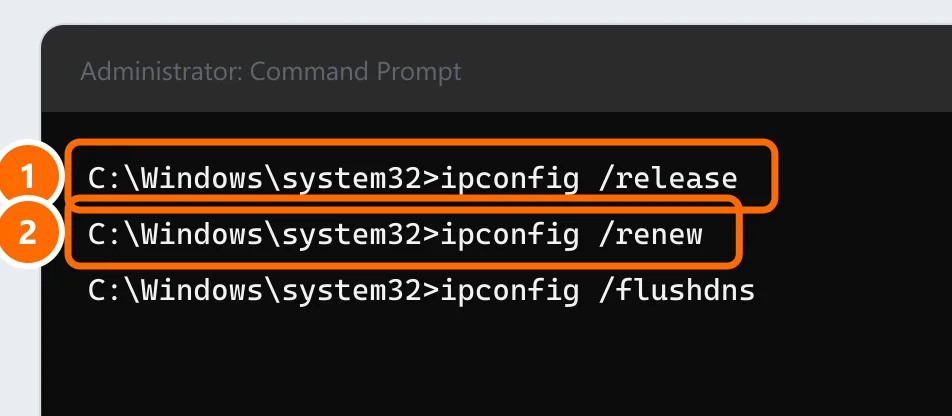
4. Make sure the IP is set to automatic
- Settings › Network & internet › Wi-Fi › the network’s Properties.
- Under IP assignment, it should say Automatic (DHCP). If it’s set to Manual with an old IP, click Edit and change it to Automatic (DHCP).
If the manual IP is intentional (at a company), check with IT that there’s no IP conflict. See IP address conflict.
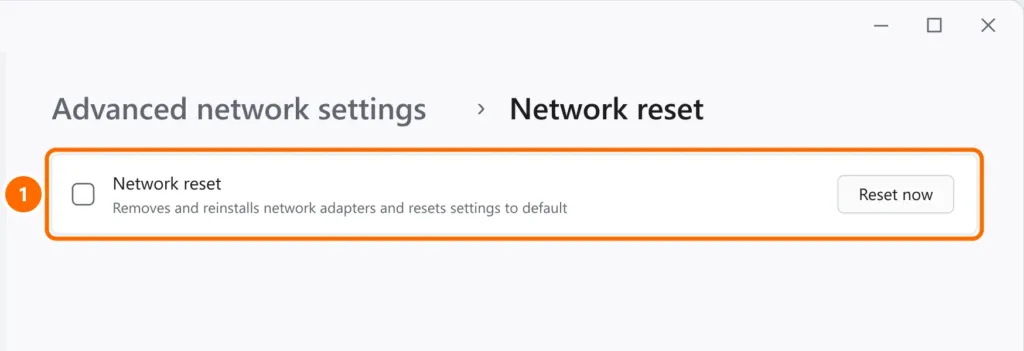
5. Reset the Windows network
Settings › Network & internet › Advanced network settings › Network reset › Reset now. The PC restarts and reinstalls the network adapters. You’ll need to enter your Wi-Fi password again.
6. Wi-Fi adapter driver
In Device Manager, under Network adapters, right-click the Wi-Fi adapter › Uninstall device and restart: Windows reinstalls the driver. If that doesn’t fix it, download the driver from your laptop manufacturer’s website.
7. Is your PC the only one not getting an IP?
- If no device can get an IP, the problem is the router: the DHCP server may be turned off or out of free addresses (too many devices connected). See how to access your router.
- MAC filtering on the router (common at companies) blocks new devices.
- Antivirus or VPN software with its own firewall can block it: temporarily disable it to test.