Need to connect a phone, a TV or a guest to Wi-Fi and can’t remember the password? If the computer is (or was) connected to the network, Windows 11 stores the password and shows it to anyone who is an administrator on the computer.
In this article
Option 1: through Settings (up-to-date Windows 11)
- Open Settings › Network & internet › Wi-Fi.
- Click the Properties of the connected network (or Manage known networks and choose the network).
- Next to View Wi-Fi security key, click View.
If the option isn’t there, your version of Windows 11 predates it: use option 2.
Option 2: through the wireless network properties
- Press Windows + R, type
ncpa.cpland press Enter. - Double-click the Wi-Fi adapter and click Wireless Properties.
- On the Security tab, check Show characters.
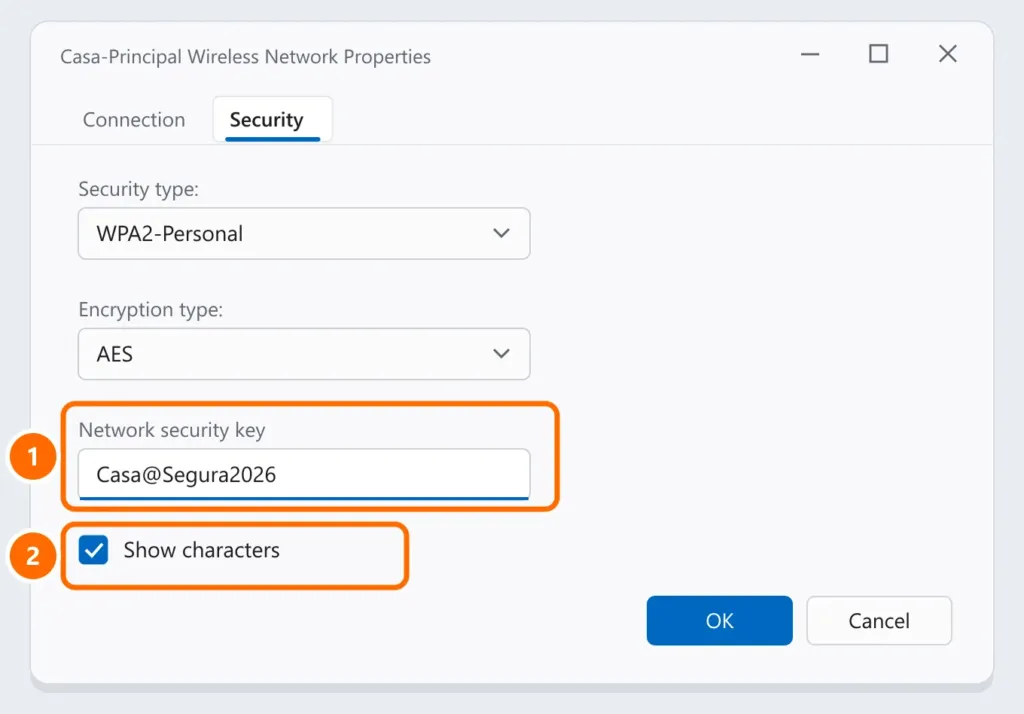
Option 3: saved networks with netsh
This also works for networks you’re not connected to right now but have joined before. In PowerShell or Command Prompt:
netsh wlan show profilesThe list shows the names of saved networks. Then replace Casa-Principal with the network name:
netsh wlan show profile name="Casa-Principal" key=clear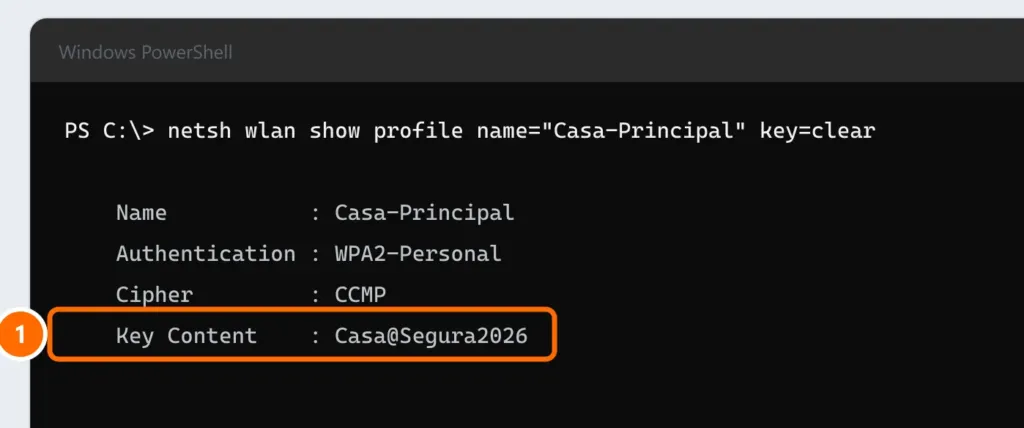
Option 4: on the router
If no computer in the house has the password saved, check the router label (factory password) or open the router’s admin page (usually 192.168.0.1 or 192.168.1.1) and look under Wireless › Security.
FAQ
The “Show characters” option is grayed out.
You need administrator rights on the computer. On company computers, ask IT.
Can I see the password on my phone?
On Android and iPhone, sharing the Wi-Fi network shows a QR code or the password itself, depending on the version.