Slow Wi-Fi isn’t always your internet provider’s fault. In most homes and small offices, the problem is where the router sits, interference from neighboring networks or outdated settings. Before buying a new router, work through these steps — several of them cost nothing.
In this article
Step 1: find out whether it’s the Wi-Fi or the internet
- Connect a computer to the router with a cable and run a speed test.
- Run the same test over Wi-Fi, first next to the router and then in the room where the signal is poor.
Step 2: measure the signal in Windows
Windows shows the real quality of your connection. In Command Prompt or PowerShell:
netsh wlan show interfaces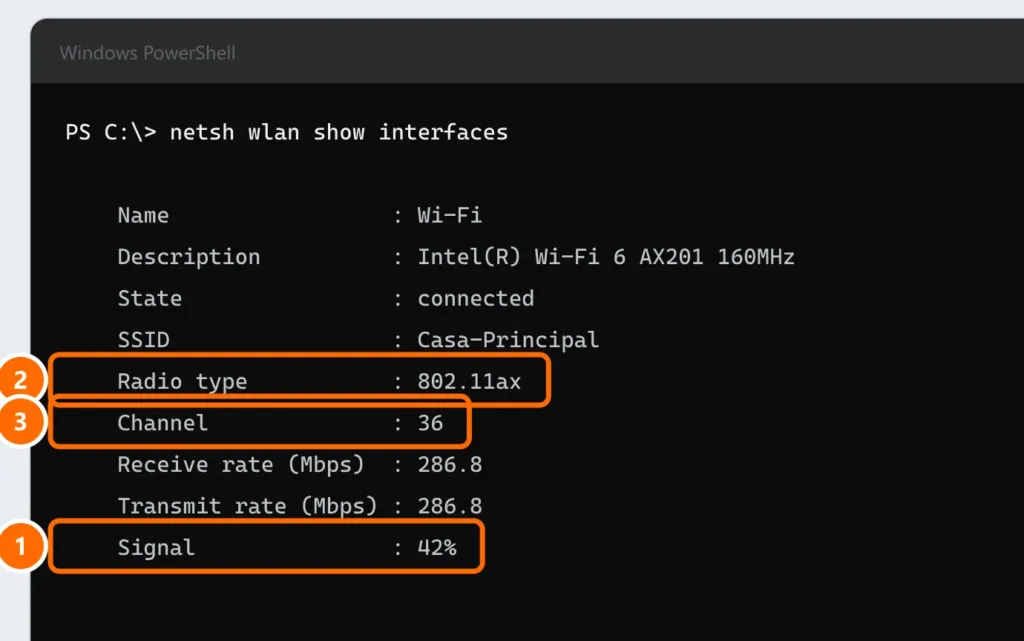
Look at these lines:
- Signal: above 70% is good; below 40% the connection becomes unstable.
- Radio type: 802.11ac is Wi-Fi 5, 802.11ax is Wi-Fi 6/6E, 802.11be is Wi-Fi 7.
- Channel, Receive rate and Transmit rate (Mbps): useful to compare before and after each change.
To see nearby networks and the channels they use:
netsh wlan show networks mode=bssidStep 3: put the router in the right place
Signal weakens as it passes through walls, floors and objects. Moving the router is often the cheapest and most effective fix.
- Place the router in a central spot of the area where you use the internet — not in the corner where the installer ran the cable.
- Put it up high (a shelf or wall), never on the floor or inside a cabinet.
- Keep it away from microwaves, fish tanks, mirrors, fridges and metal structures.
- If it has external antennas, point some vertically and others horizontally.
Step 4: use the right band — 2.4 GHz, 5 GHz or 6 GHz
| Band | Range | Speed | Interference |
|---|---|---|---|
| 2.4 GHz | Longer, better through walls | Lower | High (neighbors, Bluetooth, microwaves) |
| 5 GHz | Medium | High | Low |
| 6 GHz (Wi-Fi 6E and 7) | Shorter | Very high | Very low |
Use 5 GHz (or 6 GHz) whenever you’re a reasonable distance from the router, and keep 2.4 GHz for far-away devices and smart-home gadgets, which often only support that band.
Step 5: change the channel
In apartment buildings, dozens of networks compete for the same channels.
- Open the router’s admin page (usually
192.168.0.1or192.168.1.1; the address is on the router’s label). - On the 2.4 GHz network, use only channels 1, 6 or 11 — the only ones that don’t overlap — with a 20 MHz width.
- On the 5 GHz network, pick a channel few neighbors use (see the command in step 2) with an 80 MHz width.
- Save, wait for the router to restart and measure again.
Step 6: review the router settings
- Update the firmware from the admin page or the manufacturer’s app.
- Use WPA2-AES or WPA3 security. Networks using WEP or WPA/TKIP are capped at very low speeds and are insecure.
- Restart the router occasionally, or schedule a weekly reboot if your model supports it.
Step 7: still not reaching? Extender or mesh?
| Option | How it works | When to use it |
|---|---|---|
| Extender | Receives and rebroadcasts the signal; speed usually drops a lot | One distant room, minimal budget |
| Mesh network | Several nodes form one network and devices switch between them automatically | Large homes, multiple floors |
| Wired mesh or access points | Nodes connect to each other with Ethernet cable | The best option: full speed at every point |
| Powerline | Carries the network over electrical wiring | When running cable isn’t possible; results vary |
In offices, the ideal setup is wired access points spread around the space, all managed from the same controller.
FAQ
Will a Wi-Fi 6 router make my internet faster?
It won’t increase the speed you pay for, but it handles many connected devices better and improves speed between the router and Wi-Fi 6 devices.
Do Wi-Fi extenders work?
They work for reaching a distant spot, but speed usually drops a lot. To cover a whole home, a mesh network — ideally with wired nodes — is much better.
Why does my Wi-Fi slow down at night?
Usually because of channel congestion (every neighbor online at the same time) or congestion on your provider’s network. Test with a cable: if that drops too, it’s your provider.