
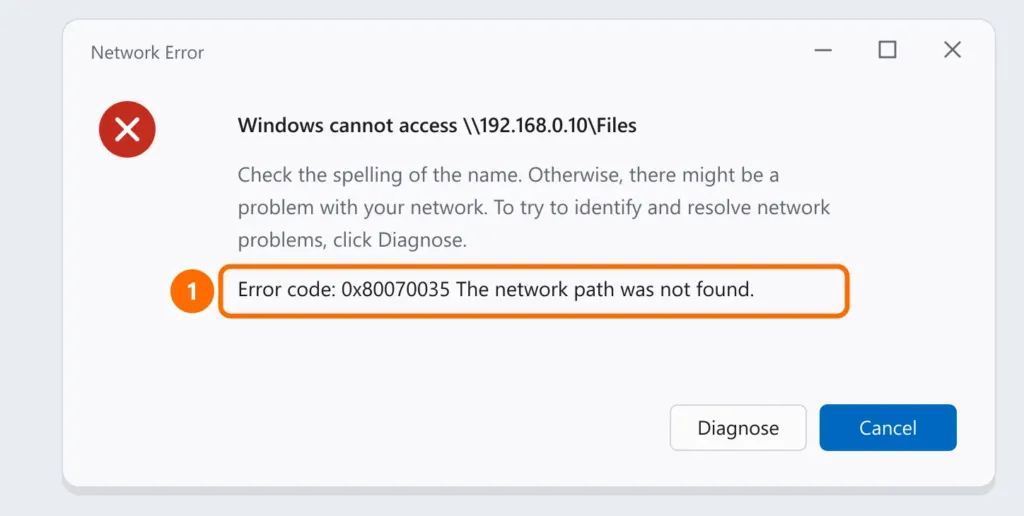
Error 0x80070035, “The network path was not found”, shows up when the client folder on the front-desk PC, or the NAS used by accounting, stops opening on one or more computers even though everything is switched on and online. The cause is almost always one of these: the network is set to public, the computer name can’t be resolved, port 445 is blocked on the target, or the NAS only accepts passwordless guest access, which Windows 11 refuses by default.
In this article
- Before you start: which machine is the client and which is the server
- Step 1: test by IP address and port 445
- Step 2: private network and network discovery
- Step 3: services and firewall on the server
- Step 4: NAS or router without a password (guest access)
- Step 5: when only the name fails
- Which fix to try first
- Once it works again
- Frequently asked questions
Before you start: which machine is the client and which is the server
- The server is the device that holds the folder: the front-desk PC, a more powerful computer used as the central file store, or the NAS.
- The client is the PC that shows the error when it tries to open
\\NAME\Folder.
Write down the server’s name and IP address. On a Windows PC, ipconfig shows it as IPv4 Address; for a NAS, check its admin panel or the device list in your router. You will need an administrator account on both sides.
One question saves a lot of time: does the error happen on every PC or on just one? If it’s all of them, the problem is on the server. If it’s a single PC, focus on that client.
Step 1: test by IP address and port 445
Windows file sharing uses the SMB protocol on TCP port 445. On the client, open PowerShell and run the commands below, replacing the address with your server’s IP:
ping 192.168.0.10
Test-NetConnection -ComputerName 192.168.0.10 -Port 445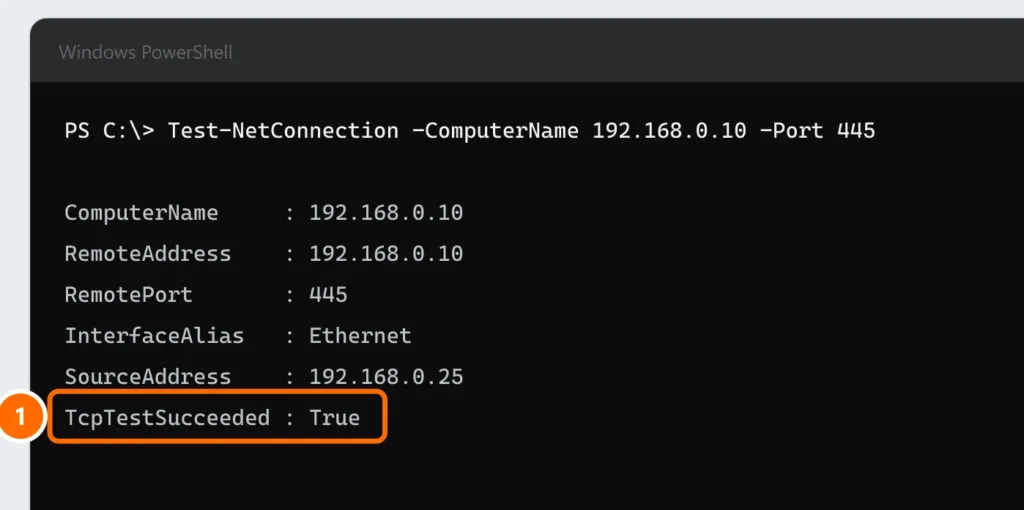
- If
TcpTestSucceededreturnsTrue, try the path\\192.168.0.10\FolderNamein File Explorer. - If it opens by IP but not by name, you have a name resolution problem: jump to step 5.
- If it returns
False, something on the server is blocking the connection: sharing is off, the firewall is in the way, or the device is on a different network. Go through steps 2 and 3, this time on the server. - If not even
pingreplies, make sure both devices are on the same router. A PC that ended up on the guest network, or on a repeater that creates its own network, is a frequent culprit. If Windows warns about a duplicate address, sort out the IP address conflict first.
Step 2: private network and network discovery
When the network is marked as public, Windows hides the computer and turns sharing off. This often happens after a router swap, because Windows treats it as a brand-new network. To check from PowerShell:
Get-NetConnectionProfile | Format-List Name, InterfaceAlias, NetworkCategory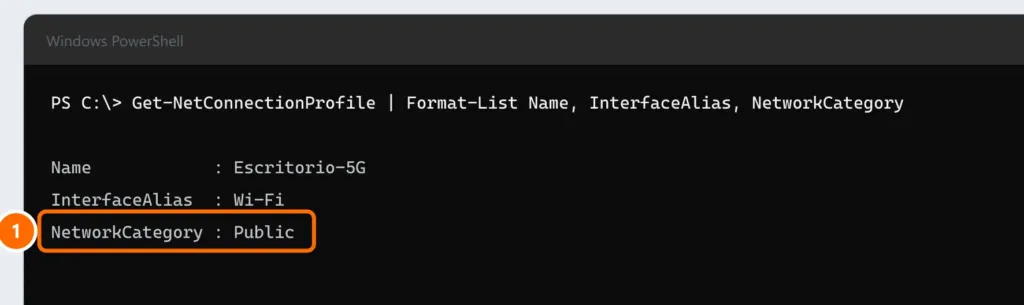
If you see Public, change it in Settings, as Microsoft describes in Essential network settings and tasks in Windows:
- Open Settings › Network & internet.
- On a cable, select Ethernet; on wireless, select Wi-Fi and then the network you are connected to.
- Under Network profile type, choose Private network.
- Go back to Network & internet › Advanced network settings › Advanced sharing settings and, under Private networks, turn on Network discovery and File and printer sharing.
- Repeat the same settings on the server.
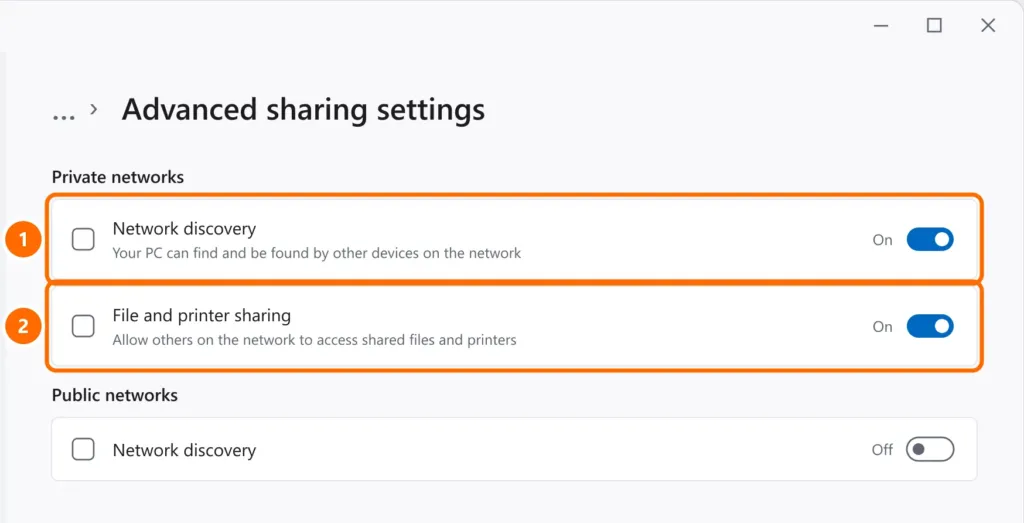
If the option is grayed out or keeps flipping back to public, the PC is probably getting a policy from a domain or a device management tool, and the change has to be made there.
Step 3: services and firewall on the server
In PowerShell, check the services involved:
Get-Service LanmanWorkstation, LanmanServer, FDResPub, fdPHost | Select-Object Name, Status, StartType- LanmanWorkstation (Workstation) must be running on the client.
- LanmanServer (Server) must be running on the PC that shares the folder.
- FDResPub and fdPHost are what make the computer appear under Network in File Explorer.
If one of them is stopped, fix it in PowerShell run as administrator:
Set-Service FDResPub -StartupType Automatic
Start-Service FDResPub
On the server, open Windows Security › Firewall & network protection › Allow an app through firewall and confirm that File and Printer Sharing is ticked for private networks. Security suites with their own firewall keep separate rules; if port 445 still returns False, look at that product’s console, as explained in Windows Firewall blocking a program.
Step 4: NAS or router without a password (guest access)
This is the classic case of a home-grade NAS, or a drive plugged into the router’s USB port, that ships set up for “guest” access with no user name or password. In Control SMB signing behavior, Microsoft states that starting with Windows 11, version 24H2, the Pro, Enterprise and Education editions require SMB signing, and that one of the errors you can get when talking to a guest-only device is precisely 0x80070035. Other variations are the message saying your organization’s security policies block unauthenticated guest access, and System error 3227320323 when you use net use. Windows 11 Home, version 24H2, doesn’t require signing, which is why, in an office with mixed editions, sometimes only the Windows 11 Pro PCs lose access to the folder.
Version 25H2 is built on the same base as 24H2 and arrives through an enablement package, KB5054156, so the behavior is identical in both versions.
To see what the client is demanding:
Get-SmbClientConfiguration | Format-List RequireSecuritySignature, EnableInsecureGuestLogons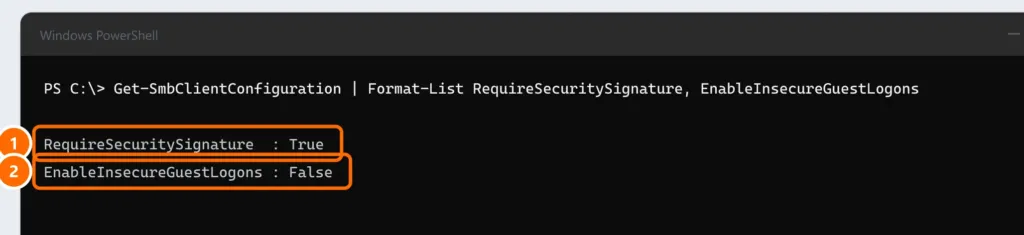
net use \\192.168.0.10\FolderName /user:frontdeskWhen the server is a Windows PC, the user you enter must be an account on that PC. If the person signs in to it with a Microsoft account, use that account’s email address and password; a Windows Hello PIN only works on the device itself and can’t be used over the network.
If the NAS is old and can’t handle a user with a password even after a firmware update, replace it. Microsoft does document how to turn guest access back on and switch signing off, but it advises against it: a rogue device on the network could then receive connections without any warning. If the shares hold customer data, it is also a data-protection issue, since anyone on the network could read the files without being identified (in the EU and the UK, the GDPR expects appropriate security for personal data).
Wrong saved credential
If access used to work and stopped after someone changed the password on the NAS or on the server PC, the client may still be trying the old one. Type credential manager in the taskbar search, open Windows Credentials, remove the entry with the server’s name or IP and reconnect with net use.
Step 5: when only the name fails
If the folder opens by IP but not by name, Windows can’t work out which IP address belongs to that name.
- Try
ping PC-NAME. If there is no reply, use the IP address in shortcuts and mapped drives for now. - Reserve the IP of the server and the NAS in the router (a DHCP reservation). That way, shortcuts that use the IP won’t break when the device restarts.
- In an office with a domain controller and internal DNS, check that the device’s name is registered there.
Which fix to try first
| Symptom | Where to look |
|---|---|
Port 445 False on every PC | Server: powered on, private network, firewall (steps 2 and 3) |
Port 445 True, but the NAS still gives the error | User name and password on the NAS (step 4) |
| Only one PC fails | Network profile and saved credential on that PC |
| Opens by IP, not by name | Name resolution and fixed IP (step 5) |
| Stopped after a Windows update | SMB signing and guest access (step 4) |
Once it works again
Map the folder as a drive so it reconnects on its own every time Windows starts:
net use Z: \\192.168.0.10\FolderName /persistent:yesTo roll it out on every PC, see how to map a network drive. If you are still setting up the share on the front-desk PC, follow the guide to share a folder on the network in Windows 11, with users and per-folder permissions from the start.
Frequently asked questions
It worked on Windows 10 and stopped after upgrading to Windows 11. Why?
Windows 10 Pro still allowed guest access by default. On Windows 11 Pro, version 24H2, guest access is blocked and SMB signing is required. Devices that relied on passwordless access need a user name and password (step 4).
Do I need to turn off the firewall?
No. You only need to allow File and Printer Sharing for private networks on the computer that shares the folder.


