Phishing is a fake message that tries to get you to hand over a password or card details, or install malware — usually pretending to be a bank, a store, a delivery company, the government or your own company’s IT support. It arrives by email, text message, WhatsApp or social media. The signs repeat; learn to recognize them.
In this article
The most common signs
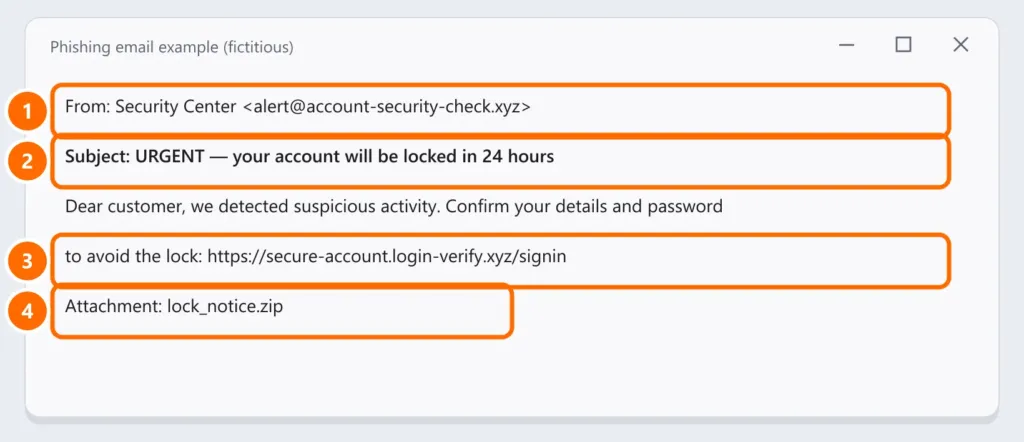
- Odd sender: the name looks official, but the address is from another domain (
@account-security-check.xyz, not the company’s real domain). - Urgency or threats: “your account will be locked in 24 hours”, “last chance”, “payment declined”.
- A link that doesn’t go to the official site: the link text says one thing, but the real address is another.
- Unexpected attachments: especially
.zip,.exe,.htmlor Office documents asking you to “enable content”. - Requests for passwords, codes or full card details: legitimate companies don’t ask for these by email or message.
- Mistakes and generic greetings: “Dear customer”, spelling errors and odd formatting.
How to check before you click
- Hover over the link (without clicking): the real address appears at the corner of the screen. On a phone, press and hold the link.
- Read the domain from right to left: in
bank.com.secure-login.xyz, the real site issecure-login.xyz— not the bank. - When in doubt, don’t use the link: type the official address into your browser or open the company’s app.
- Confirm through another channel: call the official number or ask the supposed sender in person (including coworkers and your boss).
If you already clicked or typed your password
- Change the password right away from a trusted device, and everywhere you used the same one.
- Turn on two-factor authentication.
- If you entered card details, call your bank and ask them to block the card.
- If you downloaded an attachment, run a full malware scan.
- At work, tell IT immediately — the sooner, the less damage.
If your email account was already taken over, see email hacked: what to do.
How to report it
- In Outlook, use Report › Report phishing; in Gmail, ⋮ › Report phishing.
- At companies, follow IT’s process (many have their own button in Outlook).
FAQ
The email came from the company’s real address. Can it be phishing?
Yes, if the sender’s account was compromised, or if the domain isn’t protected against spoofing. Domain owners should set up SPF, DKIM and DMARC.
Is just opening the email dangerous?
Opening and reading is usually safe. The risk is clicking links, opening attachments and typing in details.
Does a padlock mean the site is safe?
No. The padlock (HTTPS) only means the connection is encrypted — fake sites use it too. Always check the address.