
Windows Security shows virus protection as off, the button to turn it on doesn’t work, or you see a message that the setting is managed by your organization? Find your case below.
In this article
Case 1: another antivirus is installed (normal)
When you install another antivirus (Avast, Norton, Kaspersky, McAfee, ESET, etc.), Microsoft Defender turns itself off automatically to avoid conflicts. That’s expected.
The problem comes when the other antivirus license or trial expires: it stops protecting you but still “holds Defender’s place”.
- Decide which antivirus you’ll use. If you won’t renew the other one, uninstall it under Settings › Apps › Installed apps.
- Also use the vendor’s removal tool (most offer one), which cleans up leftovers.
- Restart: Defender turns back on by itself.
Case 2: turn protection on
- Open Windows Security › Virus & threat protection.
- Under Virus & threat protection settings, click Manage settings.
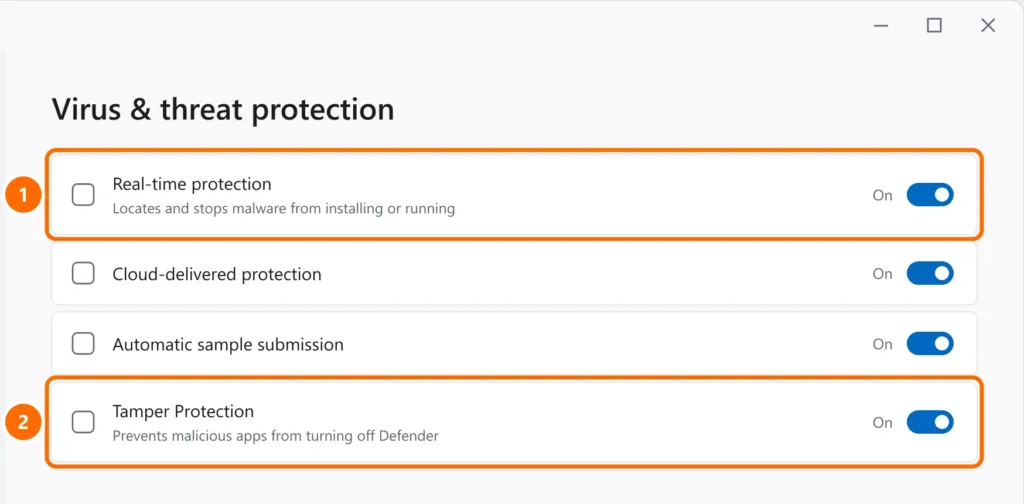
- Turn on Real-time protection and Tamper Protection.
Case 3: “managed by your organization” or “turned off by group policy”
- Work computer: normal — IT manages the antivirus. Talk to them.
- Personal computer: an “optimization” tool or malware changed Windows policies. On Windows Pro, open
gpedit.msc› Computer Configuration › Administrative Templates › Windows Components › Microsoft Defender Antivirus and set Turn off Microsoft Defender Antivirus to Not Configured. Restart.
Case 4: definition updates
Under Virus & threat protection › Protection updates, click Check for updates. Outdated definitions leave Defender in a warning state.
FAQ
Is Microsoft Defender enough?
For home use and small offices, an up-to-date Defender, with Windows updated and good habits (such as two-factor authentication), offers good protection. Companies usually have managed solutions.
Can I run two antivirus programs at once?
Not recommended: they fight over the same files and slow the computer down. Use just one.
Defender slows my PC down.
Scheduled scans use CPU and disk for a while. See high CPU usage to change the schedule.