
The fan speeds up, the laptop gets hot and Task Manager shows the CPU at 100%, even with nothing open? There’s almost always a specific process behind it — and the fix depends on which one.
In this article
Step 1: find the process
- Press Ctrl + Shift + Esc and, in Processes, click the CPU column to sort.
- Watch for a minute or two and note which process stays at the top.
- Right-click the process and choose Open file location to see where it runs from.
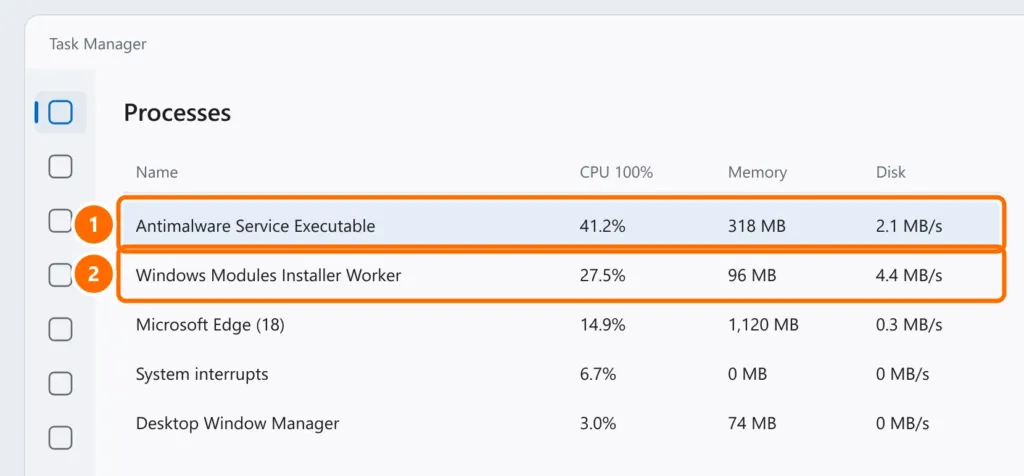
| Process at the top | What to do |
|---|---|
| Antimalware Service Executable | Microsoft Defender scan: let it finish (step 2) |
| Windows Modules Installer Worker / TiWorker | Updates installing: wait and restart (step 3) |
| System interrupts | A faulty driver or device (step 4) |
| Browser (Edge, Chrome) | Heavy tabs and extensions (step 5) |
| Odd name, outside C:\Windows or Program Files | Possible malware (step 6) |
Step 2: Antimalware Service Executable
That’s Microsoft Defender scanning files. Let the scan finish with the computer on. If it happens every day while you work, open Task Scheduler › Library › Microsoft › Windows › Windows Defender and move the scheduled scan to a time when the PC is on but idle.
Step 3: updates in progress
In Settings › Windows Update, check whether something is installing or waiting for a restart. Let it finish and restart from Start › Power › Restart.
Step 4: System interrupts above 5–10%
This points to a faulty driver or device.
- Unplug USB devices (hubs, docks, adapters) one at a time and watch.
- Update chipset, graphics and network drivers from your computer maker’s website.
- Turn off Audio enhancements and test again — audio drivers are a common cause.
Step 5: browser and startup apps
- In your browser, press Shift + Esc (Edge and Chrome) to open the browser’s task manager, then close the tab or extension using the most.
- In Task Manager, under Startup apps, disable what you don’t need. See the walkthrough in Windows 11 slow and freezing.
Step 6: suspected malware
If the process has an odd name, no known publisher, or runs from a folder like AppData\Roaming:
- Open Windows Security › Virus & threat protection › Scan options.
- Choose Microsoft Defender Antivirus (offline scan) and click Scan now. The PC restarts and scans before Windows loads.
FAQ
Is 100% CPU while gaming a problem?
Not necessarily: games use a lot of CPU. It’s a problem when it stutters the game or the CPU stays at 100% after you close it.
My laptop gets hot and shuts down with high CPU.
Besides fixing the process, clean the air vents and check the power mode. See laptop overheating and shutting down.
Can I end the process in Task Manager?
Regular apps, yes. System processes (Windows, Defender, Service Host), no: ending them can crash Windows. Use the steps above.


