
Excel warns that it found a problem with some content in the file, says it’s corrupt and cannot be opened, or simply freezes when opening it? Before anything else, make a copy of the file — do every attempt below on the copy.
In this article
Step 1: let Excel try to recover it
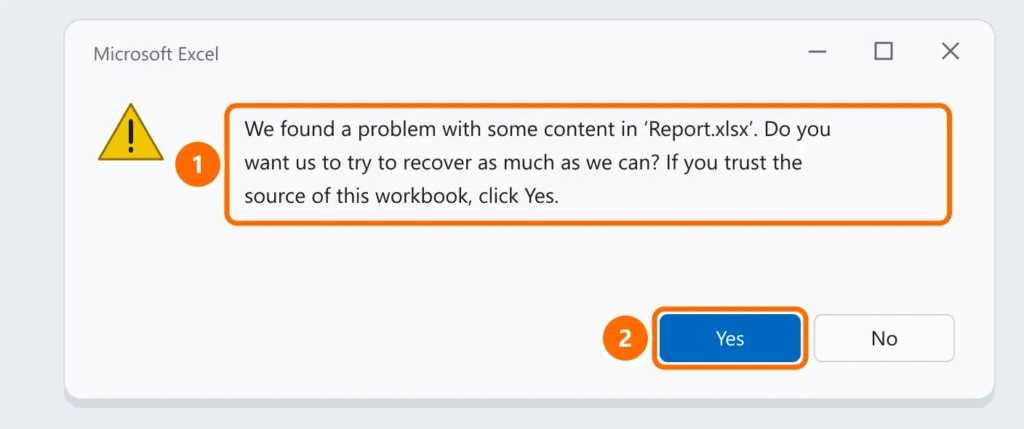
If you see the message above, click Yes. Excel removes what’s damaged and shows a report of what it repaired. Check the data and save it under a new name.
Step 2: Open and Repair
- In Excel, go to File › Open › Browse and select the file.
- Click the arrow next to Open and choose Open and Repair.
- Click Repair. If that doesn’t work, repeat and choose Extract Data — it recovers values and, when possible, formulas.
Step 3: go back to a previous version
- File on OneDrive or SharePoint: right-click the file › Version history and restore a version from before the problem.
- File on the computer: right-click › Properties › Previous Versions, if File History is on. See how to recover deleted files.
Step 4: AutoRecover
If Excel closed without saving, open Excel and look for the Document Recovery pane. Or go to File › Info › Manage Workbook › Recover Unsaved Workbooks.
Step 5: other routes
- Excel for the web: upload the copy to OneDrive and open it in the browser — it sometimes opens files the app refuses. Then download a copy.
- Manual calculation: open Excel with no file, switch to Formulas › Calculation Options › Manual and only then open the workbook. It helps when a heavy formula freezes it on open.
- Old .xls files: after recovering, save as .xlsx, a sturdier format.
How to prevent it
- Save to OneDrive/SharePoint folders, which keep version history automatically.
- Don’t pull out USB or external drives without Eject, and don’t shut down while Excel is saving.
- Keep a 3-2-1 backup of important spreadsheets.
FAQ
Excel itself freezes, not just one file.
See Excel not responding.
I recovered it, but the formulas turned into values.
Extract Data sometimes recovers only values. Look for a previous version (step 3) to get the formulas back.
The file opens blank.
The window may be hidden: under View › Unhide, choose the workbook. If there’s nothing to unhide, follow step 2.