WhatsApp Web sits on “Connecting…”, the QR code won’t show or the session keeps dropping? Follow the steps in order. They also apply to WhatsApp Business on the web.
In this article
Step 1: check the internet on both ends
- On the computer, open another website. If nothing loads, see connected, no internet.
- On your phone, open WhatsApp and check that messages arrive. WhatsApp Web works even with the phone off for a few days, but the phone needs to get online from time to time to keep the link active.
Step 2: link the device again
- On your phone, open WhatsApp › Settings (iPhone) or ⋮ (Android) › Linked devices.
- Tap the computer in the list and choose Log out.
- On the computer, reload
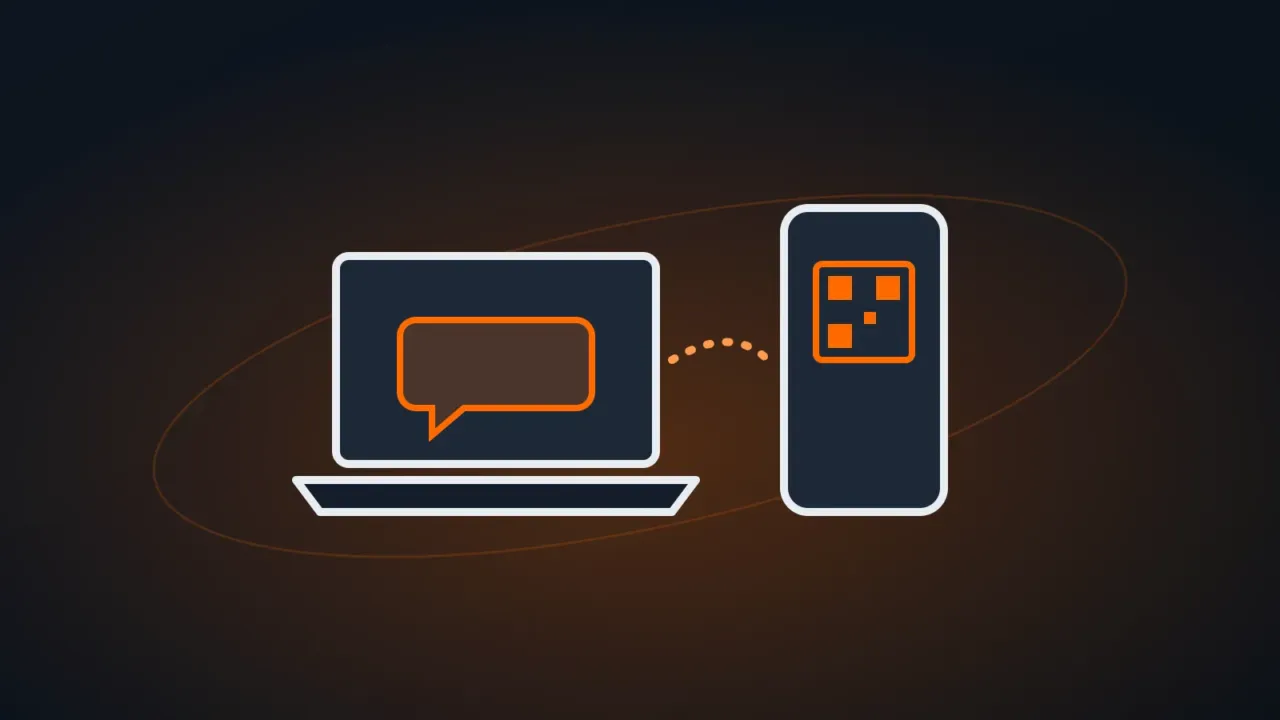
web.whatsapp.com(Ctrl + F5) and, on your phone, tap Link a device and scan the QR code.
Step 3: an up-to-date browser, without extensions
- Update your browser (Chrome, Edge or Firefox) to the latest version.
- Test in a private window (Ctrl + Shift + N). If it works there, an extension — ad blocker, VPN or “privacy mode” — is getting in the way. Turn them off one at a time.
- Clear data for this site only: click the icon left of the address › Site settings › Delete data.
Also see Chrome not opening or slow.
Step 4: work networks, VPN and proxy
Corporate networks, VPNs and some antivirus software block WhatsApp Web. Test through your phone’s hotspot (4G/5G): if it connects, the block is on the network. At companies, access depends on IT policy.
Also check the computer’s date and time — a wrong clock prevents secure connections.
Step 5: use the Windows app
WhatsApp for Windows, from the Microsoft Store, is usually more stable than the web version and gets notifications even with the browser closed. You link it with the same QR code.
FAQ
WhatsApp Web logs out on its own after a few days.
The device is unlinked when the phone stays offline too long or when you log out. Keep WhatsApp updated on your phone and link it again (step 2).
I don’t get notifications on the computer.
Allow notifications for web.whatsapp.com in your browser and, in Windows, under Settings › System › Notifications.
Can I use WhatsApp Web on two computers?
Yes. WhatsApp allows several devices linked to the same account at once, listed under Linked devices.