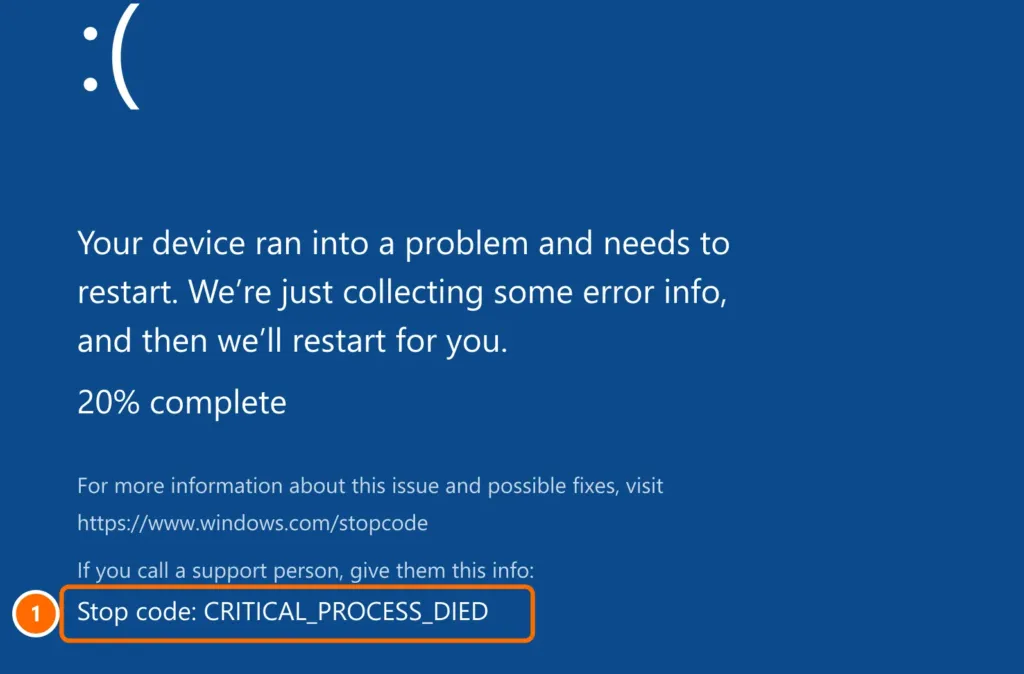
The infamous blue screen (BSOD) appears when Windows hits a serious error and restarts to protect itself. On recent versions of Windows 11 this screen may be black, but it works the same way. The most important clue is the stop code, such as MEMORY_MANAGEMENT or CRITICAL_PROCESS_DIED.
In this article
Step 1: find the stop code
- Write down the code on the screen (or take a photo with your phone).
- If the PC restarts too quickly, open Reliability History, which logs every crash with the date and details:
perfmon /relWhat the most common codes mean
| Stop code | Most common cause |
|---|---|
| MEMORY_MANAGEMENT | Faulty RAM or a problematic driver |
| CRITICAL_PROCESS_DIED | Corrupted system file, driver or failing drive |
| INACCESSIBLE_BOOT_DEVICE | Windows can’t access the boot drive (storage driver, BIOS or drive) |
| IRQL_NOT_LESS_OR_EQUAL | Incompatible or outdated driver |
| PAGE_FAULT_IN_NONPAGED_AREA | RAM, driver or antivirus |
| VIDEO_TDR_FAILURE | Graphics driver |
| DPC_WATCHDOG_VIOLATION | SSD driver or firmware |
| WHEA_UNCORRECTABLE_ERROR | Hardware: overheating, overclocking, CPU or memory |
Step 2: undo the latest change
Did the blue screens start after installing an app, driver or update? Undo that change first:
- Windows update: Settings › Windows Update › Update history › Uninstall updates.
- Driver: in Device Manager, open the device and use Roll Back Driver.
- App: uninstall it — especially recently installed antivirus and hardware utilities.
Step 3: repair the system and check the drive
In PowerShell as administrator:
DISM /Online /Cleanup-Image /RestoreHealth
sfc /scannow
chkdsk C: /scan
Step 4: test your RAM
Codes like MEMORY_MANAGEMENT and PAGE_FAULT_IN_NONPAGED_AREA call for a memory test:
mdsched.exeChoose Restart now and check for problems. The result appears after Windows starts again. If errors are found, the memory needs replacing.
Step 5: update drivers and BIOS
Install the latest graphics, chipset and storage drivers from your computer maker’s website, plus any BIOS/UEFI updates.
If Windows no longer starts
After two or three failed boots, Windows opens Automatic Repair on its own (sometimes mentioning SrtTrail.txt). Click Advanced options › Troubleshoot › Advanced options.
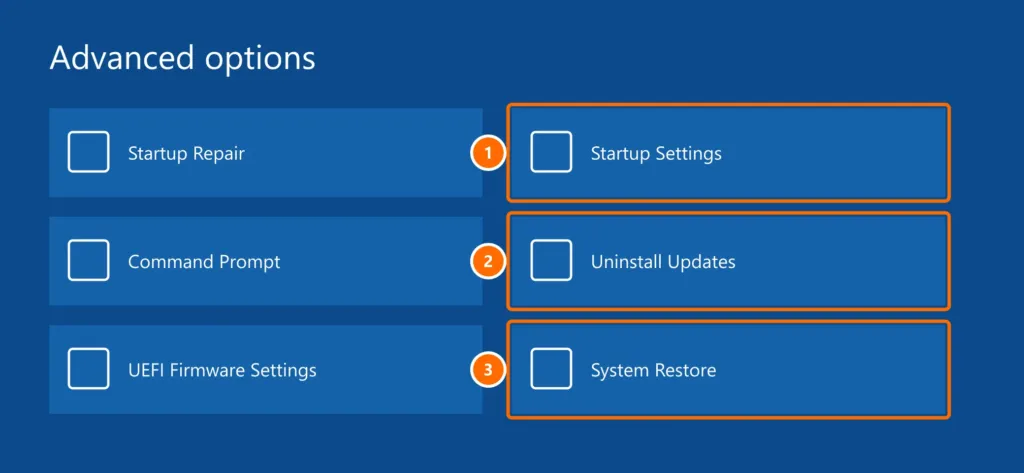
- Uninstall Updates: removes the latest quality or feature update.
- System Restore: takes Windows back to an earlier point without deleting your files.
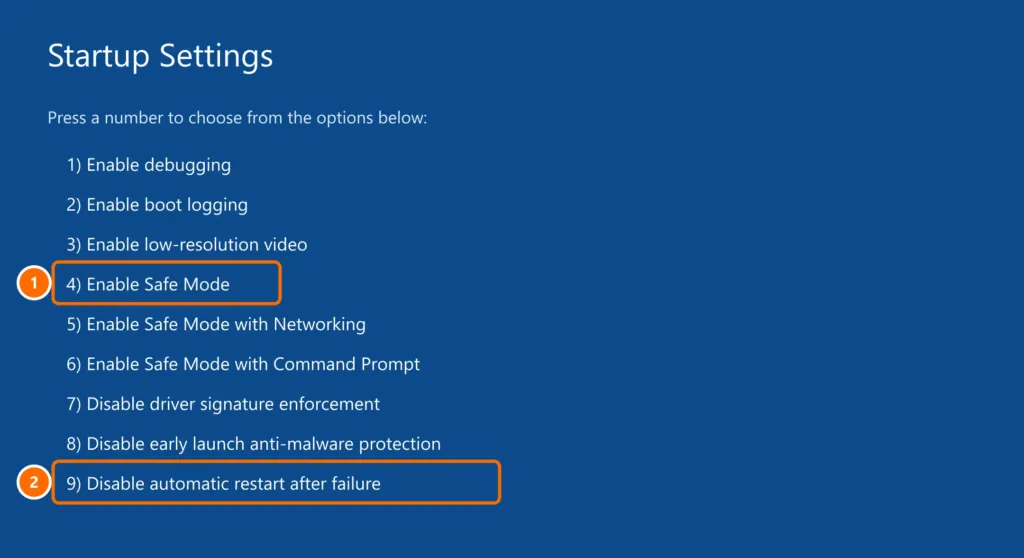
- Startup Settings › Restart: lets you boot into Safe Mode, which loads only the essentials, so you can uninstall the problem driver or app.
FAQ
Should I worry about a single blue screen?
Not necessarily. If it happened once and didn’t come back, it may have been a one-off. If it repeats, follow this guide.
Can a virus cause a blue screen?
It’s rare but possible. Run a full scan in Windows Security. In most cases, the cause is a driver or hardware.
Will I lose my files?
The blue screen itself doesn’t delete files, but a failing drive can cause data loss. Keep an up-to-date backup — see the 3-2-1 backup rule.


