The Bluetooth button is gone from Quick Settings, the option doesn’t appear under Bluetooth & devices, or the adapter isn’t even in Device Manager? Most of the time the adapter was disabled, the driver hung, or the Bluetooth service stopped.
In this article
Step 1: check Quick Settings and airplane mode
- Press Windows + A and make sure Airplane mode is off.
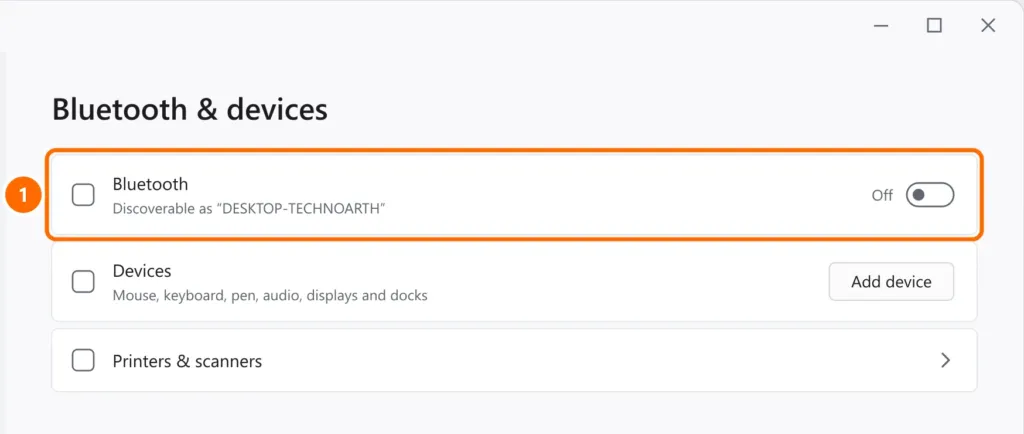
- Open Settings › Bluetooth & devices and turn on the Bluetooth toggle.
Step 2: fully shut down the computer
Windows Fast Startup sometimes keeps the adapter “stuck”. Hold Shift and click Start › Power › Shut down. Wait 30 seconds and turn it back on.
Step 3: enable the adapter in Device Manager
- Right-click the Start button and open Device Manager.
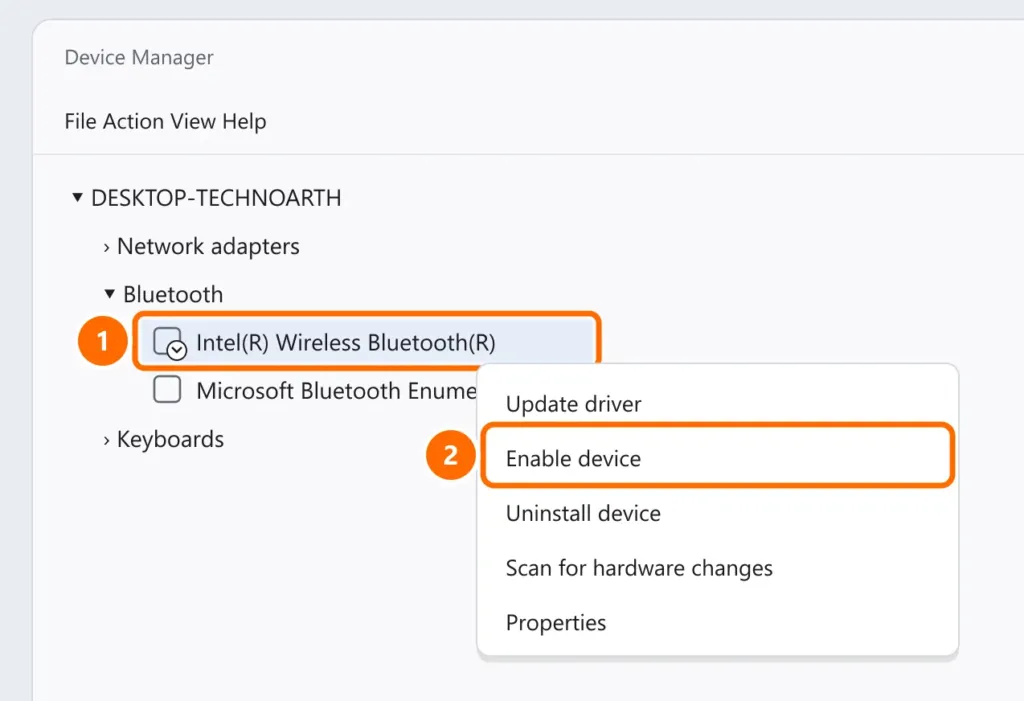
- Expand Bluetooth. If the adapter has a down arrow, right-click it and choose Enable device.
- If there’s no Bluetooth category, use View › Show hidden devices, then Action › Scan for hardware changes.
- If it has a yellow triangle, use Update driver or uninstall the device and restart.
Step 4: start the Bluetooth Support Service
In PowerShell as administrator:
Get-Service bthserv
Set-Service bthserv -StartupType Automatic
Start-Service bthservStep 5: install the manufacturer’s driver
On laptops, Bluetooth usually shares a chip with Wi-Fi. Download the Bluetooth (and Wi-Fi) driver from your laptop or motherboard maker’s website. If the problem started after an update, use Roll Back Driver.
FAQ
Bluetooth disappeared after an update. What should I do?
Roll back the driver in Device Manager or install the manufacturer’s version. Then fully shut down the PC (step 2).
Bluetooth turns on but can’t find my headphones. Why?
Put the headphones in pairing mode (usually by holding the power button) and keep them close to the PC. Remove old pairings under Bluetooth & devices › Devices.
My Bluetooth headset sounds bad during calls.
During calls, Windows uses the lower-quality “Hands-Free” profile to enable the headset microphone. See also how to fix a microphone that isn’t working.


