When the screen is dim or the brightness won’t change, the cause is usually one of these: an automatic setting darkening the screen, a problem with the display driver or, less often, a backlight defect in the screen.
In this article
1. Check the brightness settings
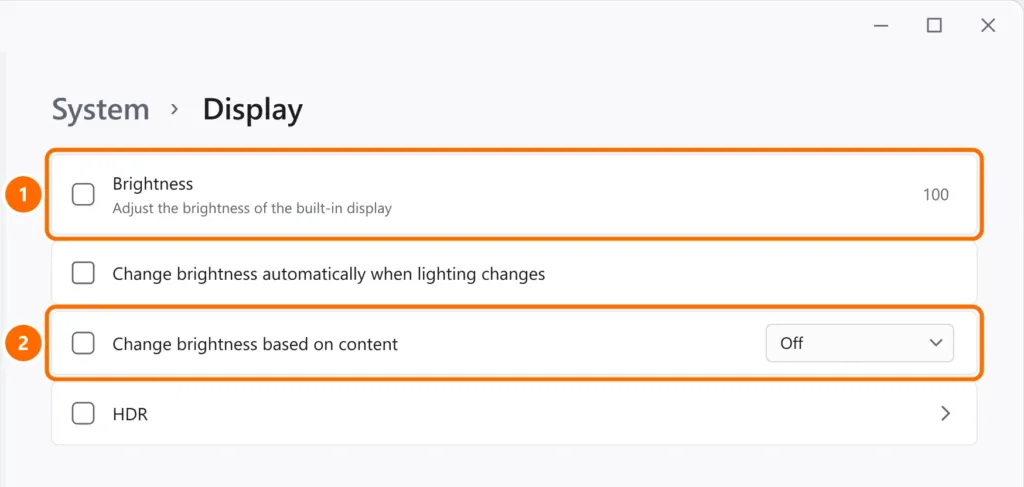
- Open Settings › System › Display.
- Turn Brightness all the way up.
- Uncheck Change brightness automatically when lighting changes.
- Under Change brightness based on content, choose Off: this option darkens the screen when the content is dark.
2. The brightness keys don’t work
- On many laptops you need to hold Fn together with the brightness key (or the other way around, depending on the Fn Lock setting).
- Install the manufacturer’s drivers and utilities package (Lenovo Vantage, MyASUS, HP Support Assistant, Dell SupportAssist): some keyboard controls depend on it.
3. The brightness slider disappeared
If the Brightness option doesn’t appear under Settings › System › Display, Windows is probably using the generic display driver.
- Right-click the Start button › Device Manager.
- Expand Display adapters. If you see Microsoft Basic Display Adapter, the graphics driver is missing.
- Run Windows Update (including Optional updates › Driver updates) or install the driver from the laptop manufacturer’s website.
On an external monitor, brightness is adjusted with the monitor’s own buttons, not in Windows (except for some models).
4. The flashlight test
If the screen is almost black, but you can make out a very faint image by shining a flashlight up close, the screen’s backlight (or its cable) is faulty. In that case, it’s hardware: take it to a repair shop. In the meantime, you can use the laptop connected to an external monitor.
FAQ
The screen dims on its own after a few seconds.
It could be the content-based brightness option, the presence sensor (on laptops with this feature, under Settings › Privacy & security › Presence sensing) or the screen timeout under Power & battery.


