
When the C: drive is nearly full, Windows slows down, updates fail and some apps stop working. Ideally, keep at least 15% to 20% of the drive free. This guide shows the safe ways to reclaim space, from simplest to most advanced, without installing “cleaner” apps.
In this article
- Step 1: see what’s using space
- Step 2: delete temporary files
- Step 3: turn on Storage Sense
- Step 4: remove old updates and the previous Windows installation
- Step 5: uninstall apps you don’t use
- Step 6: keep OneDrive files online only
- Step 7: find your largest files
- Advanced option: turn off hibernation
- What you should never delete manually
- FAQ
Step 1: see what’s using space
- Open Settings › System › Storage.
- Wait for the scan and click Show more categories to see how much space apps, temporary files, documents, pictures and videos use.
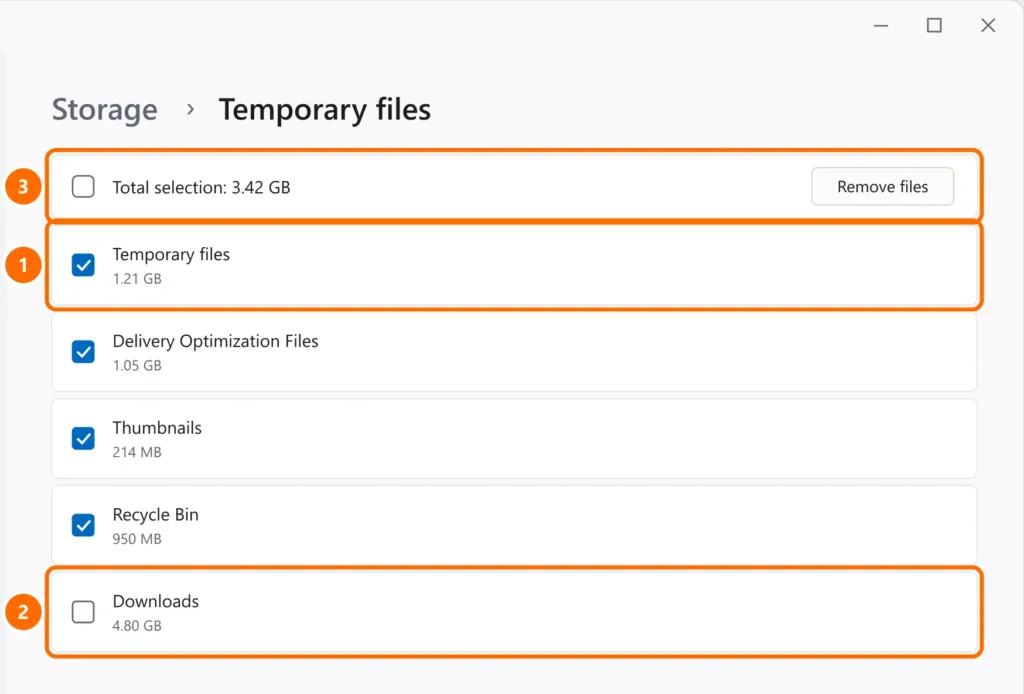
Step 2: delete temporary files
- Under Storage, click Temporary files.
- Select Temporary files, Delivery Optimization Files, Thumbnails and Recycle Bin (first check the Recycle Bin has nothing you want back).
- Click Remove files.
Step 3: turn on Storage Sense
Storage Sense automatically cleans up temporary files and the Recycle Bin.
- In Settings › System › Storage, turn on Storage Sense.
- Click it to set how often it runs and after how many days Recycle Bin items are deleted.
Step 4: remove old updates and the previous Windows installation
After a major update, Windows keeps the previous version in the Windows.old folder so you can roll back. It can take up tens of gigabytes and is removed automatically after a few days — but you can delete it sooner if everything works well.
- From the Start menu, open Disk Cleanup.
- Click Clean up system files.
- Select Windows Update Cleanup and, if listed, Previous Windows installation(s).
To shrink the component store left by updates, open PowerShell as administrator:
Dism.exe /Online /Cleanup-Image /StartComponentCleanupStep 5: uninstall apps you don’t use
- Open Settings › Apps › Installed apps.
- Sort by Size and uninstall what you no longer use (old games often take up a lot of space).
Step 6: keep OneDrive files online only
With Files On-Demand, OneDrive keeps files in the cloud and downloads them only when you open them.
- In File Explorer, right-click a OneDrive folder.
- Choose Free up space. The files stay visible and download when needed.
Step 7: find your largest files
This command lists the 20 largest files in your user folder:
Get-ChildItem $env:USERPROFILE -Recurse -File -ErrorAction SilentlyContinue | Sort-Object Length -Descending | Select-Object -First 20 FullName, @{n='GB';e={[math]::Round($_.Length/1GB,2)}}Videos, installers and old phone backups usually top the list. Move them to an external drive or delete what you no longer need.
Advanced option: turn off hibernation
The hiberfil.sys file can take up several gigabytes. On desktops that never hibernate, you can turn it off (PowerShell as administrator):
powercfg /hibernate offWhat you should never delete manually
FAQ
Can I delete the Windows.old folder?
Yes, if Windows works well after the update. Use Disk Cleanup (“Previous Windows installation(s)”) instead of deleting the folder manually.
Why does my drive keep filling up?
Updates, temporary files, browser caches and cloud sync grow over time. Storage Sense takes care of much of this automatically.
Is it worth upgrading to a bigger SSD?
If the drive still has less than 15% free after cleaning up, yes. See NVMe vs SATA SSD: which one to choose.


