There are two different problems with the same symptom: the Wi-Fi option has disappeared from Windows (no button, no network list), or Wi-Fi works but your network isn’t listed. Figure out which one you have and follow the matching steps.
In this article
Step 1: check airplane mode and the Wi-Fi toggle
- Press Windows + A to open Quick Settings.
- Turn off Airplane mode and turn on Wi-Fi.
- On laptops, check for a Wi-Fi key (usually with an antenna icon, used with Fn) or a physical switch on the side.
Step 2: enable the network adapter
If Wi-Fi was disabled, it simply disappears from the options.
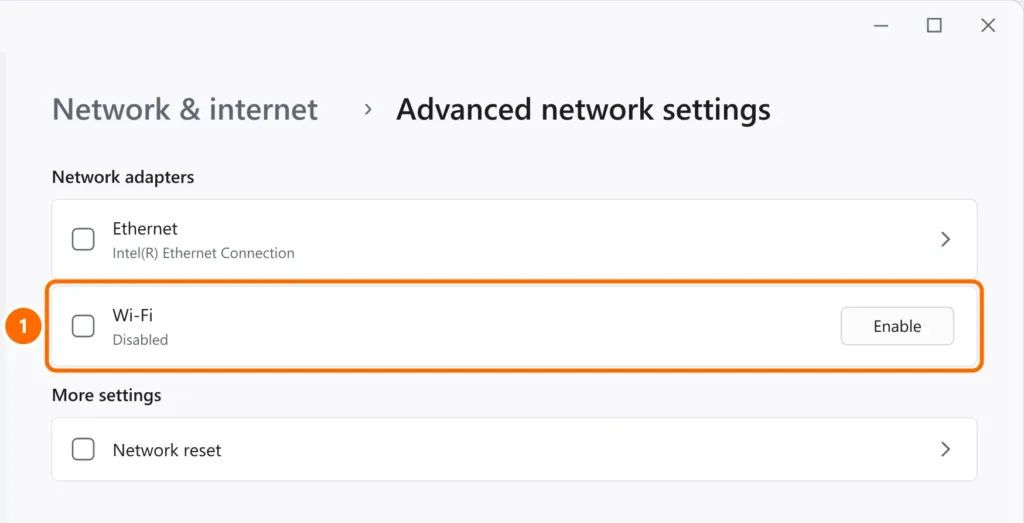
- Open Settings › Network & internet › Advanced network settings.
- Under Network adapters, if Wi-Fi shows as disabled, click Enable.
Step 3: check the adapter in Device Manager
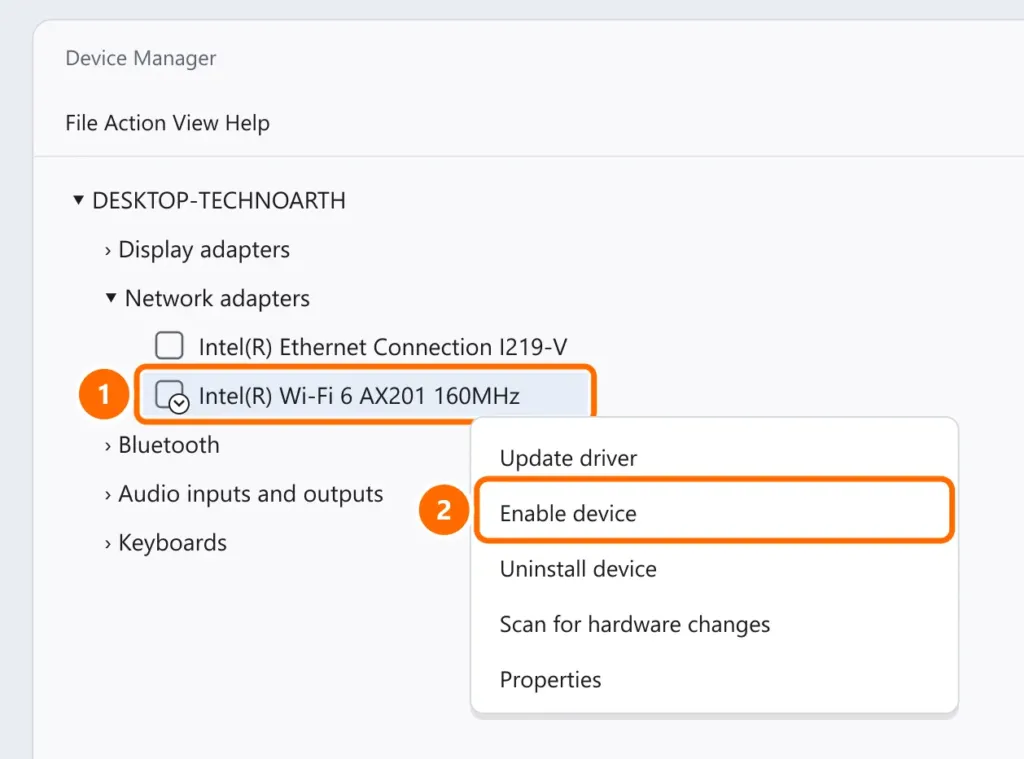
- Right-click the Start button and open Device Manager.
- Expand Network adapters and find the Wi-Fi adapter (names usually include “Wireless”, “Wi-Fi” or “WLAN”).
- If it has a down arrow, it’s disabled: right-click it and choose Enable device.
| What you see | What to do |
|---|---|
| Down arrow on the icon | Right-click › Enable device |
| Yellow triangle | Driver problem: Update driver, or uninstall it and restart |
| No Wi-Fi adapter listed | Action › Scan for hardware changes; if it still doesn’t appear, download the driver from the manufacturer |
Step 4: check the Windows Wi-Fi service
The WLAN AutoConfig service must be running. In PowerShell as administrator:
Get-Service WlanSvc
Set-Service WlanSvc -StartupType Automatic
Start-Service WlanSvc
To see whether Windows recognizes the adapter and which bands it supports:
netsh wlan show driversStep 5: if only your network is missing
- 5 GHz network: make sure the adapter supports 5 GHz (step 4). If it doesn’t, turn on the 2.4 GHz network on your router.
- Hidden network: networks with a hidden name don’t appear in the list. Under Settings › Network & internet › Wi-Fi › Manage known networks, click Add network and type the name manually.
- Distance and channel: move closer to the router and, if needed, change the channel — see how to improve your Wi-Fi signal.
Step 6: reset the network
If nothing helped, use Settings › Network & internet › Advanced network settings › Network reset and restart the computer.
FAQ
Why did Wi-Fi disappear after a Windows update?
The update usually installed an incompatible driver. Roll back the driver (step 3) or download the latest one from your laptop maker’s website.
My phone sees the network but my laptop doesn’t. Why?
The network is probably on 5 GHz and the laptop’s adapter only supports 2.4 GHz, or the laptop is too far from the router. See step 5.
Can I use a USB Wi-Fi adapter?
Yes. It’s an inexpensive fix when the internal adapter is faulty or doesn’t support newer bands and standards.


